| Item | Detail |
|---|---|
| Document reference | JHC-UG-02 |
| Version | 0.1 |
| Status | Draft for review · Internal: JHC staff only |
| Prepared | 27 October 2026 |
| Application version documented | Portal 0.3.0, commit 4d7b861 plus uncommitted working-tree changes of 27 Oct 2026 (see JHC-REG-03) |
| Audience | JHC Sales, Sales managers, Operations, and Pricing managers using the staff workspace |
| Document owner | To be assigned (JHC) |
| Approver | To be assigned |
| Effective date | Not set: draft |
| Related documents | End-to-End Operational SOP (JHC-SOP-01), Pricing and Quotation SOP (JHC-SOP-02), AI Feature Guide (JHC-UG-06), Worked Examples (JHC-UG-13), Troubleshooting (JHC-UG-08) |
| Earlier guides kept | docs/QUOTATION_GUIDE.md, docs/SCHEDULE_SOURCES_GUIDE.md, AI_STAFF_GUIDE.md (still valid; this manual supersedes them for training) |
Table 1: Revision history
| Version | Date | Change | By |
|---|---|---|---|
| 0.1 | 27 Oct 2026 | First illustrated staff manual. Adds customer responses, operational measures, the redesigned workspace, the enquiry assistant and the customer assistant to the earlier guides | Prepared with Claude (AI assistant) for JHC review |
1. About this manual
This manual covers daily work in the staff workspace: from a new enquiry to an issued quotation and the customer's response. Settings and user administration are in the Administrator Manual (JHC-UG-03). Rates and price lists are in the Pricing and Quotation SOP (JHC-SOP-02).
Pictures are the real portal captured on 27 October 2026 in the TEST set-up: fictional companies ("Demo Customer A"), fictional prices, references starting TEST-, and the practice assistant (simple rules, not AI). Numbered callouts match the steps.
Status labels: A Verified on the real screens and by automated tests · B Built, not fully verified · C Needs external access · D Not available. Details in JHC-UG-01 §1.
1.1 Roles and what they allow
Table 2: Roles and permissions, as configured in the database (27 Oct 2026)
| Permission | Administrator | Sales manager | Sales | Pricing manager | Operations |
|---|---|---|---|---|---|
| See all enquiries | ✔ | ✔ | ✔ | — | ✔ |
| Assign enquiries and change their status | ✔ | ✔ | ✔ | — | — |
| Prepare quotations | ✔ | ✔ | ✔ | — | — |
| Approve quotations (never your own) | ✔ | ✔ | — | — | — |
| See selling rates incl. drafts and agreed rates | ✔ | ✔ | ✔ | ✔ | — |
| Create/edit draft rates, submit them | ✔ | — | — | ✔ | — |
| Approve or return submitted rates | ✔ | — | — | ✔ | — |
| Publish, expire, withdraw rates | ✔ | — | — | ✔ | — |
| See / change supplier costs and margins | ✔ | — | — | ✔ | — |
| Edit the service catalogue | ✔ | — | — | ✔ | — |
| Run CSV imports | ✔ | — | — | ✔ | — |
| See customer companies and users | ✔ | ✔ | ✔ | ✔ | ✔ |
| Create customers, manage their users | ✔ | — | — | — | — |
| Enter JHC sailings (partner schedules) | ✔ | — | — | — | ✔ |
| Manage schedule data connections | ✔ | — | — | — | — |
| Invite staff, change roles | ✔ | — | — | — | — |
| Business, appearance and AI settings | ✔ | — | — | — | — |
| See the audit history | ✔ | — | — | — | — |
"—" means the menu item is hidden and the page refuses access ("no access"). The server and the database check every action, not only the screen.
1.2 How the work flows
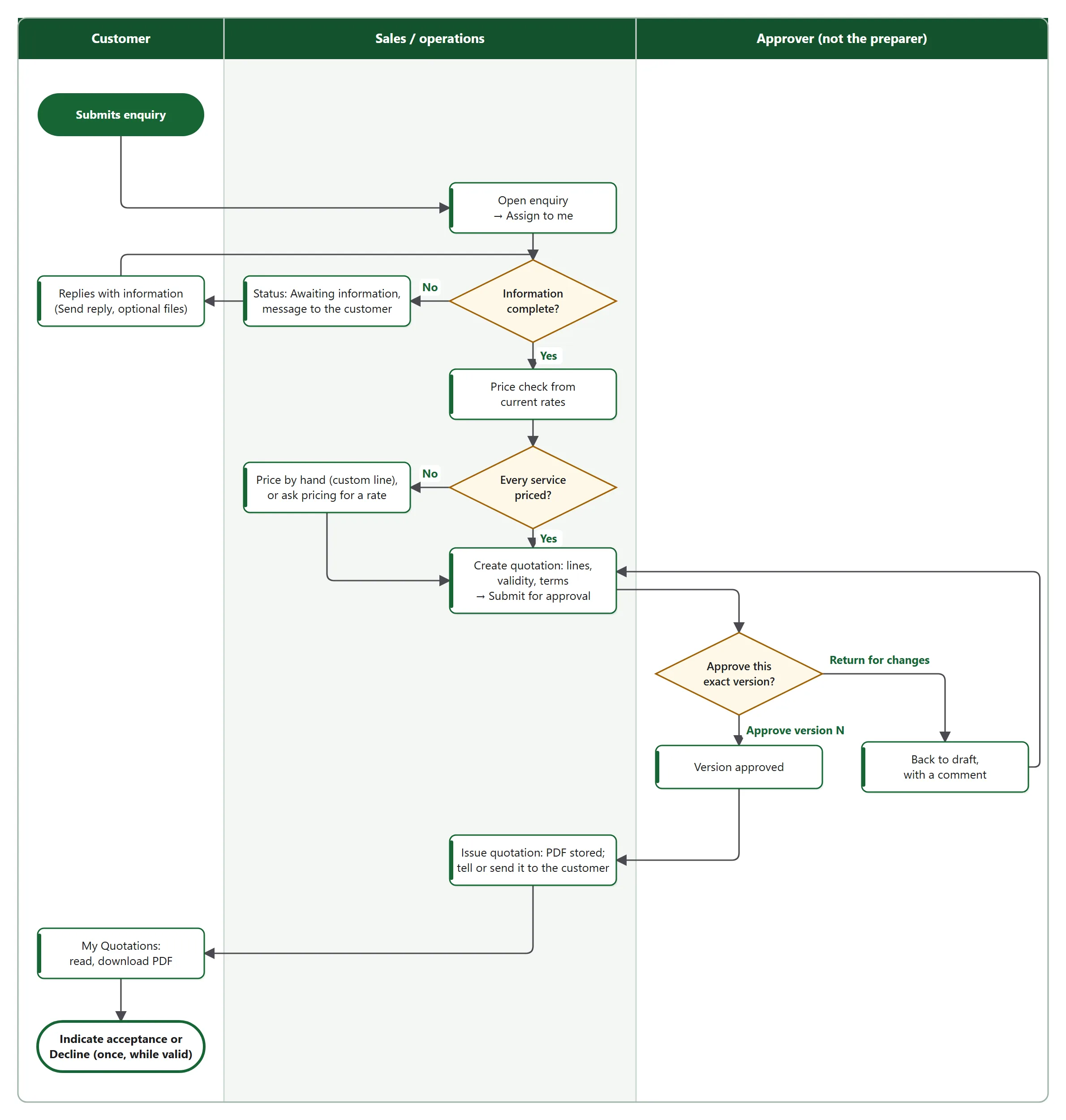
2. Getting started
STF-01 Sign in and check your permissions
| Purpose | First sign-in with your set-up link; later sign-ins |
| Who | Any staff member |
| Before you start | An administrator created your account and gave you a one-time link privately |
| Result | The staff Overview; the menu shows only what your roles allow |
| Related | FLOW-02, JHC-UG-03 ADM-02 |
| Status | A · Verified |
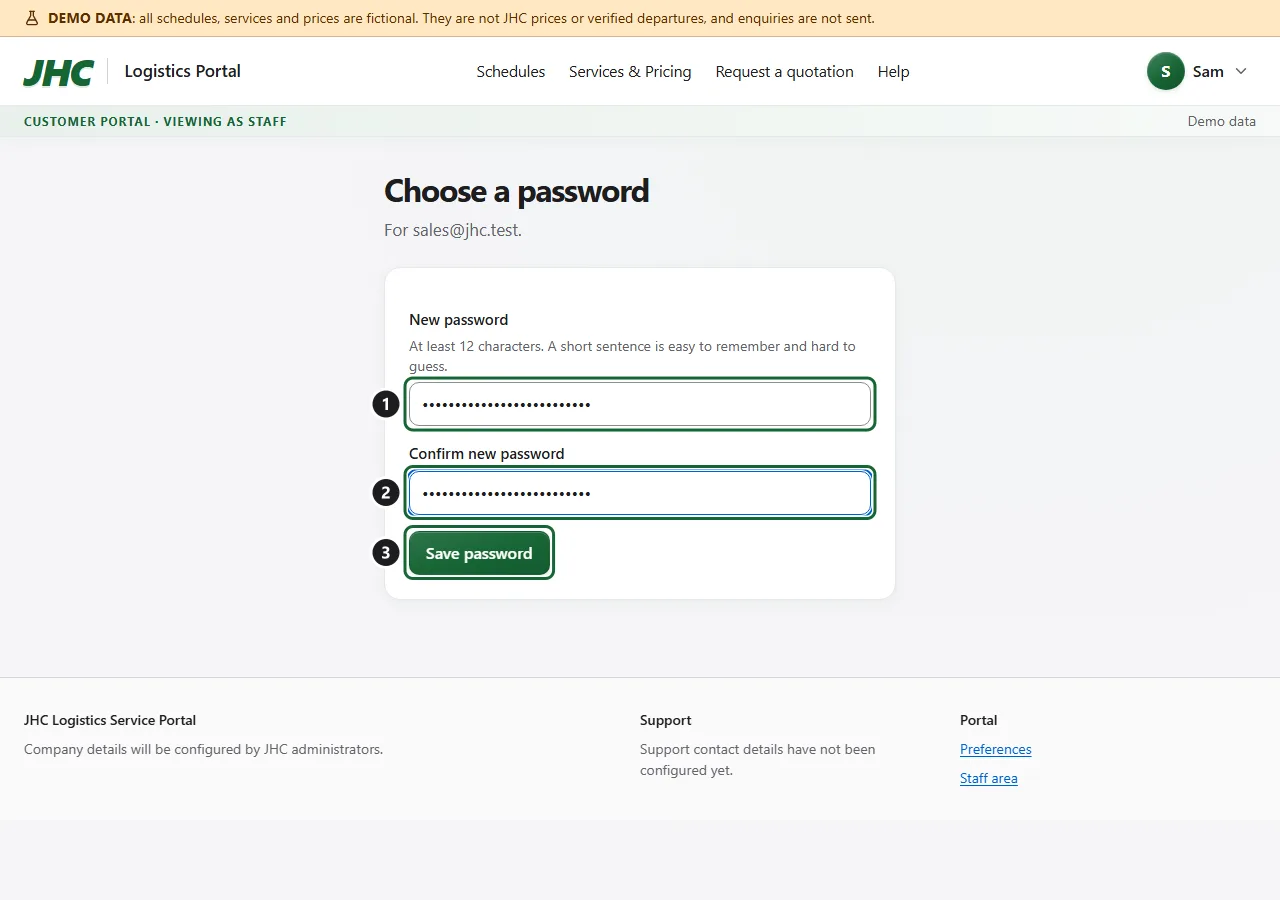
Table 3: STF-01 steps
| Step | Screen | Action | Expected result | If not |
|---|---|---|---|---|
| 1 | Set-up link | Open the link and select Continue | Choose a password | "expired or has already been used": ask the administrator for a New set-up link |
| 2 | Enter New password (12+ characters) (1) and Confirm new password (2); select Save password (3) | "Welcome, your name" in the staff workspace | ||
| 3 | Later | Sign in with your work email and password | The staff Overview | |
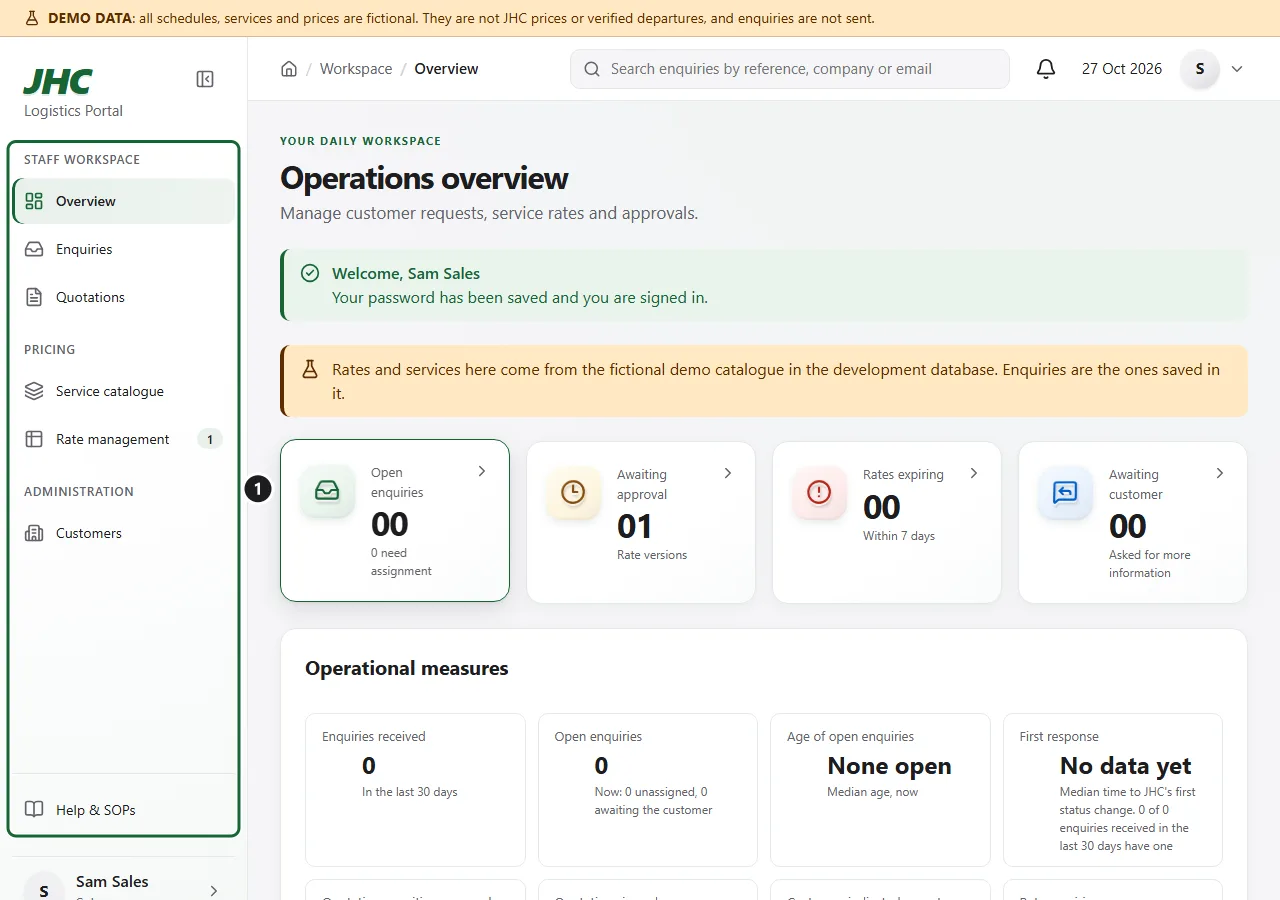
| 4 | Overview | Check the left menu shows your areas | e.g. Sales sees Enquiries, Quotations, Rate management; not Supplier costs |
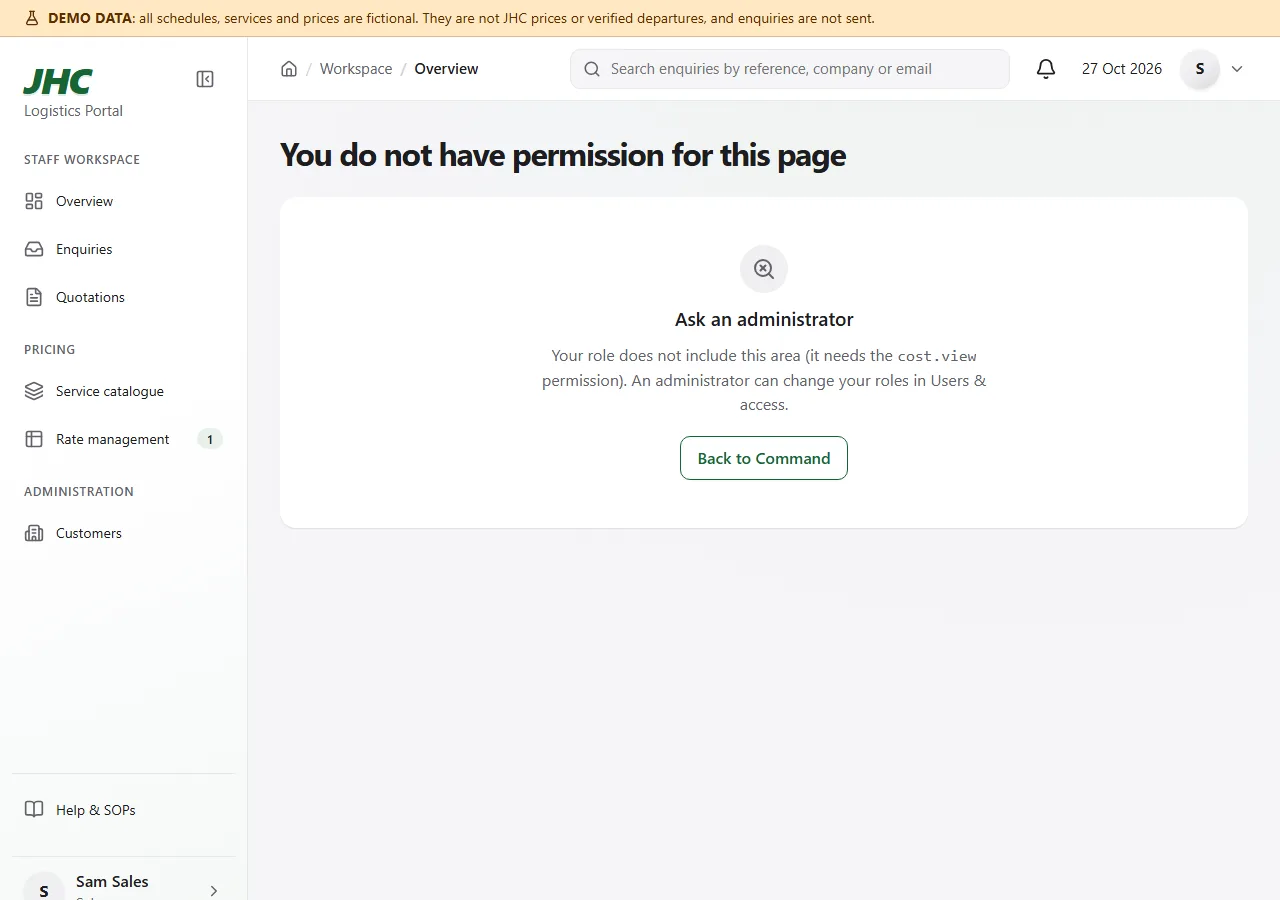
If you open a page your roles do not allow, the portal shows no access and names the missing permission. Ask an administrator if you need it.
Sign out: open your initial at the top right (Account menu) → Sign out.
STF-02 Overview and queues
| Purpose | See what needs attention |
| Status | A · Verified |
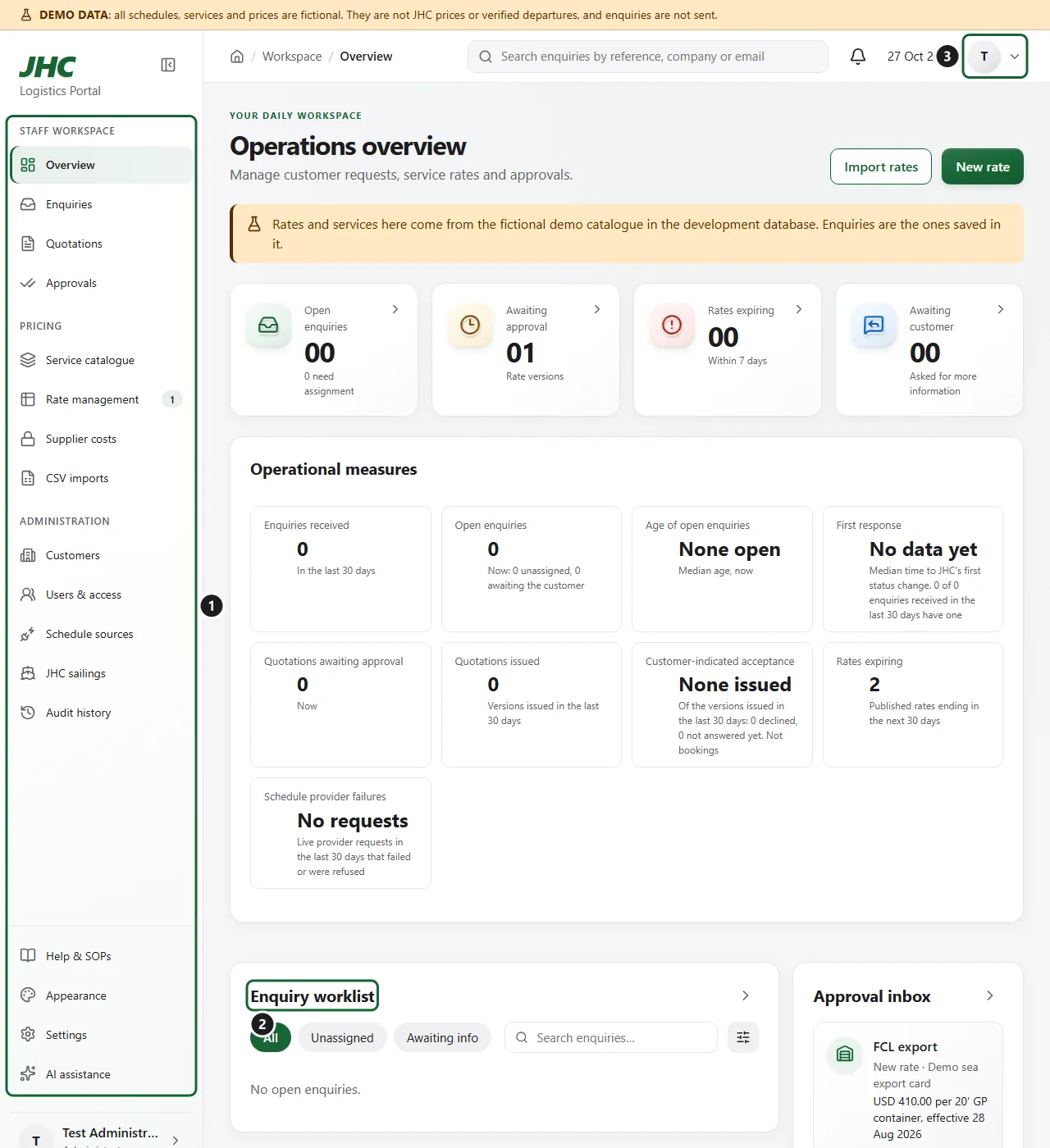
Table 4: Parts of the Overview
| Callout | Part | Use |
|---|---|---|
| 1 | Left menu: Staff workspace, Pricing, Administration | Go to each area. Numbers show counts (open enquiries, approvals waiting, rates awaiting approval) |
| 2 | Enquiry worklist | Newest open enquiries with age |
| 3 | Account menu | Sign out |
| — | Help & SOPs (bottom of the left menu) | This manual and every SOP, quick start and worked example, inside the portal |
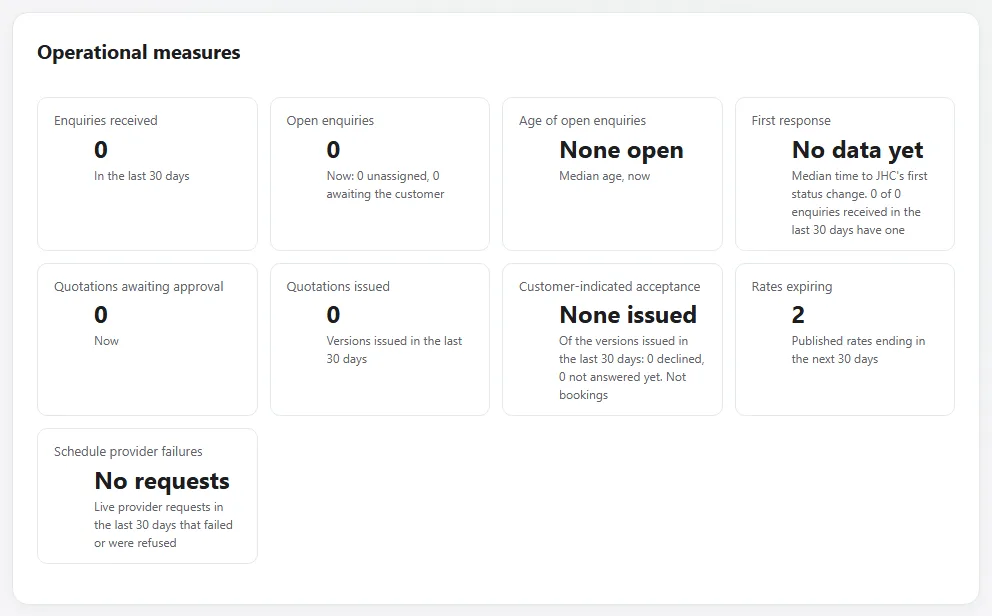
Table 5: Operational measures (as built)
| Measure | Meaning |
|---|---|
| Enquiries received | New enquiries in the last 30 days |
| Open enquiries / Age of open enquiries | Not yet closed or cancelled, now |
| First response | How quickly staff first acted on enquiries |
| Quotations awaiting approval / Quotations issued | Approval queue now; issued in the period |
| Customer-indicated acceptance | Acceptances recorded in the period |
| Rates expiring | Published rates ending in the next 30 days |
| Schedule provider failures | Failed live schedule calls |
No targets are configured for these measures. Proposed targets need JHC approval (see JHC-SOP-01 §9).
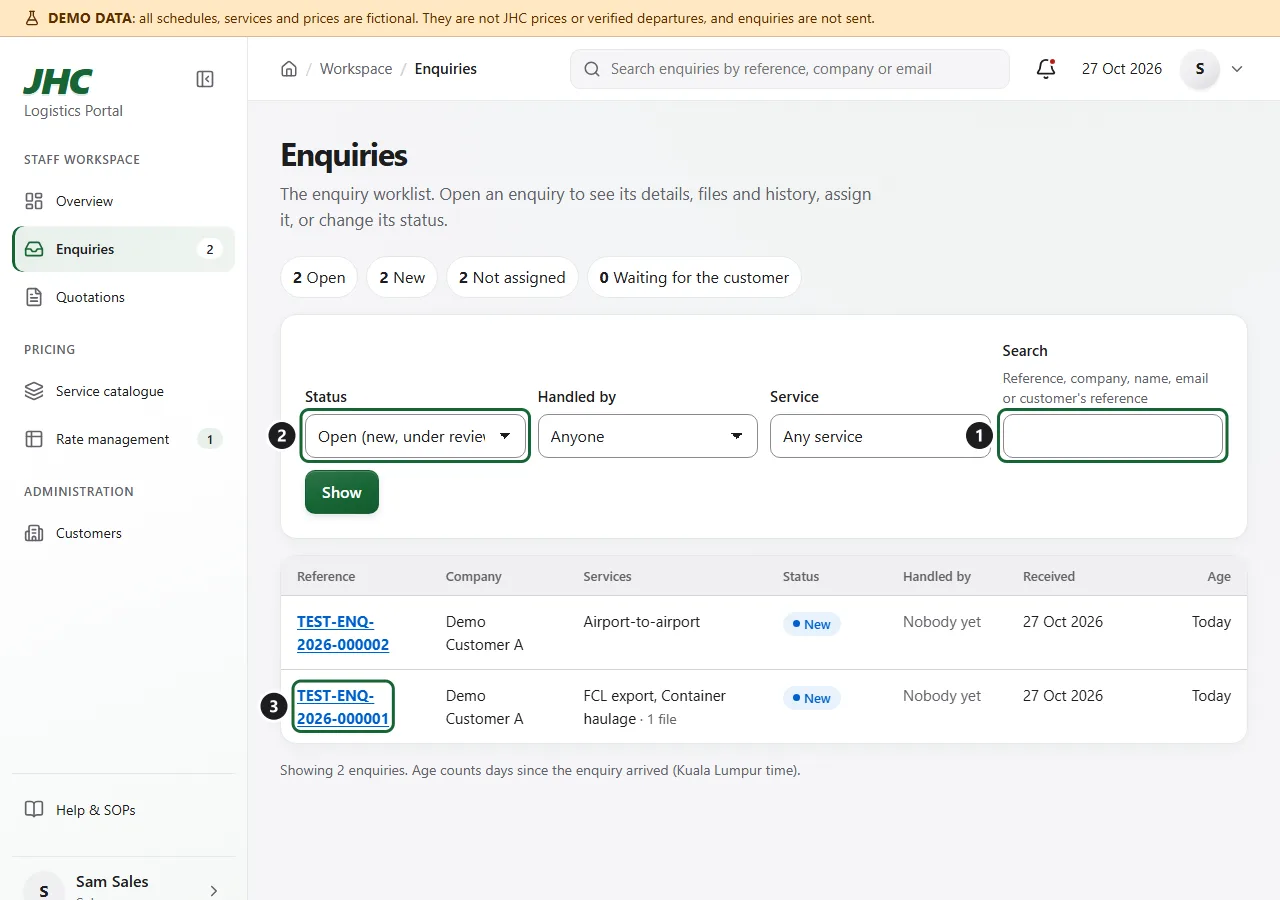
The worklist (Enquiries): search by reference, company, email or your reference; filter by Status, Handled by and Service; select Show.
3. Handling an enquiry
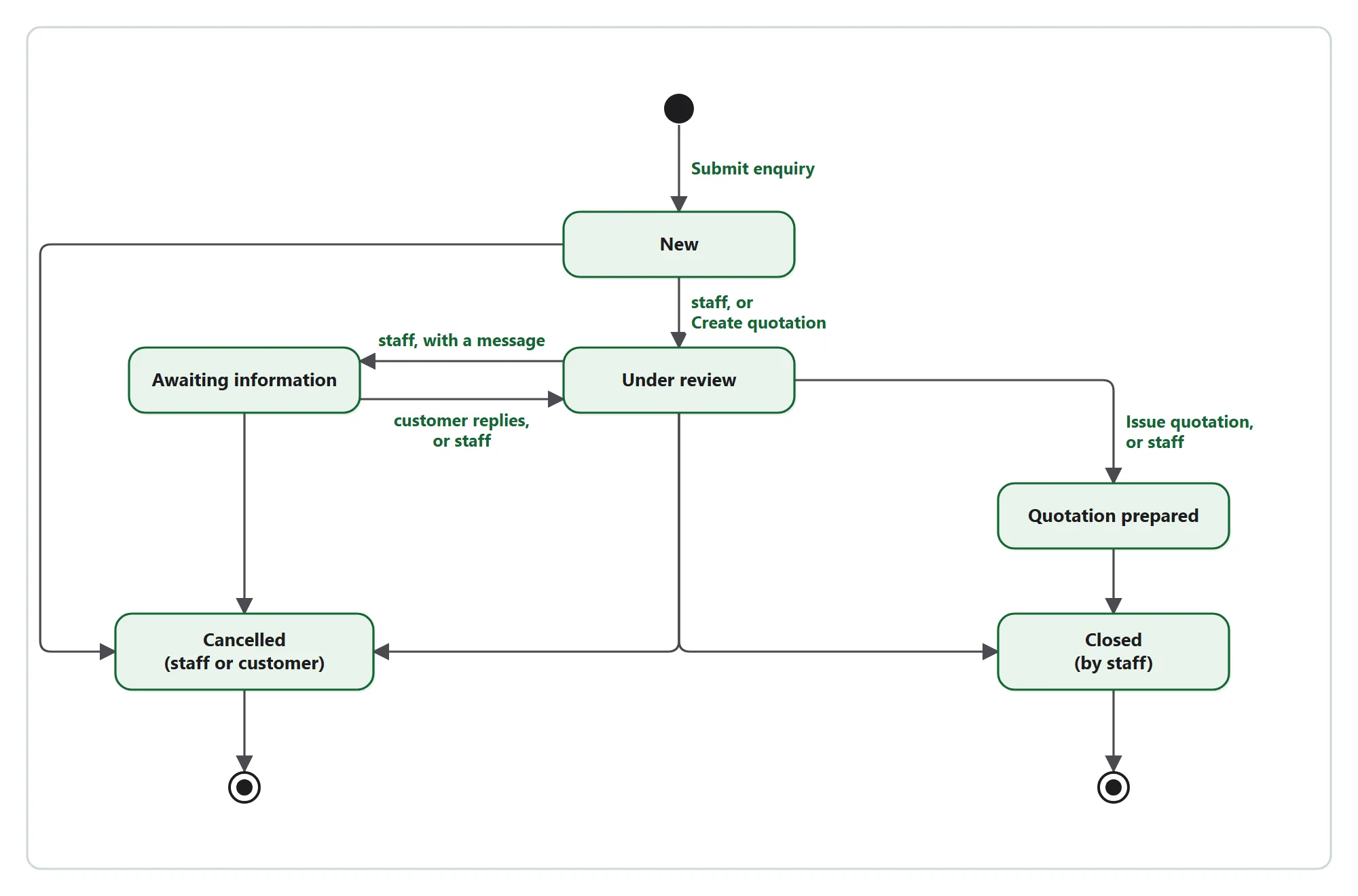
Table 6: Enquiry status transitions (enforced by the database)
| From | To | Who | Precondition | Record |
|---|---|---|---|---|
| New | Under review | Staff with "Assign enquiries and change their status"; automatic on Create quotation | — | History entry with name and time |
| New, Under review, Awaiting information | Cancelled | Staff (above) or the customer | Reason recommended | History |
| Under review | Awaiting information | Staff (above) | A message to the customer is required | History; customer sees the message |
| Awaiting information | Under review | The customer by replying, or staff | — | History with the reply |
| Under review | Quotation prepared | Automatic on Issue quotation, or staff | — | History "Quotation … was issued" |
| Under review | Closed | Staff (above) | — | History |
| Quotation prepared | Closed | Staff (above) | — | History |
Notifications: none are sent (no email). The customer sees changes when they sign in.
STF-03 Review a new enquiry
| Purpose | Understand what the customer asked for |
| Who | Sales, Sales manager, Operations, Administrator |
| Trigger | A new enquiry in the worklist |
| Status | A · Verified |
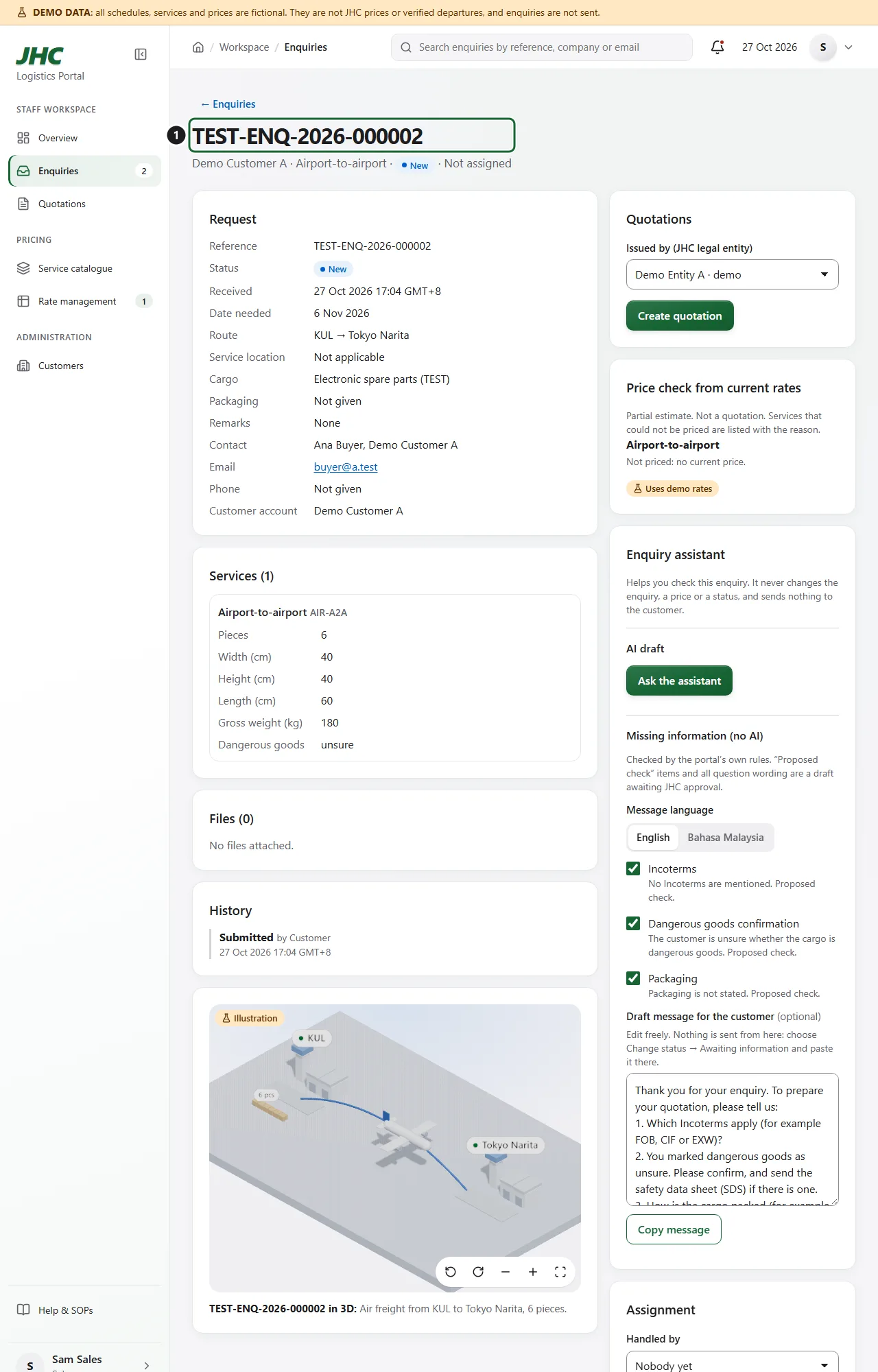
Table 7: STF-03 steps
| Step | Screen | Action | Expected result |
|---|---|---|---|
| 1 | Enquiries | Select the reference | The enquiry page (callout 1) |
| 2 | Enquiry | Read Services (n), each service's details, route, date, cargo, the customer's reference and remarks | |
| 3 | Check Linked sailing or Price selected by the customer, if present. These are copies made when the customer sent the enquiry | ||
| 4 | Download files with Download file name (logged in the audit history) |
STF-04 Assign ownership
| Who | Staff with "Assign enquiries and change their status" |
| Result | "Handled by name"; recorded in the staff-only notes |
| Status | A · Verified |
Select Assign to me (further down the enquiry page), or choose a colleague in Handled by and select Save assignment. The message "reference is now assigned to you." or "reference assignment saved." confirms it.
Internal notes: type in Note and select Add note. Notes are visible to staff only and cannot be edited or deleted.
STF-05 Check completeness
| Purpose | Find what is missing before pricing |
| Status | A · Verified (missing-information check: no AI) |
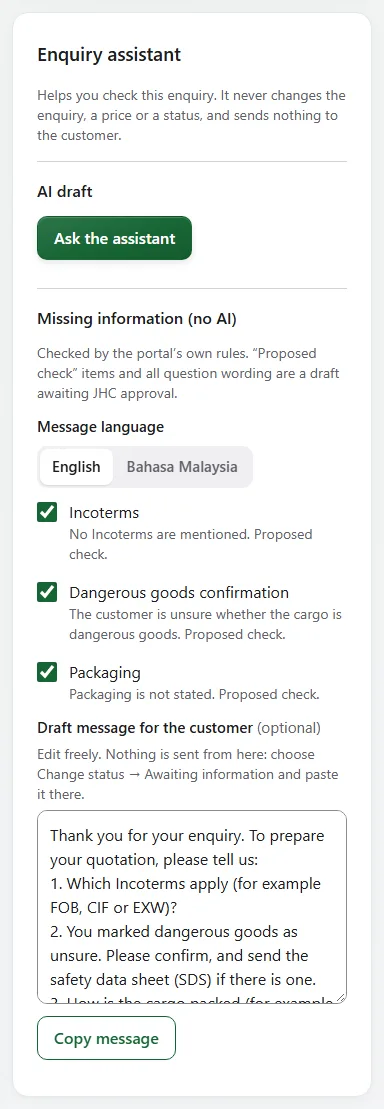
The Enquiry assistant panel always shows Missing information: each item marked Form rule (the form normally requires it) or Proposed check (usually needed before quoting; a draft list awaiting JHC approval). Untick what you do not need, choose English or Bahasa Malaysia, and copy the message.
STF-06 Request missing information
| Result | Status Awaiting information; the customer sees the question |
| Status | A · Verified |
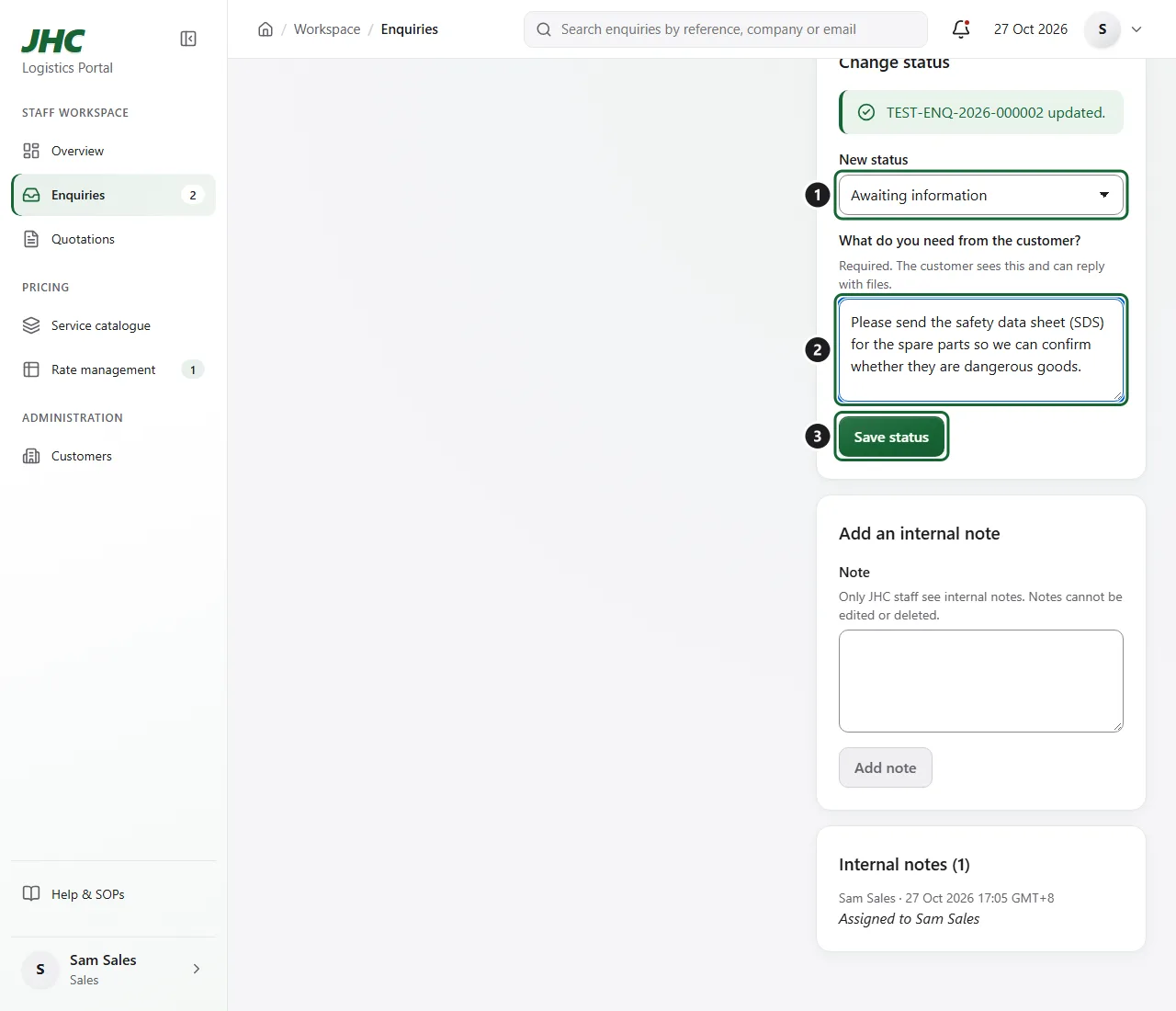
Table 8: STF-06 steps
| Step | Screen | Action | Expected result | If not |
|---|---|---|---|---|
| 1 | Enquiry | If the status is New, choose Under review in New status and Save status | "reference updated." | |
| 2 | Choose Awaiting information in New status (1) | What do you need from the customer? appears | ||
| 3 | Write a clear question (2), e.g. "Please send the safety data sheet (SDS) so we can confirm whether the cargo is dangerous goods." | "Write what information you need from the customer": the message is required | ||
| 4 | Select Save status (3) | Status Awaiting information; history shows your message | ||
| 5 | Later | The customer replies | Status returns to Under review; the reply and files appear | Tell the customer by phone if urgent: no email is sent |
STF-07 Review schedules
| Purpose | Check sailings or flights for the enquiry |
| Status | Demonstration and JHC-entered data: A · Verified. Live providers: C · Needs external access (keys and licences) |
Use Schedules as customers do (JHC-UG-01 CUS-06 to CUS-09). Staff may also see live provider sections marked "Visible to JHC staff only" until the provider's licence is confirmed for customers.
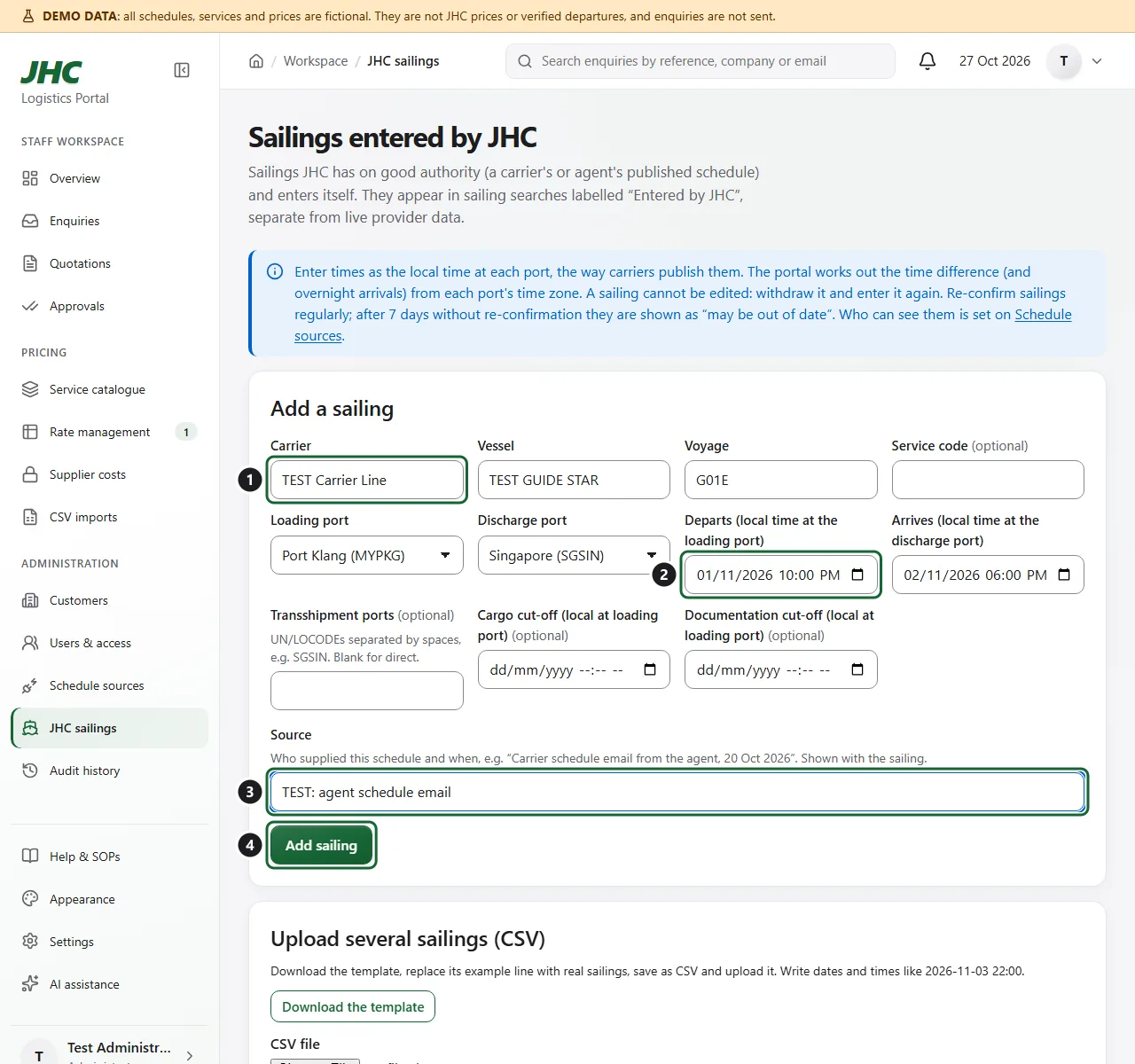
Enter a sailing JHC was given (Operations, Administrator): JHC sailings → fill in Carrier, Vessel, Voyage, Loading port, Discharge port, Departs (local time at the loading port), Arrives (local time at the discharge port), Source → Add sailing. Sailings cannot be edited: Withdraw with a reason and enter again; Still correct re-confirms. CSV upload uses the template; any bad line stops the whole file.
STF-08 Check prices from current rates
| Purpose | See what current rates give for each requested service |
| Result | An Indicative estimate. Not a quotation., or a Partial estimate naming what is missing |
| Status | A · Verified |
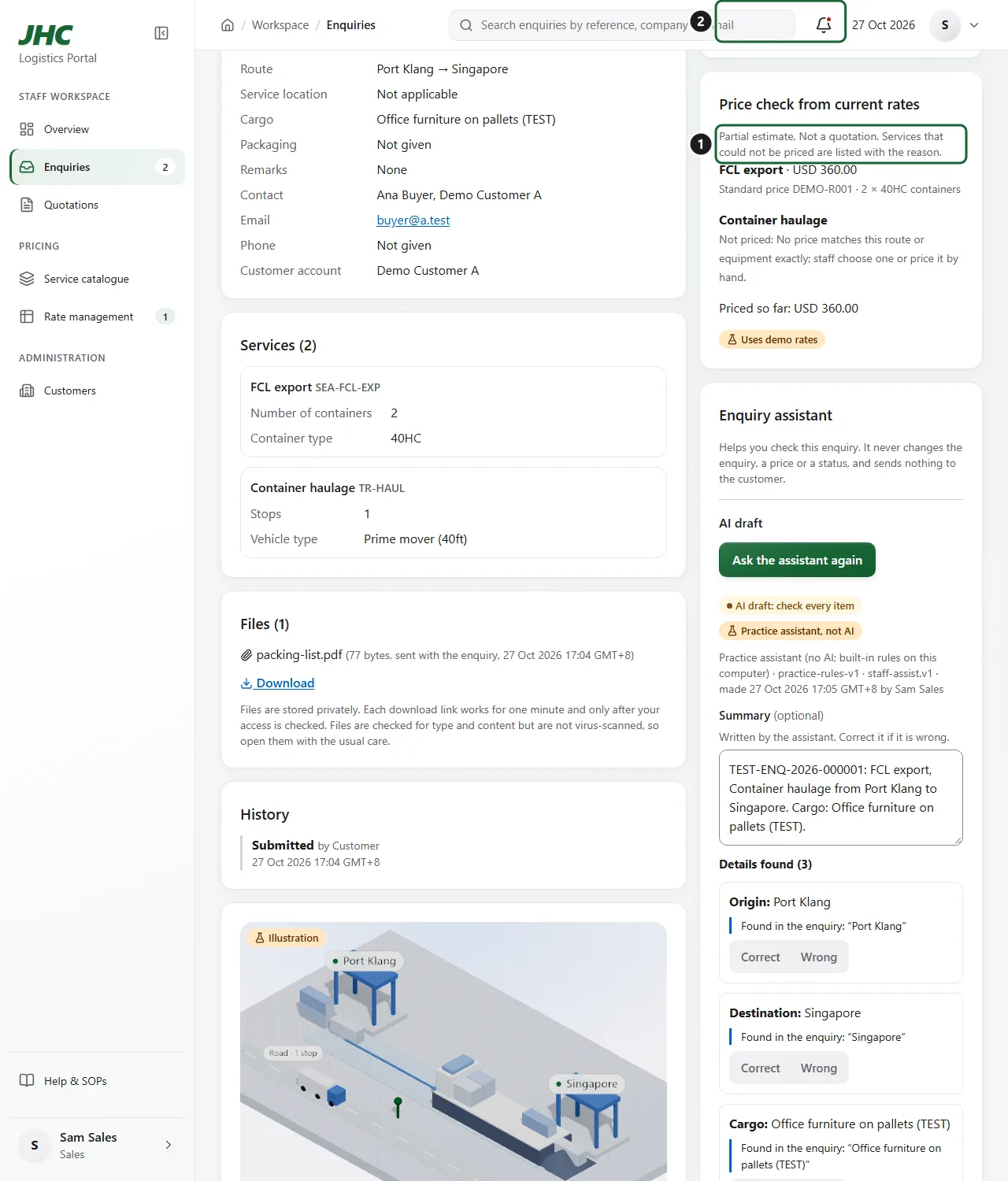
The price check uses only published, in-date rates. The customer's agreed rate is used before the standard rate. For each service it shows the amount or the reason it cannot price: price on request; a rule JHC has not supplied (for example the air freight volumetric factor); a missing input such as gross weight; or a choice for staff.
STF-09 Resolve missing or ambiguous rates
Table 9: When a service cannot be priced
| Reason shown | Action | Who |
|---|---|---|
| Price on request | Price by hand on the quotation (custom line, visible to the approver as "Priced by JHC for this quotation") | Preparer |
| Missing input (e.g. weight) | Ask the customer (STF-06) | Preparer |
| Rule not supplied by JHC (volumetric factor, revenue ton, part-month storage) | Enter the quantity yourself, or price by hand | Preparer |
| No current rate / rate expired | Ask the Pricing manager to publish a rate (JHC-SOP-02), or price by hand | Pricing manager |
| Two equally specific rates ("needs staff review") | Ask the Pricing manager to resolve the overlap | Pricing manager |
Status: A · Verified for the messages; escalation is a manual step.
4. Quotations
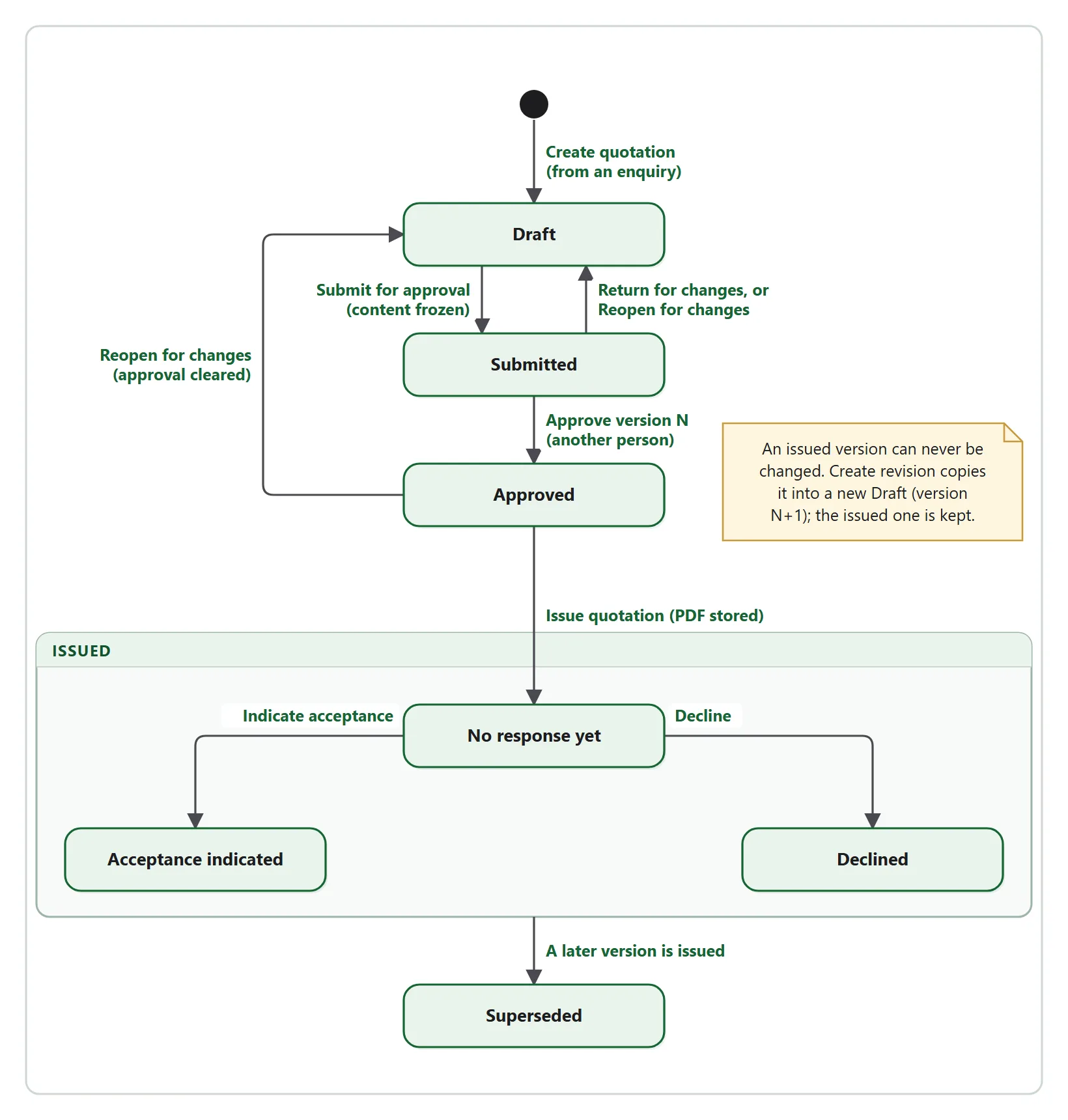
Table 10: Quotation version transitions
| From | Action (button) | To | Who | Record |
|---|---|---|---|---|
| — | Create quotation (on the enquiry) | Draft (version 1) | Prepare quotations | Quotation number, e.g. TEST-QUO-2026-000001 |
| Draft | Submit for approval | Submitted | Prepare quotations | Content frozen; SHA-256 content fingerprint |
| Submitted | Approve version N | Approved | Approve quotations; never the preparer or submitter | Approver name and time |
| Submitted | Return for changes (comment required) | Draft | Approver | Comment (internal) |
| Submitted / Approved | Reopen for changes | Draft | Prepare quotations | Approval cleared |
| Approved | Issue quotation (with confirmation tick) | Issued | Prepare quotations | PDF stored with its fingerprint; enquiry → Quotation prepared |
| Issued | Create revision | New Draft (version N+1) | Prepare quotations | Issued version unchanged |
| Issued | (a newer version is issued) | Superseded | — | |
| Issued | Customer Indicate acceptance / Decline | (response recorded) | The customer | Shown on the quotation and enquiry history |
STF-10 Prepare a quotation
| Who | Sales, Sales manager, Administrator |
| Before you start | Legal entity details entered by the administrator (quotations cannot be submitted without them) |
| Result | A draft quotation |
| Status | A · Verified |
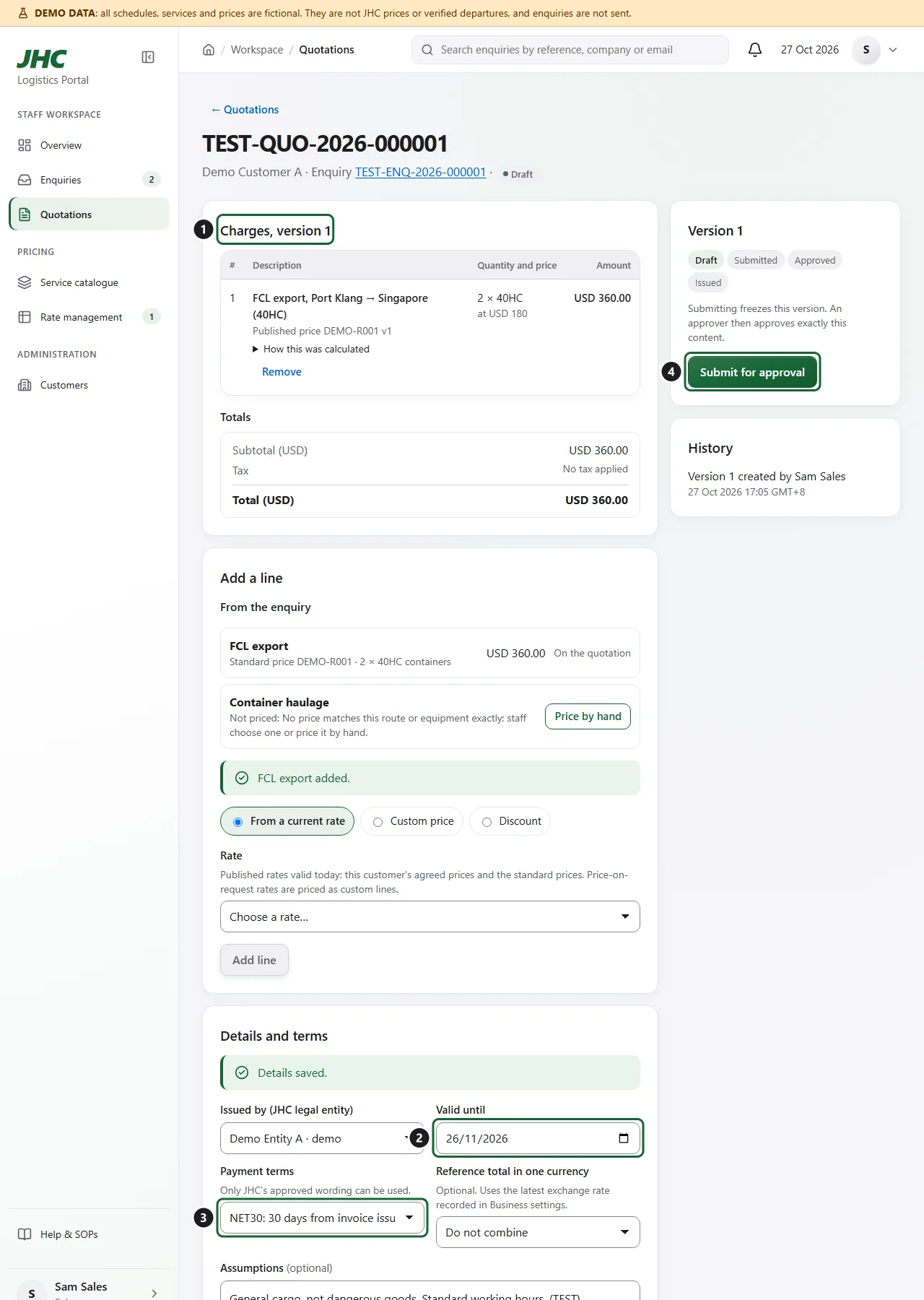
Table 11: STF-10 steps
| Step | Screen | Action | Expected result |
|---|---|---|---|
| 1 | Enquiry | Select Create quotation | The quotation editor, version 1, Draft; the enquiry becomes Under review |
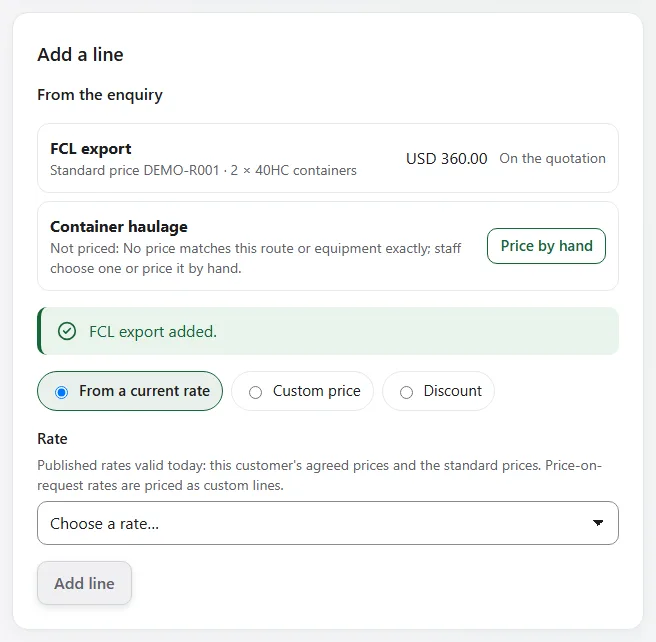
| 2 | Quotation | For each priced service, select Add service | "service added." |
| 3 | For others: Enter quantity, choose a current rate, or Price by hand (custom line); add a Discount as its own line | Lines appear under Charges, version 1 (callout 1) | |
| 4 | Details | Choose the legal entity; set Valid until (2); choose Payment terms (3) from the approved wording; write Assumptions, Exclusions, a note; optionally a Reference total in one currency | |
| 5 | Select Save details | "Details saved." |
STF-11 Check quantities, units, minimums and currencies
Before submitting, check:
- each line's quantity is in the rate's own unit (e.g. pallets × months for pallet storage); similar units such as kg and chargeable kg are never mixed;
- minimum charges and minimum quantities from the rate were applied (the line shows them);
- currencies are not added together: totals are shown per currency;
- a reference total in one currency uses a recorded exchange rate (source and date are printed);
- tax appears only if a JHC tax code is chosen (none is configured yet).
Status: A · Verified (calculations are covered by automated tests).
STF-12 Add conditions and exclusions
Use Assumptions, Exclusions and the note. Payment terms can only be chosen from wording approved in Business settings ("30 days from invoice issuance." is configured). Status: A · Verified.
STF-13 Submit for approval
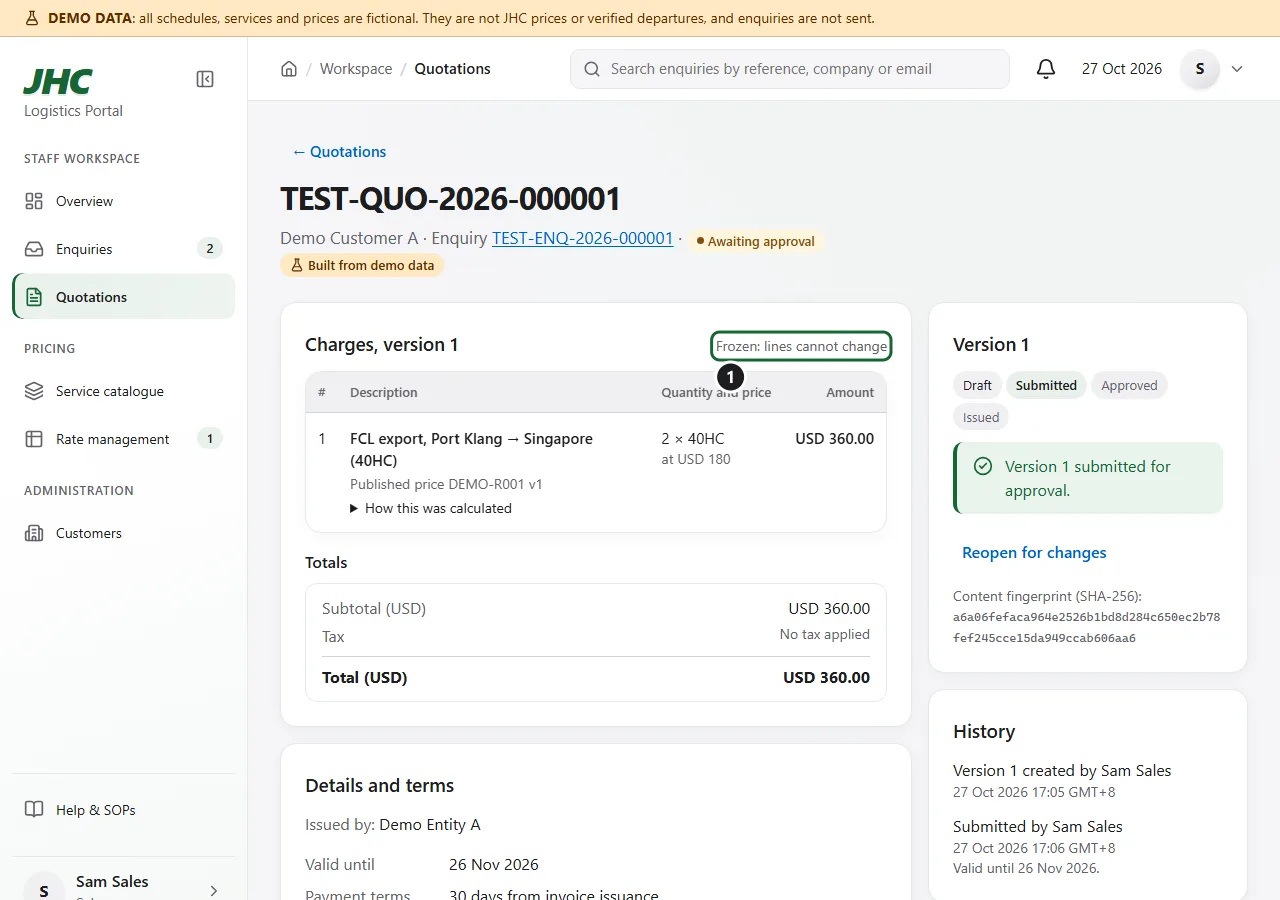
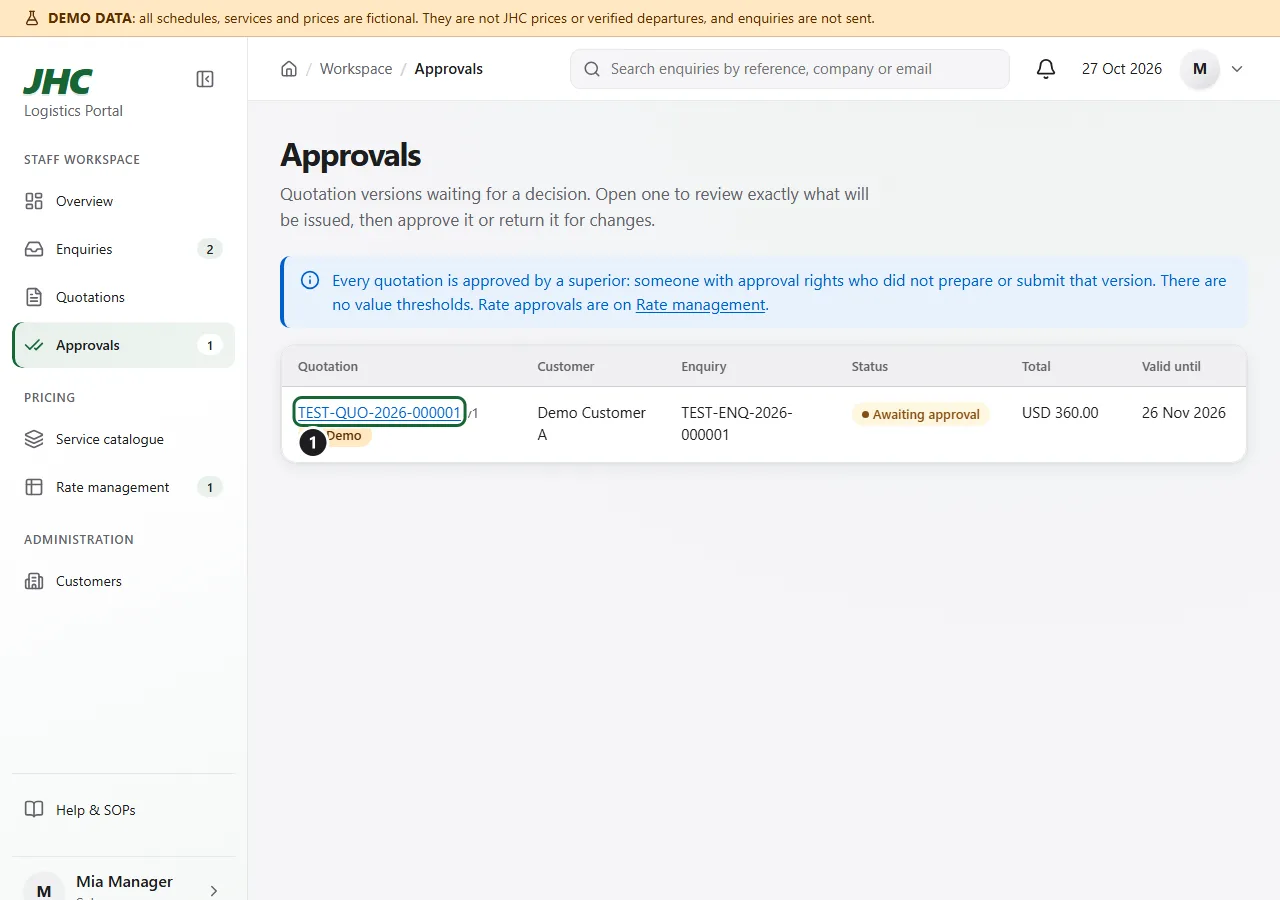
Select Submit for approval. The version is frozen ("Frozen: lines cannot change") and appears in Approvals for Sales managers and Administrators. Status: A · Verified.
STF-14 Approve, or handle a return
| Who approves | Sales manager or Administrator who did not prepare or submit this version (cannot be switched off; no value thresholds are configured) |
| Status | A · Verified |
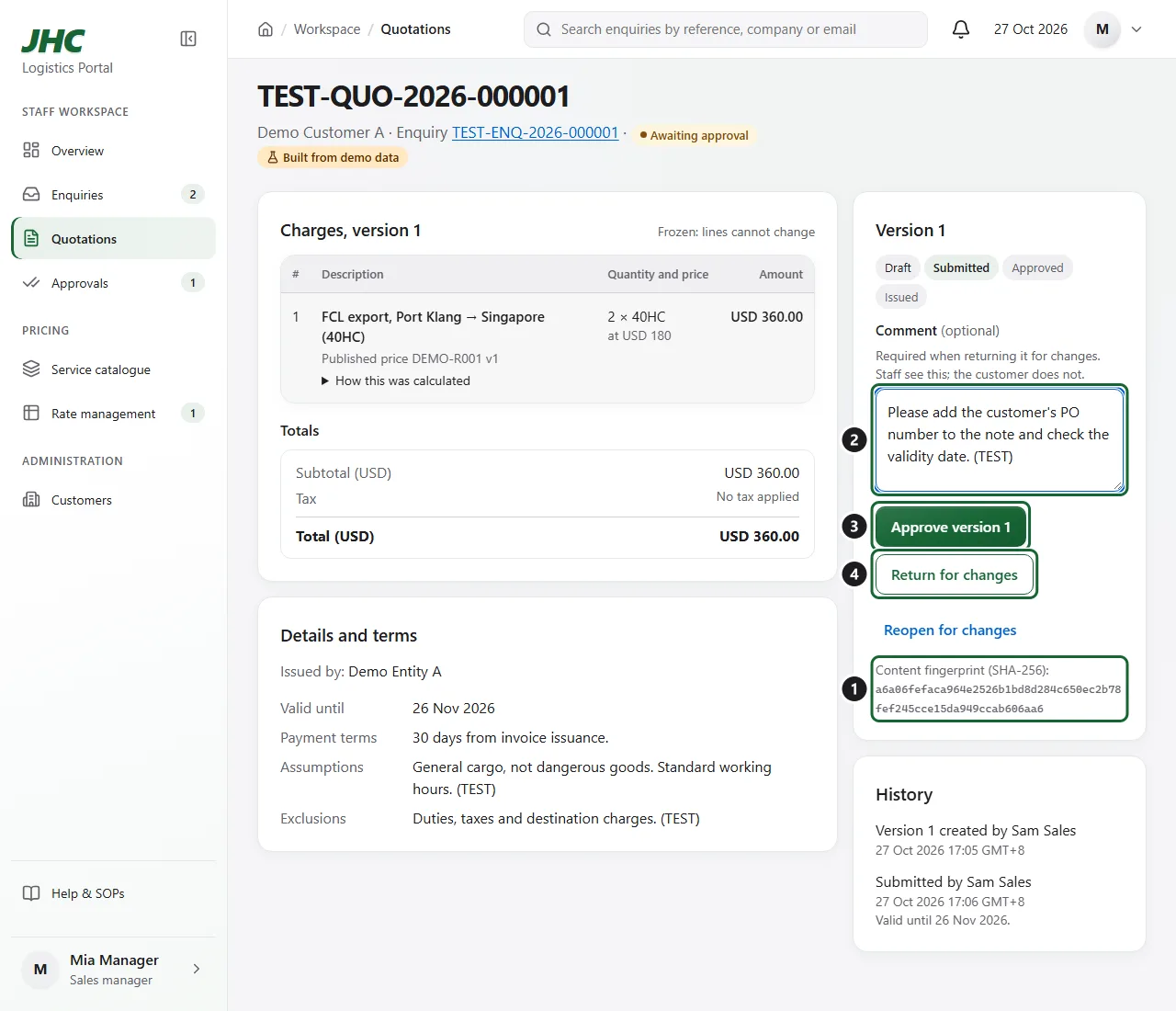
Table 12: STF-14 approver steps
| Step | Screen | Action | Expected result |
|---|---|---|---|
| 1 | Approvals | Select the quotation number | The submitted version with its Content fingerprint (1). Approvers with cost access also see Cost and margin (internal) |
| 2 | Check lines, totals, validity and terms | ||
| 3a | Select Approve version N (3) | "Version N approved." | |
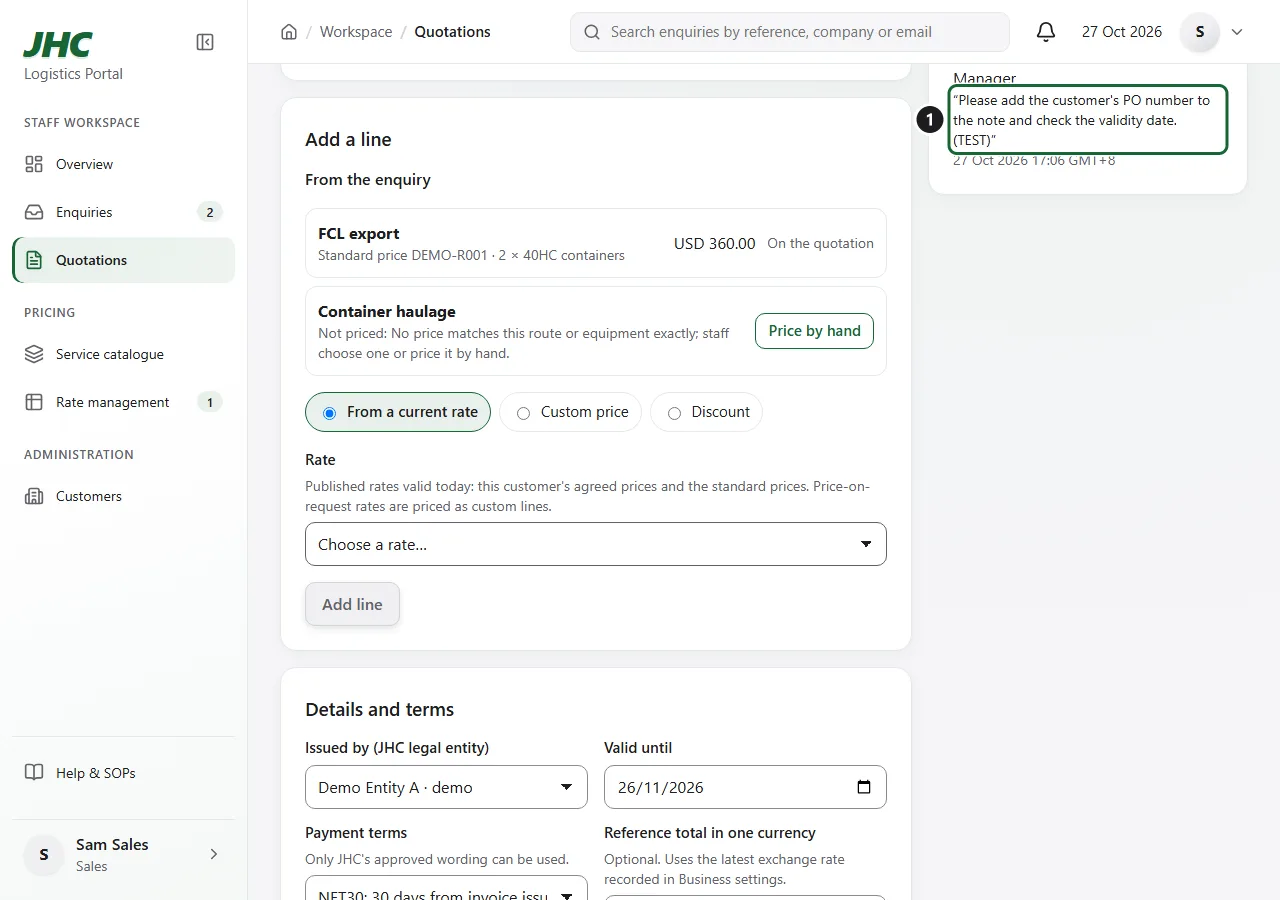
| 3b | Or write a Comment (2) and select Return for changes (4) | "Version N returned to draft." |
If the version changed after the approver opened it, the approval is refused. If you prepared it, the page says "You prepared or submitted this version, so another approver must decide on it."
Preparer, after a return: open the quotation, read the comment, correct it, Save details, Submit for approval again.
STF-15 Issue the approved quotation
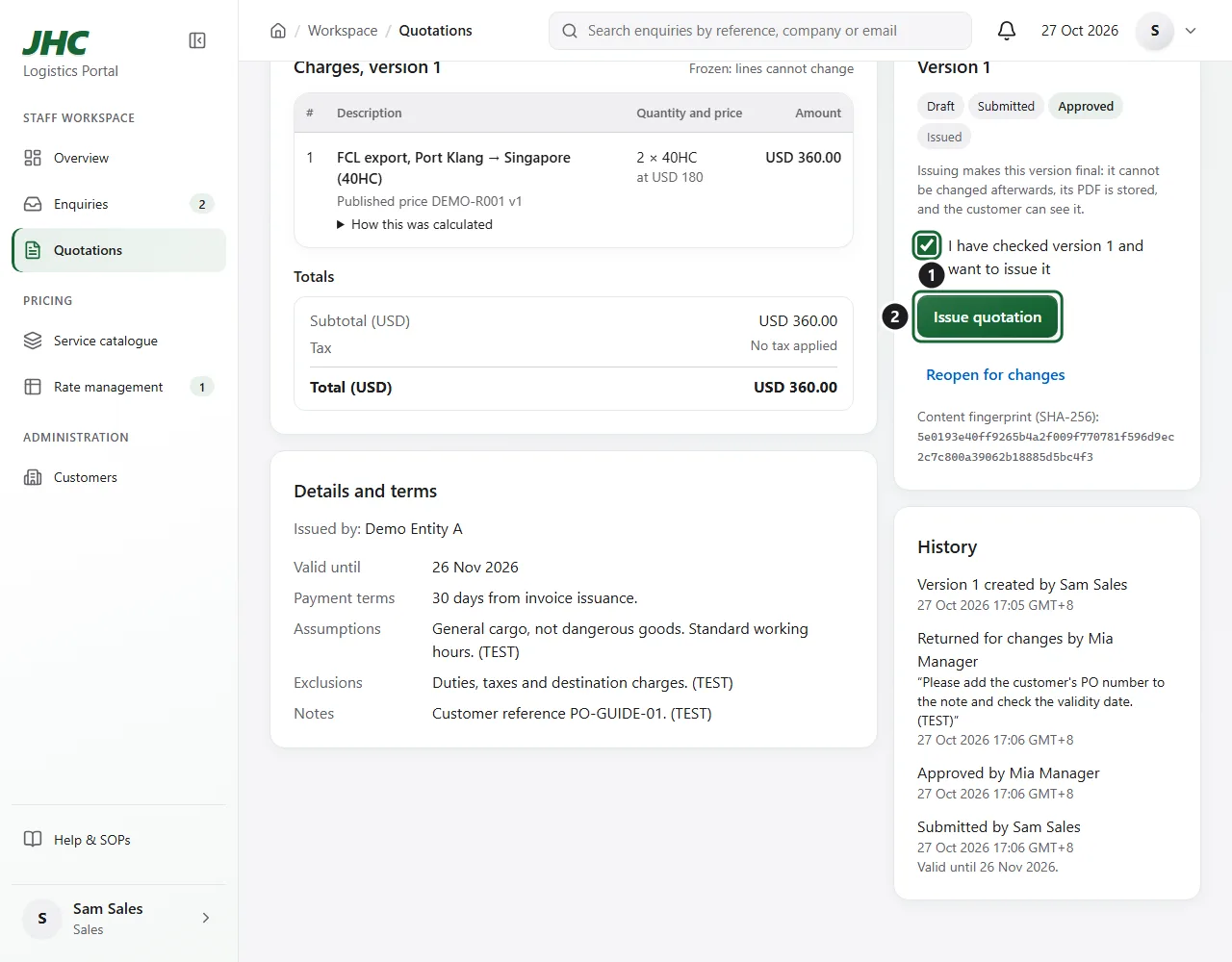
Table 13: STF-15 steps
| Step | Action | Expected result |
|---|---|---|
| 1 | Tick I have checked version N and want to issue it (1) | Issue quotation becomes available |
| 2 | Select Issue quotation (2) | "Version N issued. The PDF is stored." The enquiry becomes Quotation prepared |
| 3 | Select Download PDF (version N) | The stored PDF, checked against its fingerprint |
| 4 | Tell the customer it is in My Quotations, or email the PDF yourself | The portal sends no email |
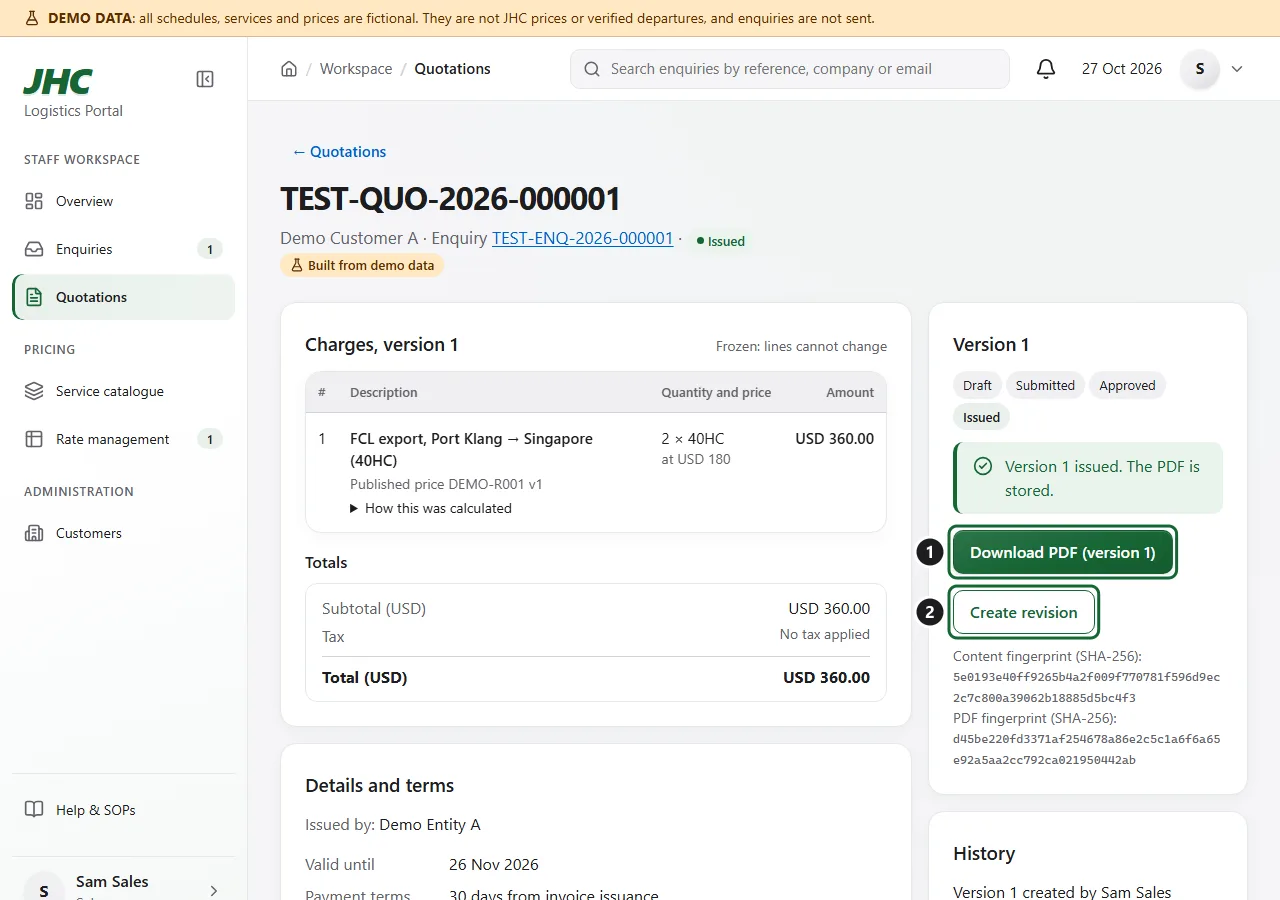
Table 14: PDF, portal and email: what happens
| Action | Happens in the portal? |
|---|---|
| PDF generated and stored | Yes, automatically on Issue quotation |
| PDF download | Yes, staff and the customer's users |
| Publication to the customer | Yes, in My Quotations at once |
| Email to the customer | No: staff send it themselves if wanted |
Status: A · Verified.
STF-16 See the customer's response
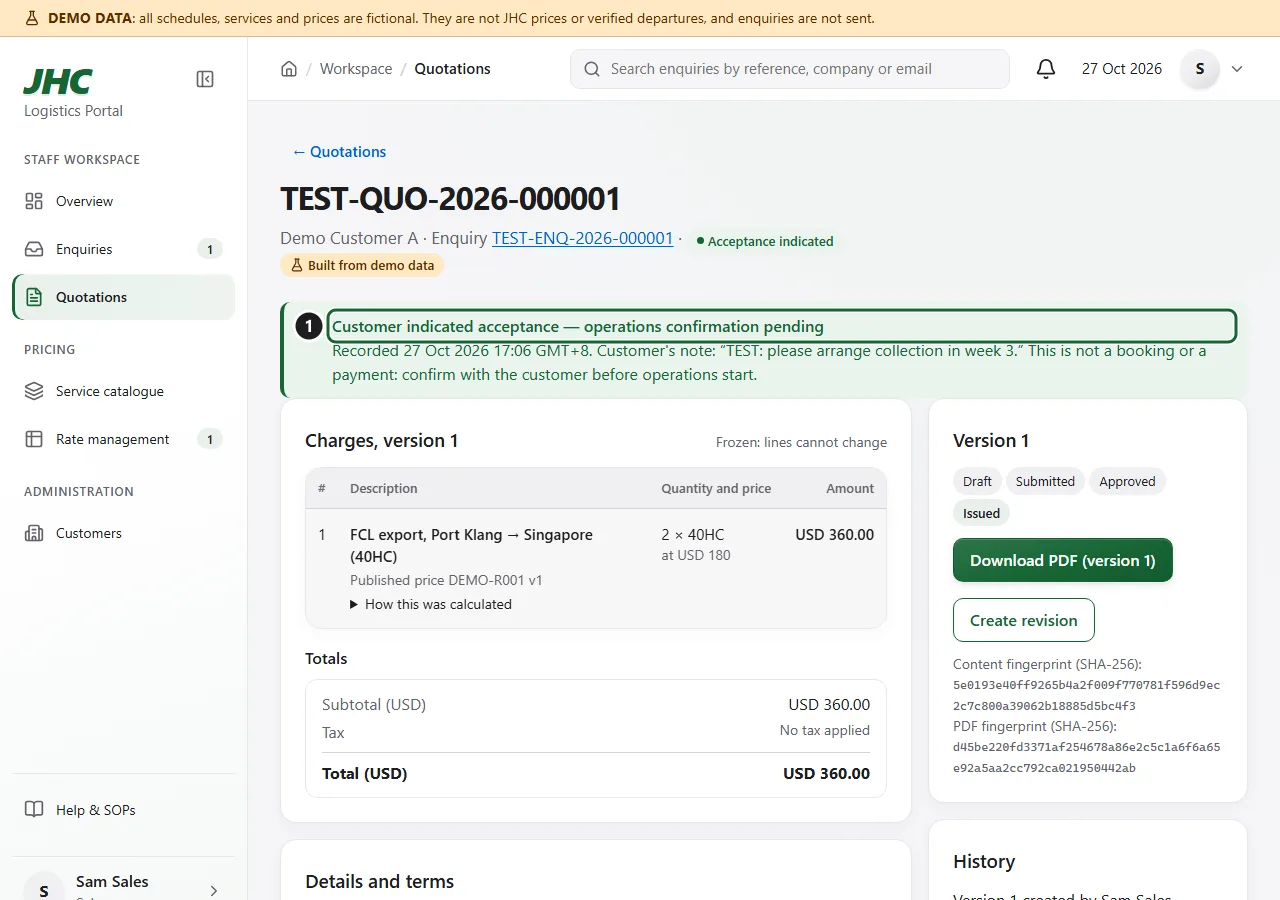
The customer's Indicate acceptance or Decline appears on the quotation and in the enquiry history, with their note: "Customer indicated acceptance — operations confirmation pending." This is not a booking or a payment. Confirm with the customer outside the portal.
Staff cannot record a response for the customer. If a customer accepts by phone or email, write an internal Note on the enquiry (gap G-07). Status: A · Verified.
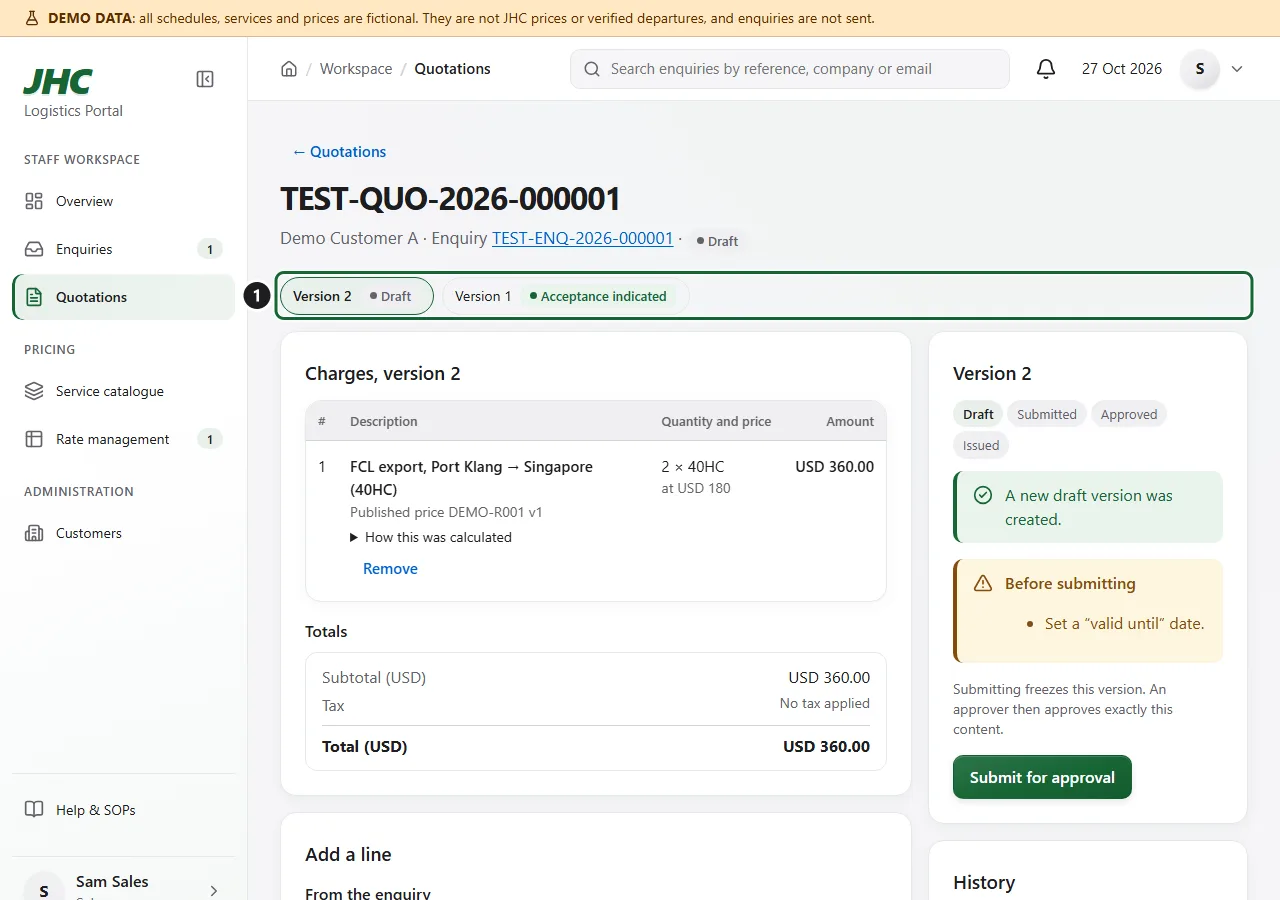
STF-17 Revise without changing issued versions
Select Create revision on the latest issued version. The portal copies it into a new Draft, version N+1. Version N stays exactly as issued. Rates that have ended since must be replaced before the revision can be submitted. Version N+1 then goes through approval and issue; issuing it marks version N Superseded. Status: A · Verified.
STF-18 Close records
- Enquiries: choose Closed (or Cancelled) in New status → Save status.
- Quotations: there is no close or expire button. A quotation's Valid until date ends the customer's ability to respond; old versions become Superseded when a new one is issued.
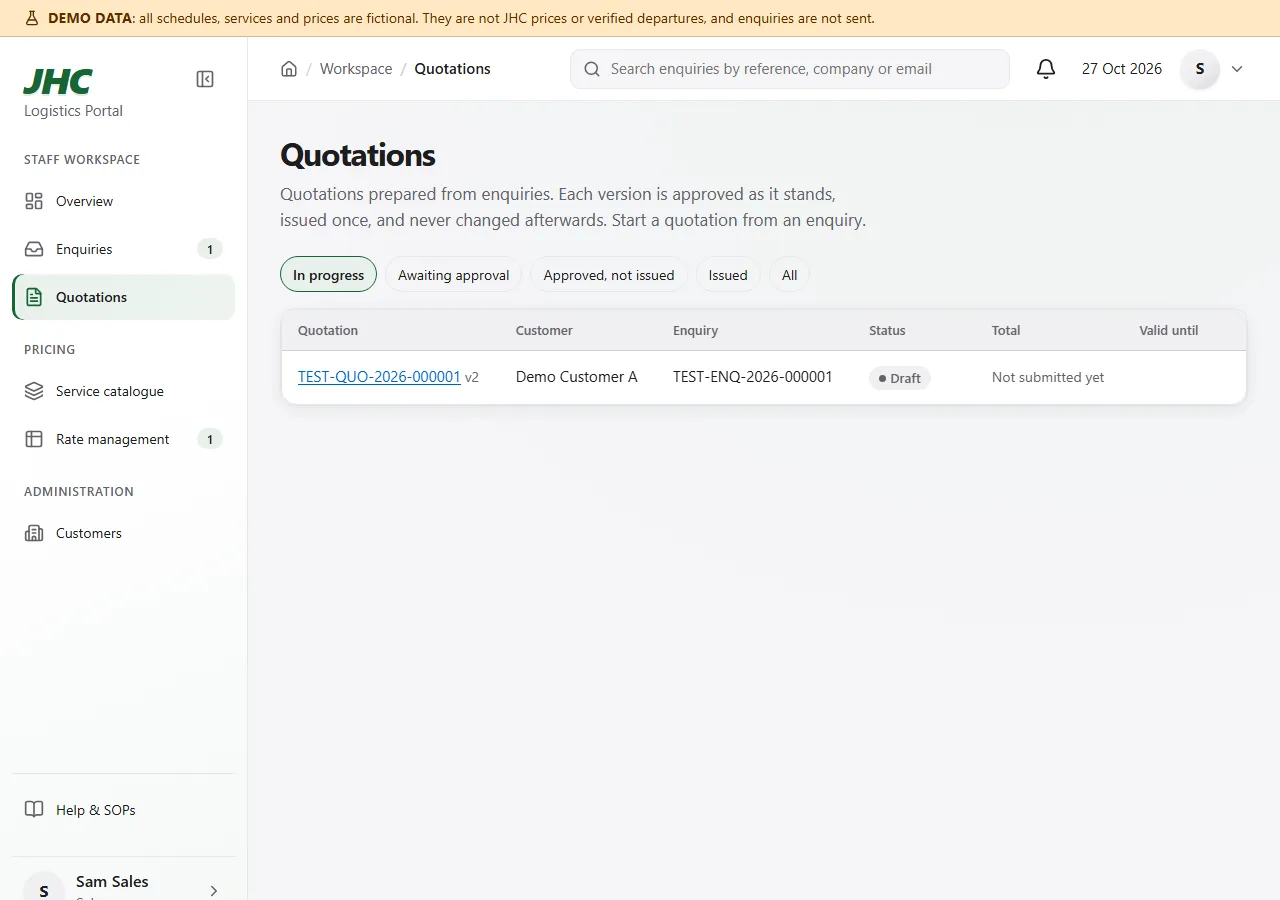
Status: A · Verified (enquiry closure); quotation expiry status: D · Not available.
STF-19 Use the enquiry assistant (AI)
Only when an administrator has switched it on. Select Ask the assistant, check every item against the enquiry, mark it correct or wrong, correct it, and Save my review. It never changes the enquiry. Full steps: AI Feature Guide (JHC-UG-06). Status: B · Built, verified with the practice assistant only; live AI C.

STF-20 Escalate problems
Table 15: Escalation
| Problem | Escalate to |
|---|---|
| Missing, expired or conflicting rate | Pricing manager |
| Approval needed and you prepared it | Another Sales manager or the Administrator |
| Customer cannot sign in, needs a new link | Administrator |
| Schedule source failing | Administrator (Schedule sources) |
| Something looks wrong or unsaved | Collect evidence and report (JHC-UG-08, FLOW-11) |
Support contacts and response times are to be assigned by JHC.