| Reference | Version | Status | Prepared | Application | Owner / approver |
|---|---|---|---|---|---|
| JHC-QS-01 | 0.1 | Draft for review | 27 Oct 2026 | Portal 0.3.0 (4d7b861 + working tree) | To be assigned |
Revision 0.1 (27 Oct 2026): first issue. Full instructions: Customer User Manual (JHC-UG-01). Pictures show a test copy with fictional data and prices.
1. Sign in
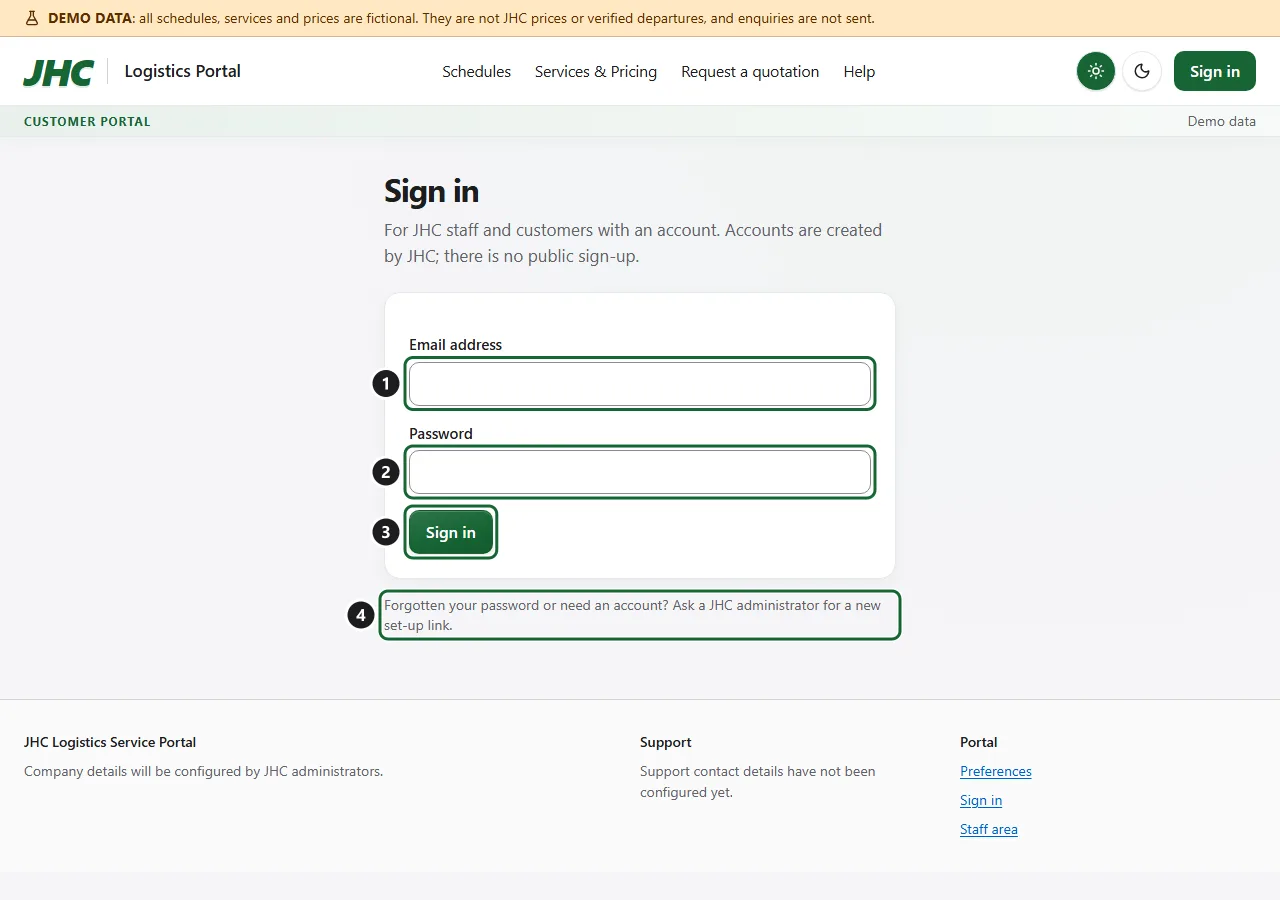
Open the link JHC gave you, select Continue, choose a password (12+ characters) and Save password. Later, use Sign in with your email and password. Forgotten password: ask JHC for a new link.
2. Look up schedules and prices
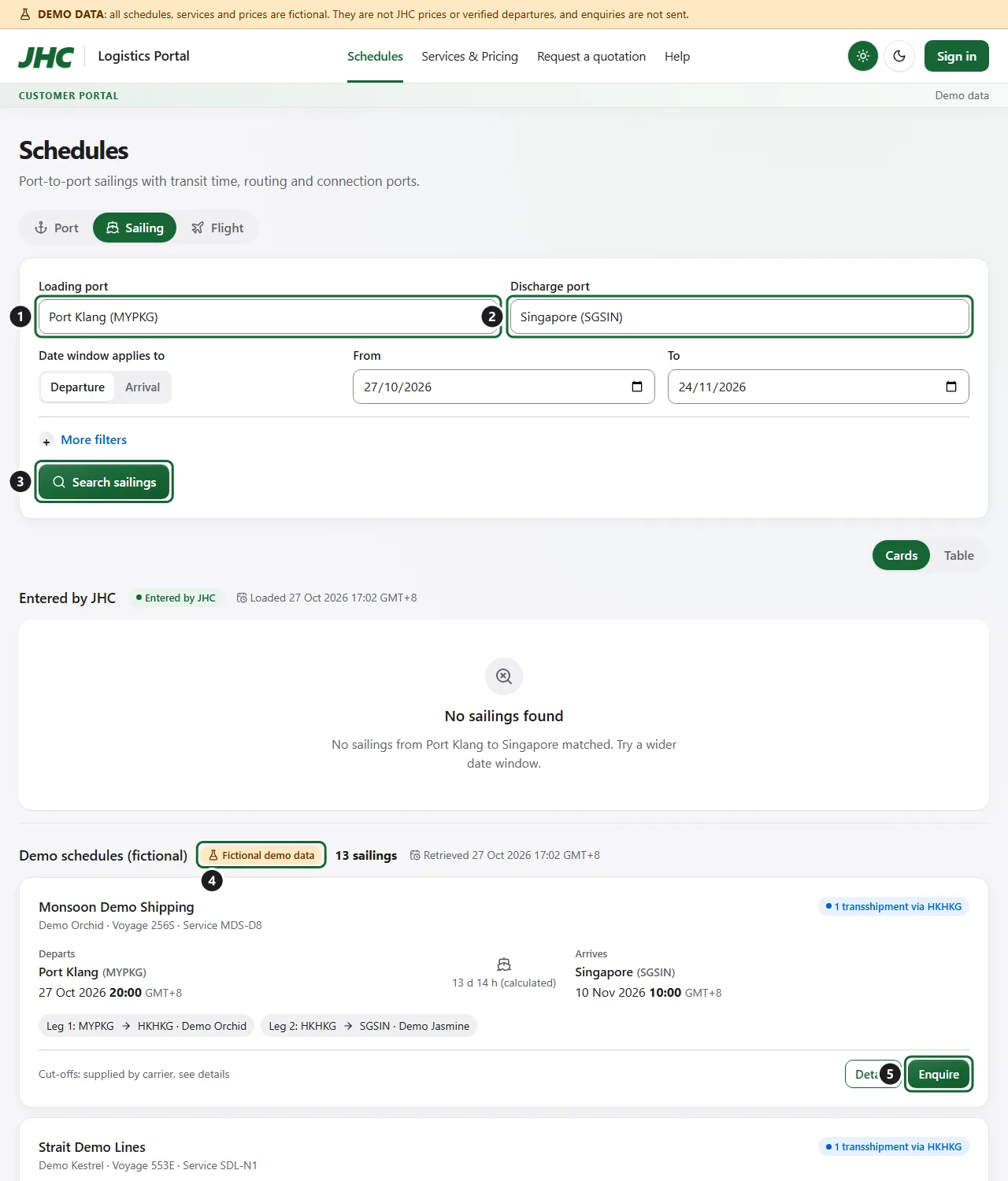
- Schedules → Port / Sailing / Flight: enter the ports or airports and dates; Search. Each source has its own section. A schedule does not confirm space.
- Services & Pricing: open a service to see published prices and, when signed in, Your agreed rate.
3. Send an enquiry
- Request a quotation. Under 1. Services, tick every service you need.
- Fill in 2. Service details, the route or location, Date needed and Cargo description.
- Enter your details, your reference, and attach files (PDF, JPEG, PNG, XLSX, CSV, DOCX; up to 5 files of 10 MB).
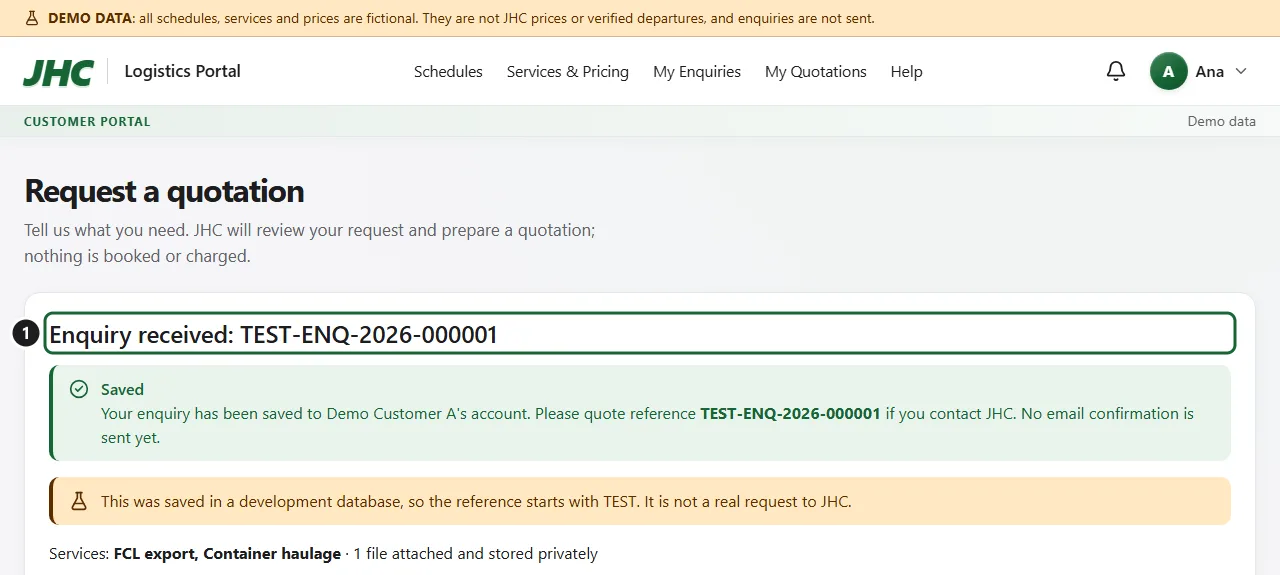
- Submit enquiry. Keep the reference shown.
4. Answer JHC and receive your quotation
- "Your reply is needed": open the enquiry, write in Your reply, Send reply.
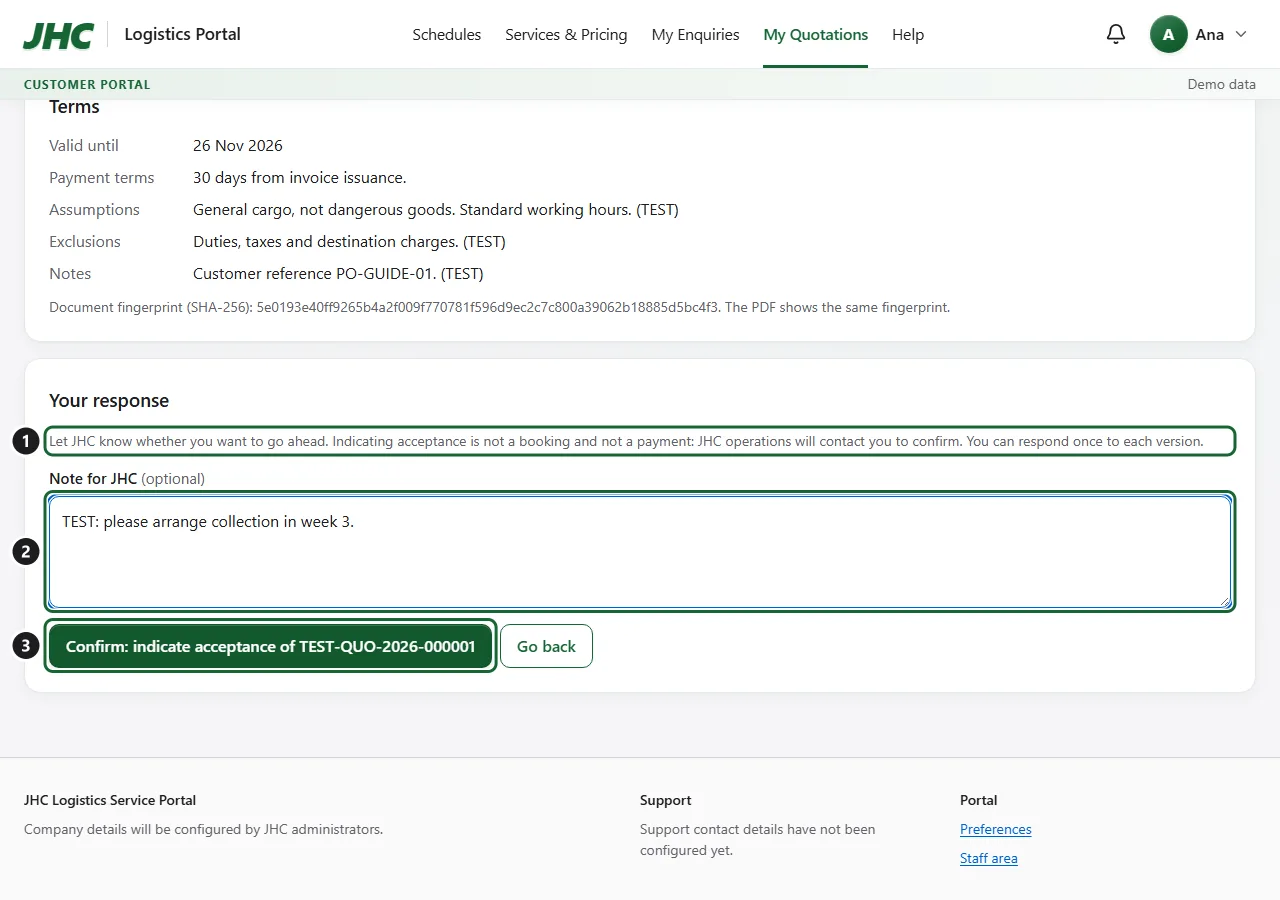
- My Quotations: open the quotation; Download PDF.
- Your response: Indicate acceptance or Decline, with a note. This is not a booking or payment: JHC confirms with you.