| Item | Detail |
|---|---|
| Document reference | JHC-UG-03 |
| Version | 0.1 |
| Status | Draft for review · Internal: restricted to JHC administrators |
| Prepared | 27 October 2026 |
| Application version documented | Portal 0.3.0, commit 4d7b861 plus uncommitted working-tree changes of 27 Oct 2026 (JHC-REG-03) |
| Audience | Portal administrators (part A), and the person responsible for hosting and the database (part B) |
| Document owner | To be assigned (JHC) |
| Approver | To be assigned |
| Effective date | Not set: draft |
| Related documents | SETUP_SUPABASE.md, PILOT_DEPLOYMENT.md, RELEASE_CHECKLIST.md, READINESS_REVIEW.md, AI Feature Guide (JHC-UG-06) |
Table 1: Revision history
| Version | Date | Change | By |
|---|---|---|---|
| 0.1 | 27 Oct 2026 | First administrator manual: users, customers, settings, schedule sources, AI settings, audit, retention, backup, incidents and release checks | Prepared with Claude (AI assistant) for JHC review |
1. Scope and separation of duties
This manual has two parts:
- Part A: application administration. Tasks done in the portal's Administration and Settings pages by a user with the Administrator role.
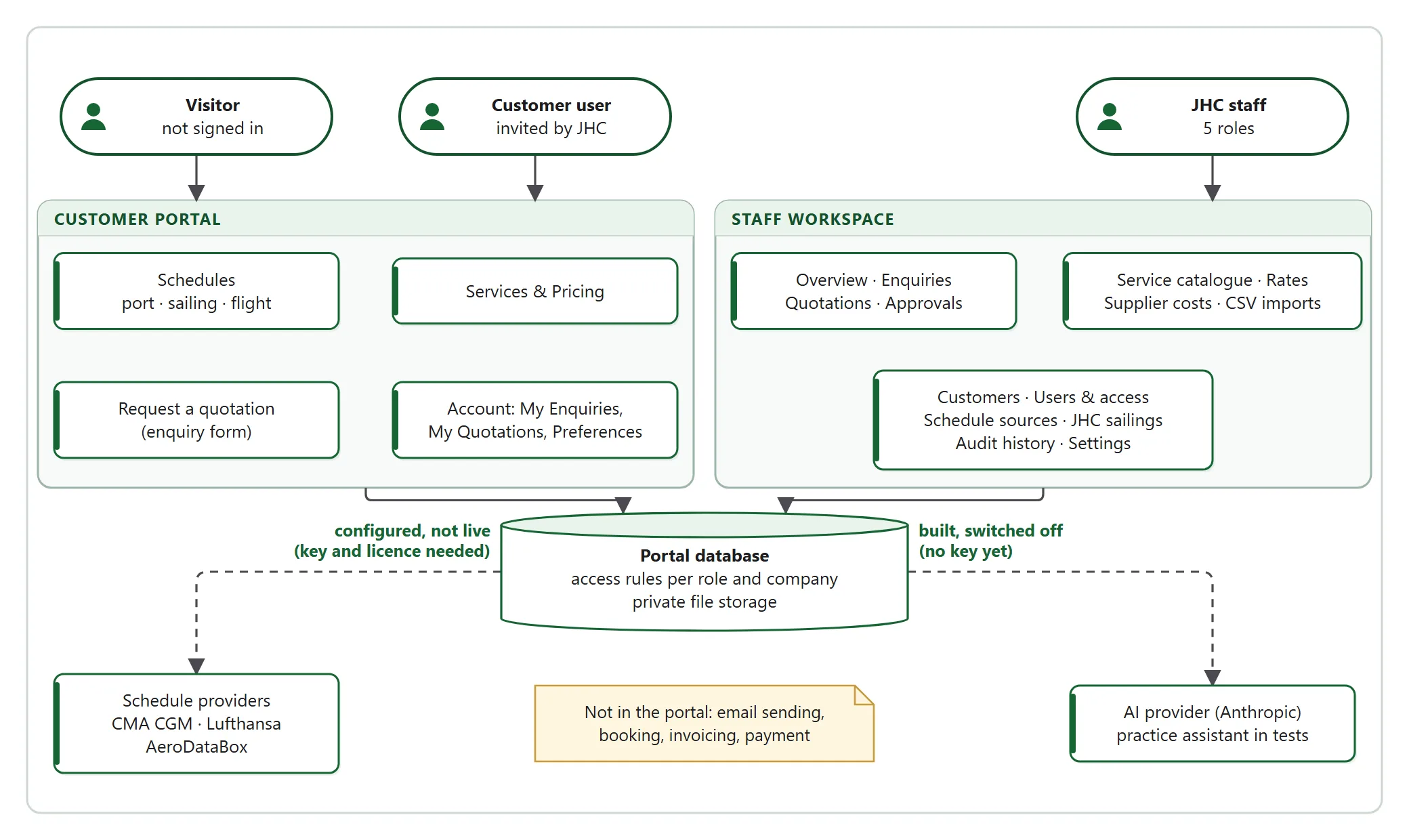
- Part B: hosting and database. Tasks done outside the portal: on the hosting service, the database service or the command line. They need separate accounts and should be done by the named technical owner (to be assigned).
Never write passwords, set-up links, API keys or database passwords into documents, tickets, chat or email. Where this manual shows a setting, it shows a placeholder such as <your-key>, never a real value.
Pictures come from the TEST set-up on 27 October 2026 (fictional data, practice assistant).
Part A — Application administration
2. Staff users and roles
ADM-01 Understand the roles
| Status | A · Verified (roles and permissions read from the database; the Roles table is shown on Users & access) |
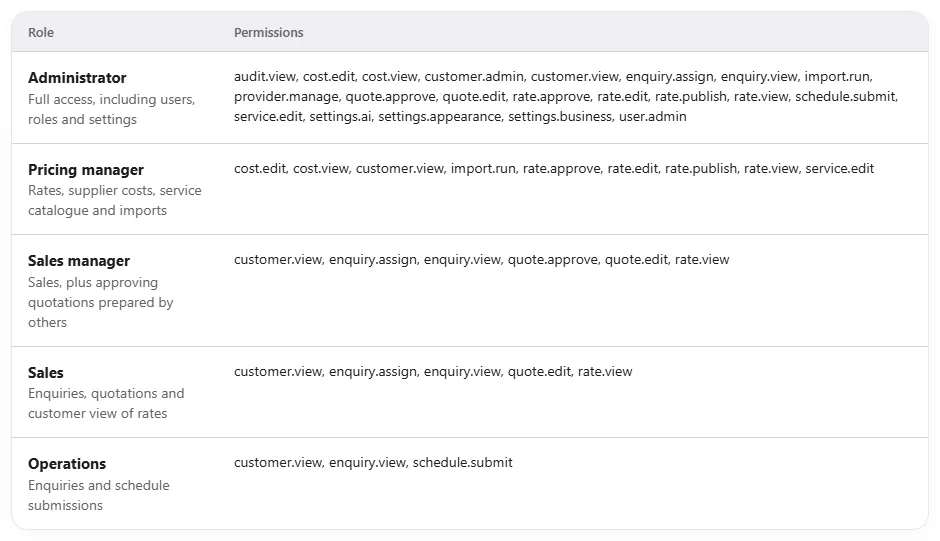
The full matrix is in the Staff User Manual (JHC-UG-02 §1.1). Key rules:
- Quotation approval is by a superior (Sales manager or Administrator) and never by the person who prepared or submitted the version. This cannot be switched off. There are no value thresholds.
- Rate approval: Pricing manager or Administrator. The portal does not prevent the person who drafted a rate from approving it (gap G-05).
- Supplier costs and margins: Administrator and Pricing manager only.
- Give each person the fewest roles they need. JHC must have at least two Sales managers or Administrators so a second person can always approve.
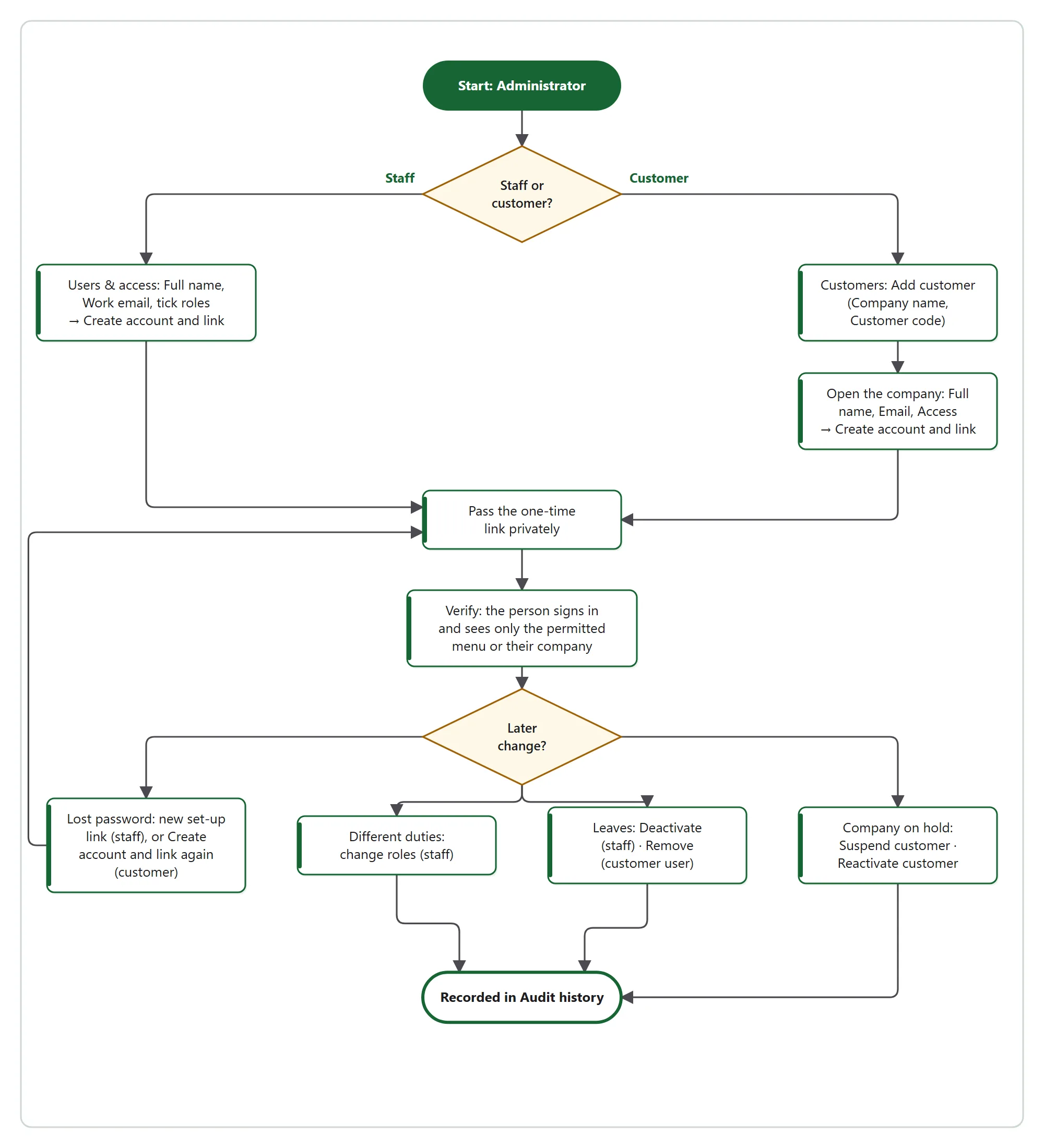
ADM-02 Invite a staff member
| Purpose | Create a staff account |
| Who | Administrator ("Invite staff and change staff roles") |
| You need | Full name, work email, the roles |
| Result | A one-time set-up link to give privately |
| Record | Audit history entry |
| Status | A · Verified |
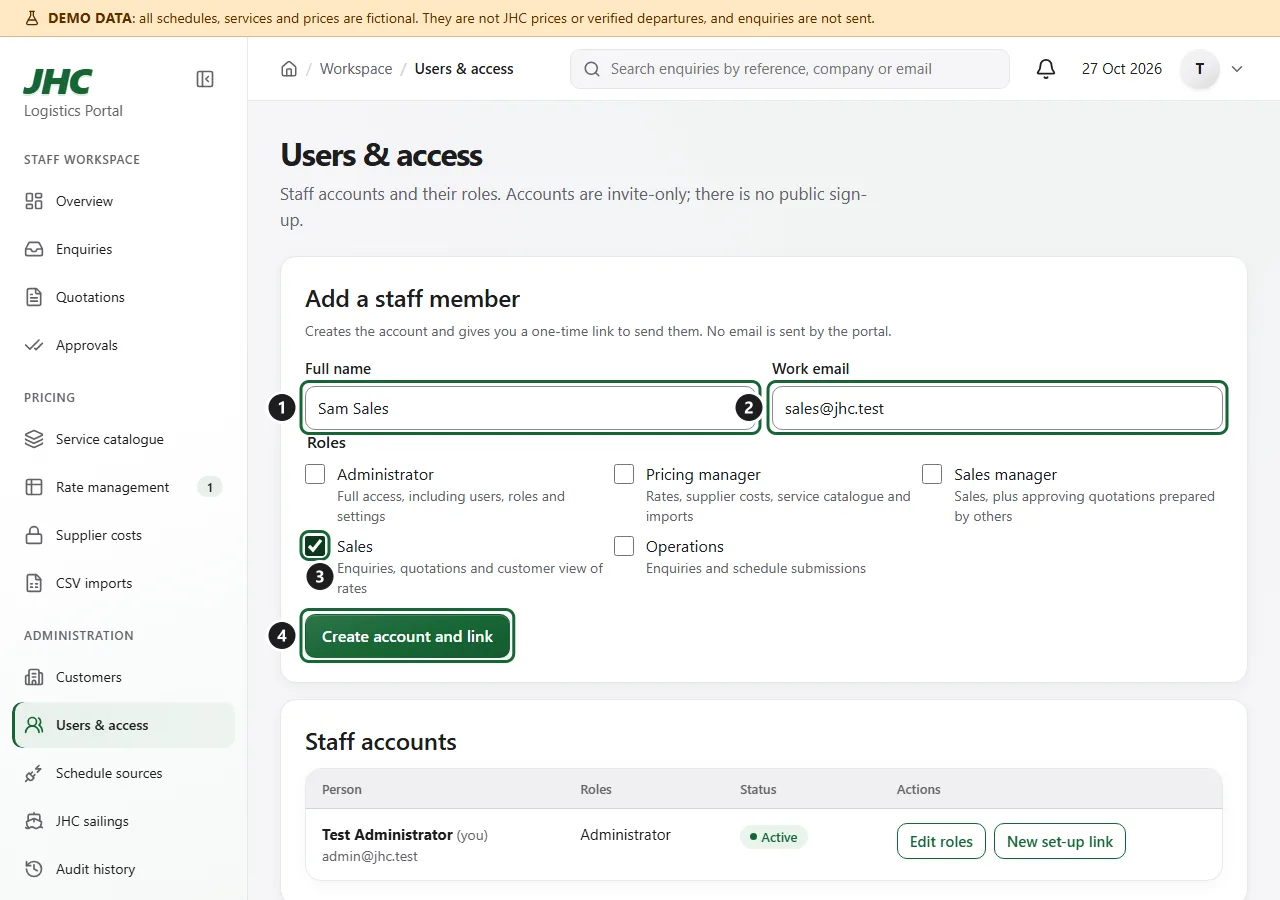
Table 2: ADM-02 steps
| Step | Screen | Action | Expected result | If not |
|---|---|---|---|---|
| 1 | Users & access | Enter Full name (1) and Work email (2) | ||
| 2 | Tick the Roles (3) | At least one role | ||
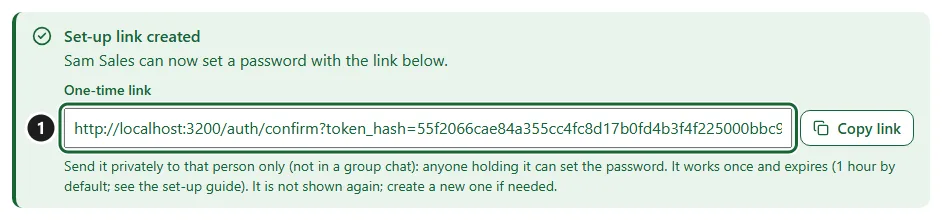
| 3 | Select Create account and link (4) | A notice with the One-time link | "This email belongs to…": the email is already used | |
| 4 | Copy the link and give it to the person privately (in person or by private message) | The portal sends no email. Never paste links into shared channels | ||
| 5 | Later | Ask the person to sign in and confirm their menu matches their duties |
ADM-03 Change roles, issue a new link, deactivate
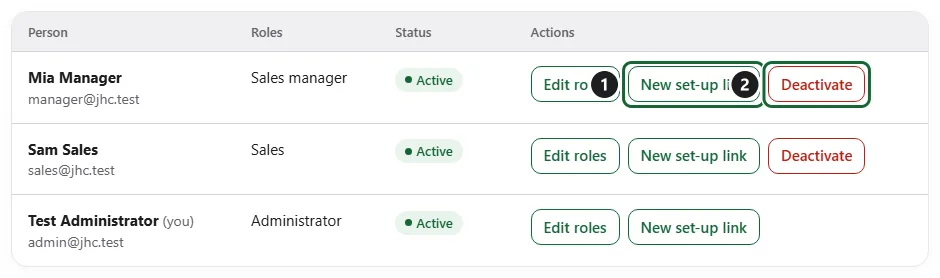
Table 3: Staff account maintenance
| Need | Action | Effect | Status |
|---|---|---|---|
| Different duties | Edit roles, tick or untick, save | Takes effect immediately | A |
| Forgotten password / link expired | New set-up link (1) | A new one-time link to pass privately | A |
| Leaves JHC / suspected misuse | Deactivate (2) | Loses every permission immediately; history kept | A |
| Returns | Reactivate | Access restored with the same roles | B |
There is no two-step sign-in (MFA) in the portal. Administrators should use long, unique passwords (gap G-09).
3. Customers and customer users
ADM-04 Add a customer company and its users
| Who | Administrator ("Create customers and manage their users") |
| Result | The company, and users who see only that company's enquiries, quotations and agreed rates |
| Status | A · Verified |
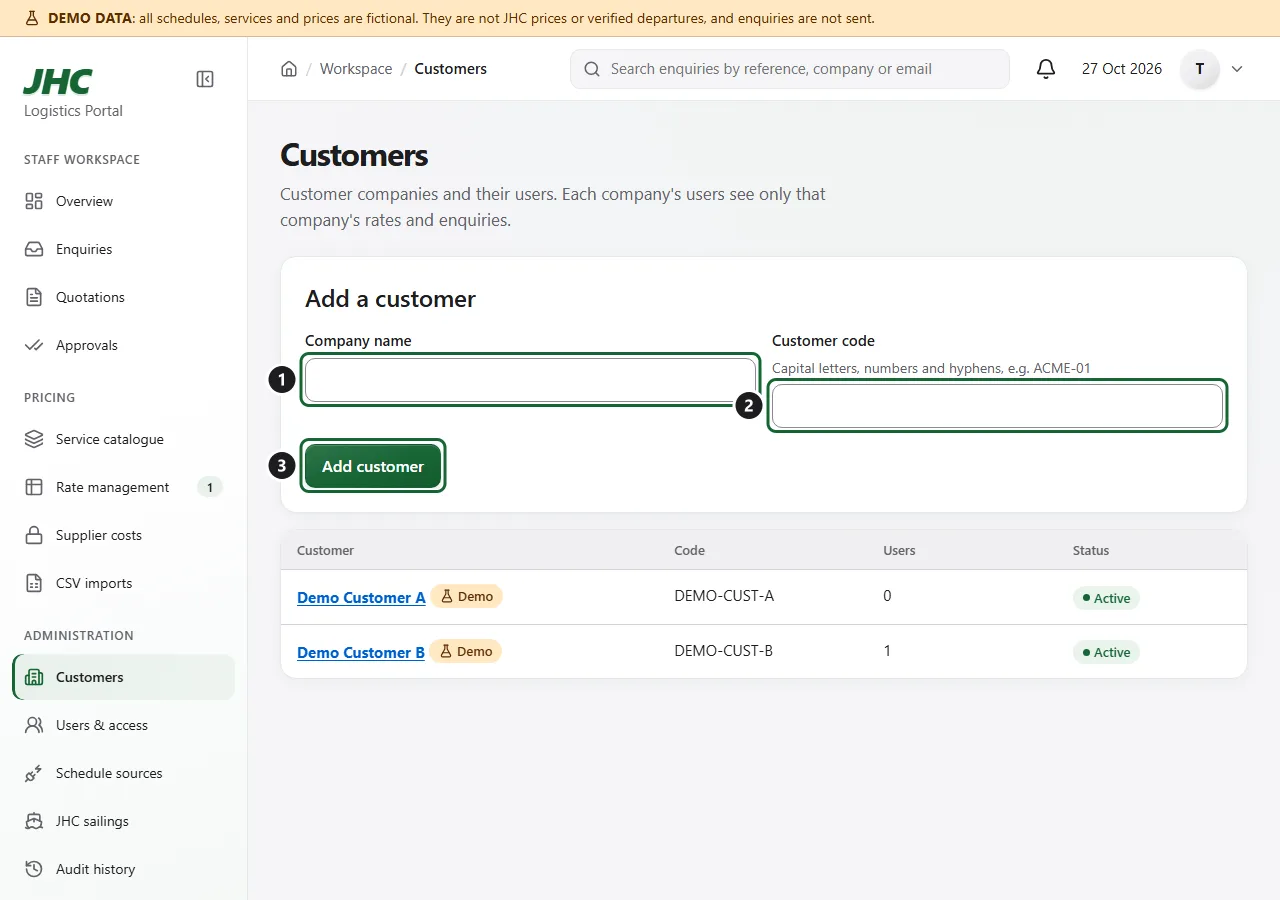
Table 4: ADM-04 steps
| Step | Screen | Action | Expected result | If not |
|---|---|---|---|---|
| 1 | Customers | Enter Company name (1) and Customer code (2), e.g. ACME-01 (capital letters, numbers, hyphens) | "That customer code is already in use." | |
| 2 | Select Add customer (3) | The company is listed | ||
| 3 | Company page | Enter the user's Full name (1), Email (2) and Access (3) | A staff email cannot be used for a customer | |
| 4 | Select Create account and link (4) | One-time link | Give it privately |
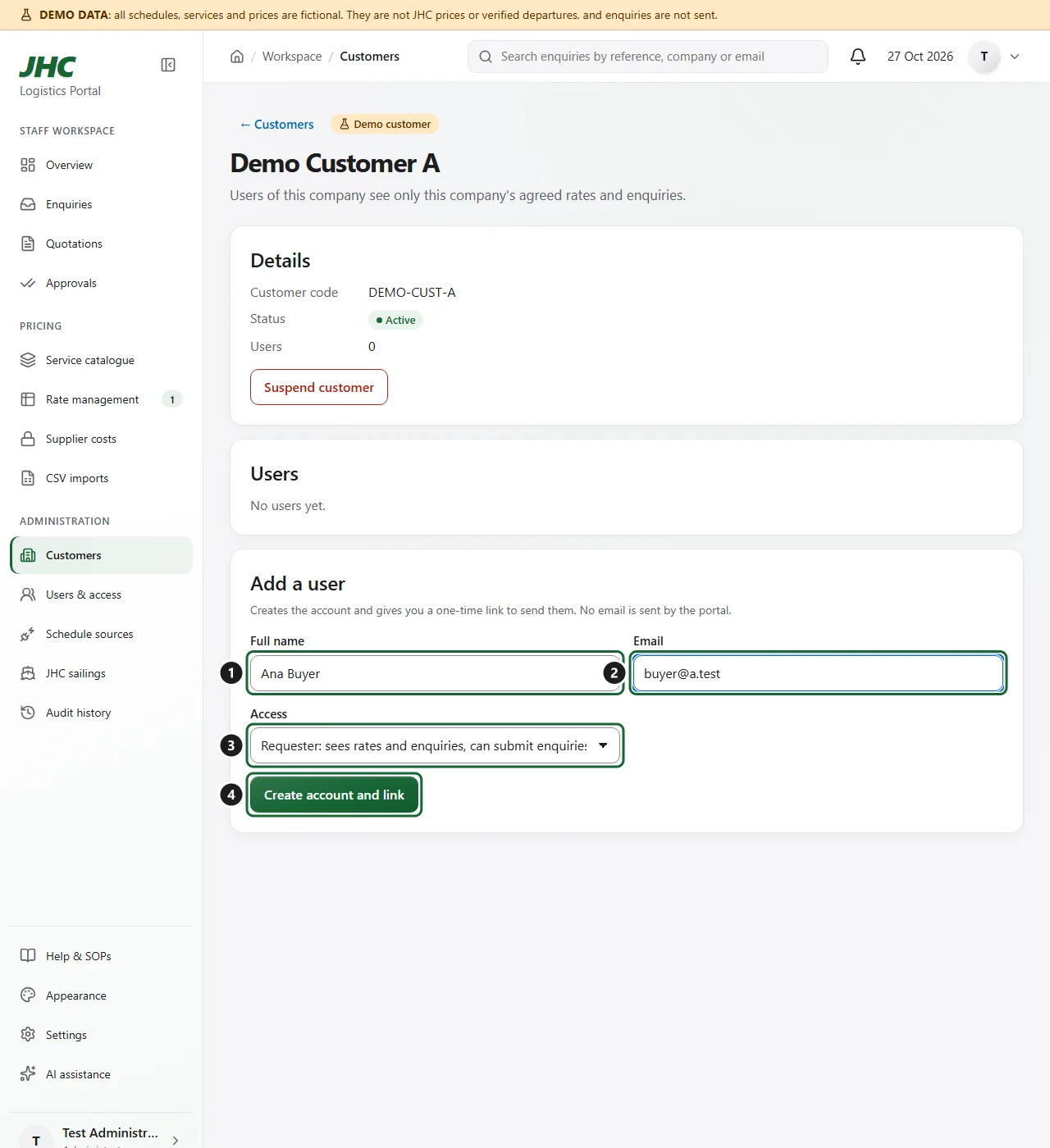
Table 5: Customer user access levels
| Access | Can |
|---|---|
| Requester | See the company's rates and enquiries; submit enquiries |
| Viewer | See the company's rates and enquiries |
| Company admin | As Requester. User management by the customer is not built yet (gap G-10) |
Table 6: Customer maintenance
| Need | Action | Status |
|---|---|---|
| A customer user forgot their password | On the company page, Create account and link again with the same email: a new link is issued for the existing account | B (built; not exercised for this manual) |
| A user leaves the customer | Remove next to the user | A |
| Company on hold | Suspend customer; later Reactivate customer | B |
Agreed prices for a customer are set in Rate management on that customer's price list (JHC-SOP-02).
4. Business settings (organisation, legal entities, pricing defaults)
ADM-05 Business settings
| Who | Administrator ("Change business settings and legal entities") |
| Status | A · Verified (pages and saves); JHC's real values: not entered |
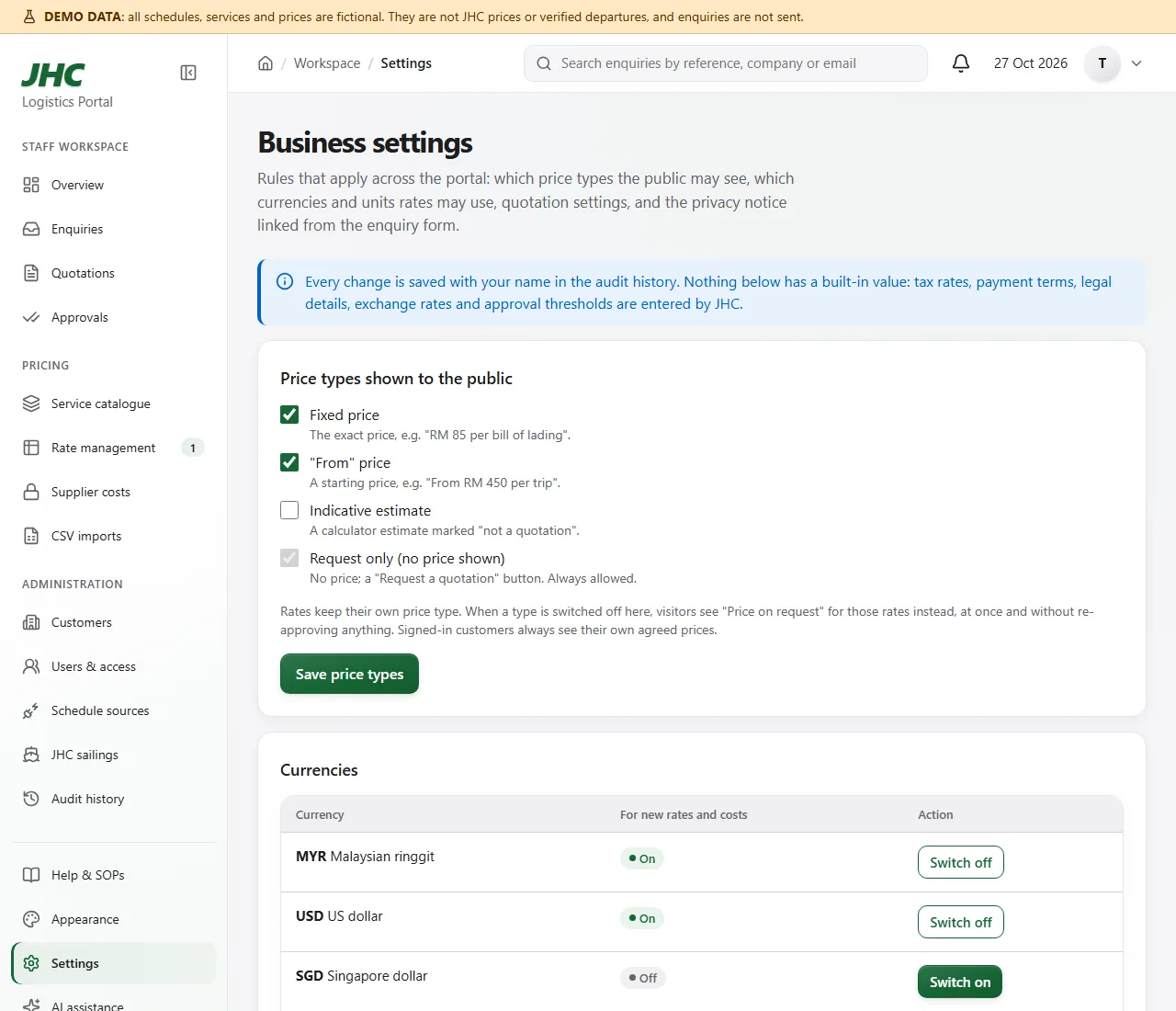
Table 7: Sections of Business settings
| Section | What to enter | Current state (development) |
|---|---|---|
| Legal entities | Short name, Registered legal name, Company registration number, Tax registration number, Registered address, Main currency, Can issue new quotations | JHC's real details not supplied (launch blocker 4). Quotations cannot be submitted without a legal entity |
| Payment terms | Code and Approved wording | "30 days from invoice issuance." (JHC answer Q1) |
| Tax codes | Code, Name, Rate (%), First day, Last day, Rounding rule, whether tax is calculated On each line, then added up or Once, on the taxed total | None entered. No tax is applied until JHC finance adds codes |
| Exchange rates | From (1 unit of), To, Rate, Rate date, Source | Only for an optional reference total on quotations |
| Quotation approval | Shows the fixed rule: every quotation is approved by a superior | Not changeable |
| Price types shown to the public | Which display types visitors may see | Fixed and "from" on; indicative off (JHC answer Q7) |
| Currencies, Units | Units have a Code, Short name and Shown after a price text | Seeded list |
| Enquiries and personal data | Privacy notice link (must start with https://) | Blank until JHC legal supplies a notice (launch blocker 5) |
| Pricing rules JHC has not supplied | Read-only list: volumetric factor, weight/measure conversion, part-month storage | Not supplied, so those stay "Request quotation" |
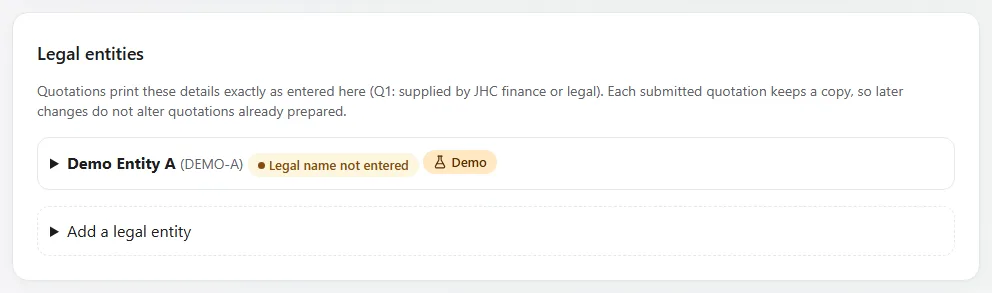
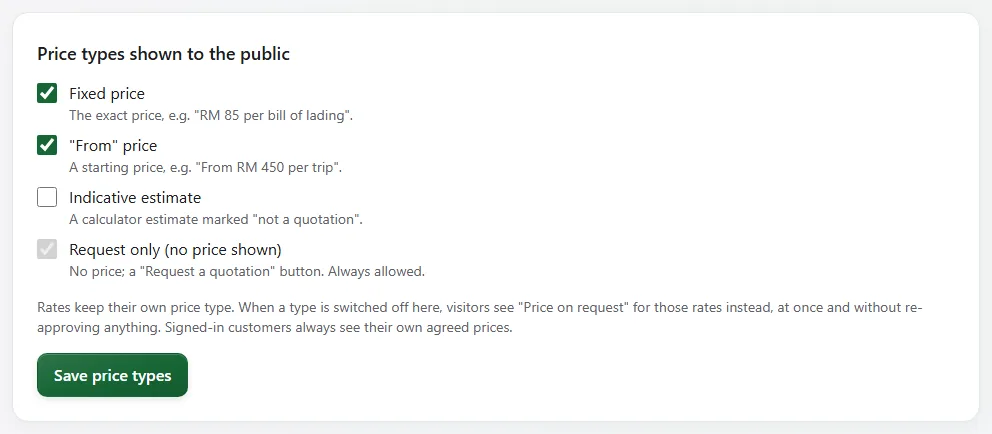
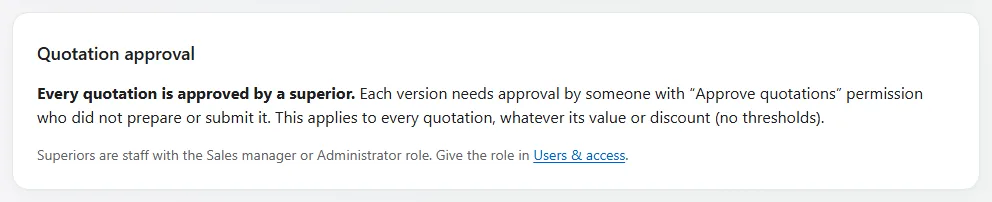
Service categories, units and locations. Service categories and services are maintained in Service catalogue (JHC-SOP-02 PRC-01). Units are under Business settings. Ports and airports for schedule searches come from the portal's built-in location list; they are not editable in the portal (gap G-11).
5. Appearance
ADM-06 Change the portal's appearance
| Who | Administrator ("Change appearance settings") |
| Result | A new saved version applied to everyone; earlier versions kept |
| Record | Audit history; version number |
| Status | A · Verified |
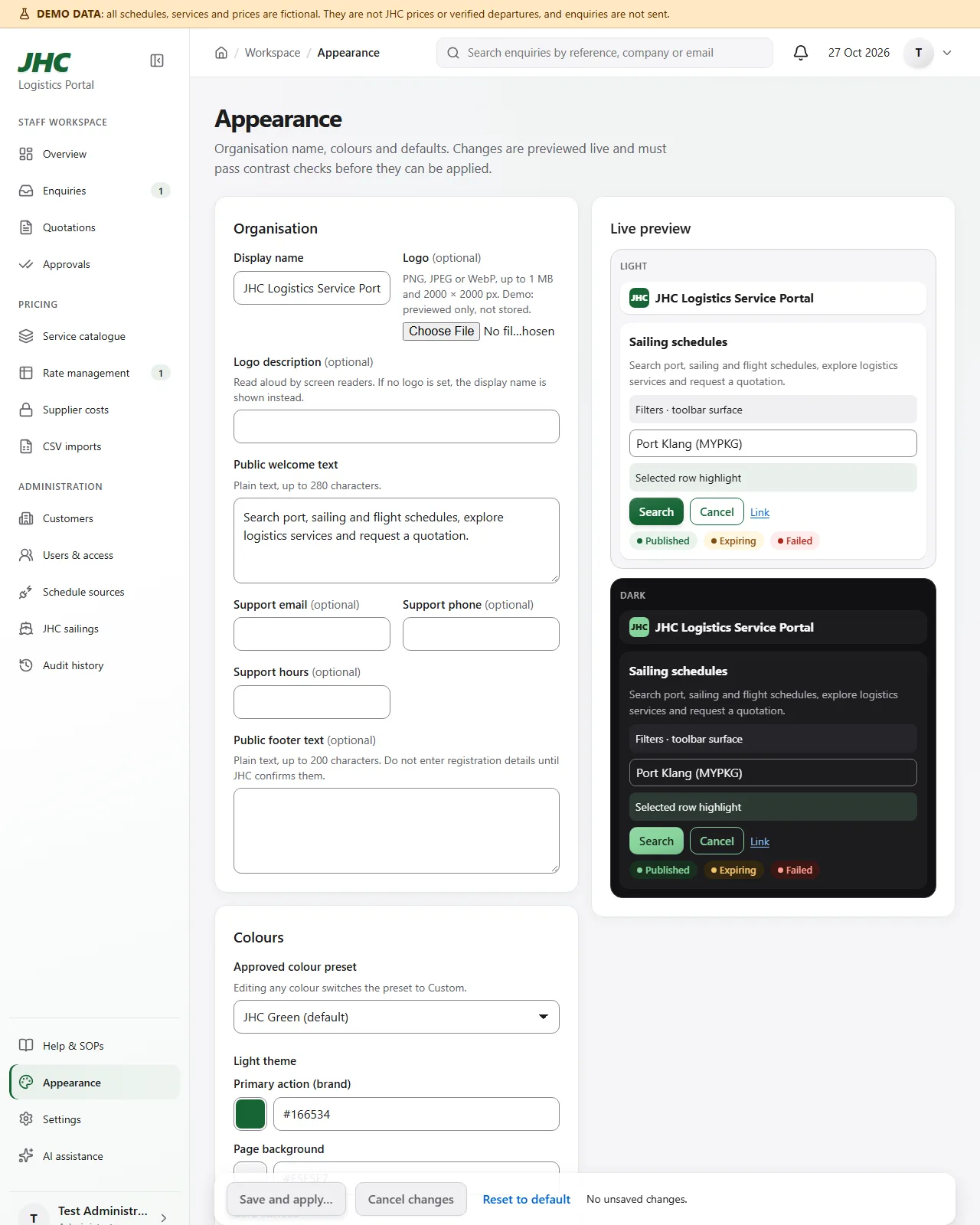
Table 8: ADM-06 steps
| Step | Section | Action | Expected result |
|---|---|---|---|
| 1 | Organisation | Set Display name, logo (with Logo description), Public welcome text, Public footer text, Support email, Support phone, Support hours | Preview updates |
| 2 | Colours | Choose an Approved colour preset, or Custom brand and background colours | The light and dark previews update; contrast is checked and unsafe combinations are blocked with a reason |
| 3 | Defaults for everyone | Choose the default theme (Light, Dark or match device) and other defaults | Users who chose "Organisation default" follow it |
| 4 | Review the "n unsaved changes" line | ||
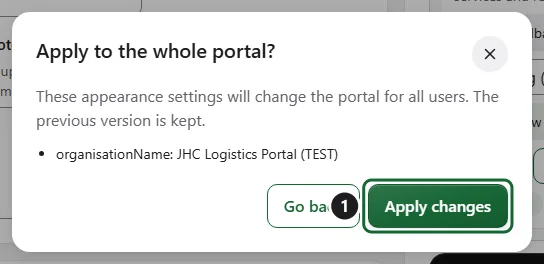
| 5 | Select Save and apply… | Apply to the whole portal? | |
| 6 | Dialog | Select Apply changes, or Cancel to keep editing | "Saved as version n and applied to the portal for everyone" |
| 7 | To undo unsaved edits: Cancel changes. To return to the original look: Reset to default, then save |
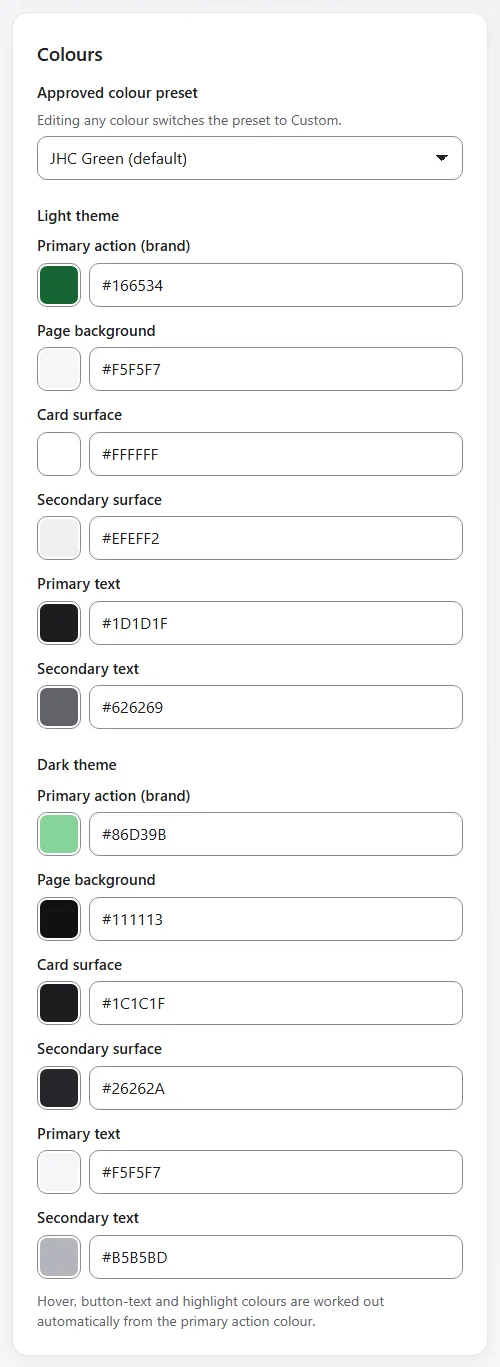
Note: Customers can still choose Light, Dark or Match device for themselves (JHC-UG-01 CUS-05).
6. Schedule sources
ADM-07 Monitor and configure schedule providers
| Who | Administrator ("Manage schedule data connections") |
| Status | Page and settings: A · Verified (TEST stand-in providers). Real provider connections: C · Needs external access: no keys registered and no customer-facing licence |
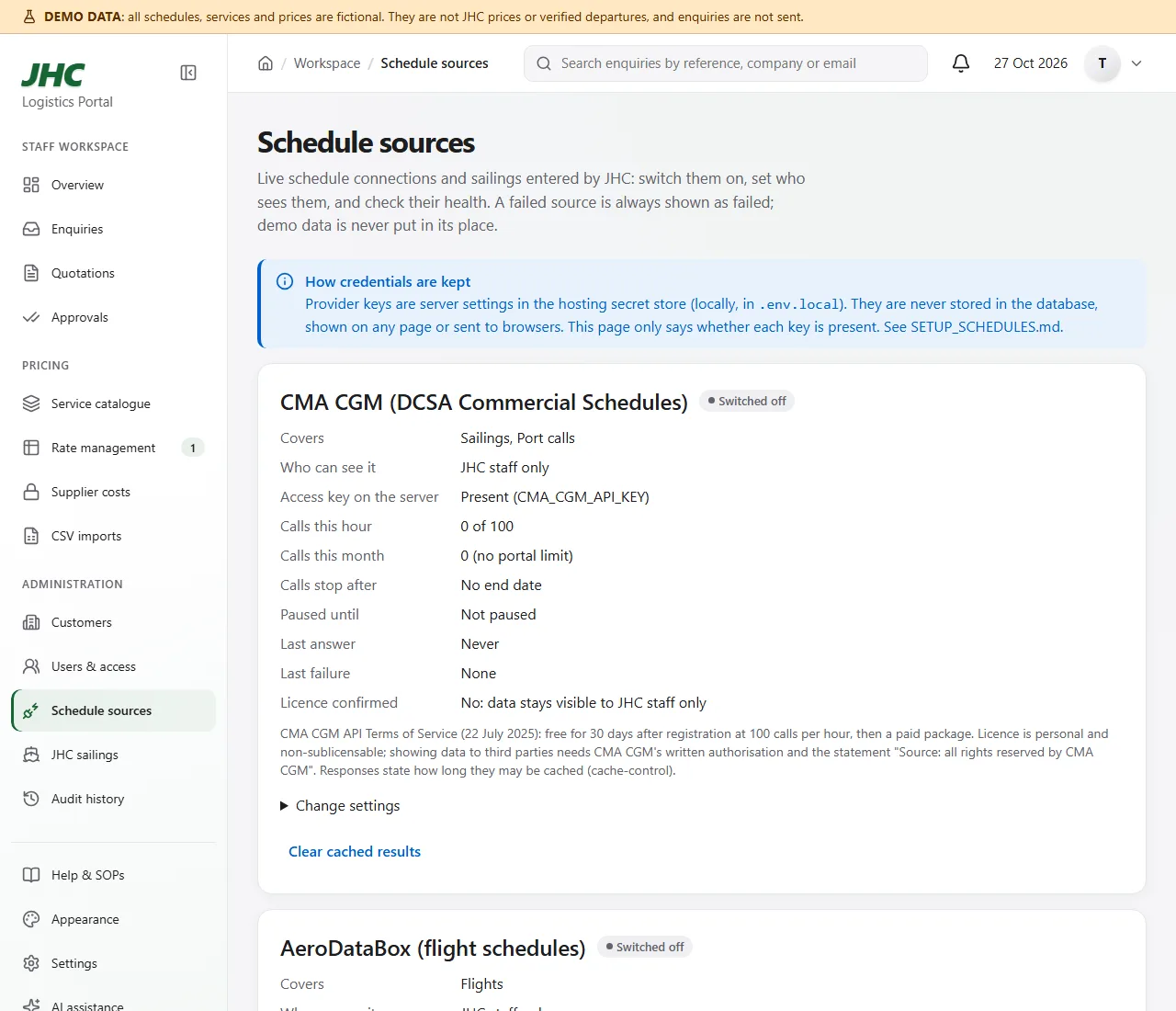
For each provider (CMA CGM, Lufthansa, AeroDataBox, and Entered by JHC) the page shows: on or off; whether the key is present (never the key itself); calls used this hour and month against the allowances; the date after which no calls are made; any pause the provider requested; the last answer and last failure; and whether the licence is confirmed.
Table 9: ADM-07 steps
| Step | Action | Expected result |
|---|---|---|
| 1 | Open Change settings on a provider | Its settings |
| 2 | Tick Switched on: searches call this provider | |
| 3 | Set Who can see this data. Wider than staff needs the licence confirmation first | Refused without the confirmation |
| 4 | Save settings | "Saved. Searches use these settings from now on." |
| 5 | Test connection | "Connected. The provider answered with n records." or the error |
| 6 | Check Recent provider calls daily during the pilot | Failures and refusals listed |
Keys are set by the hosting owner in the hosting secret store (Part B), never in the portal. See SETUP_SCHEDULES.md.
Refresh monitoring. Searches call providers when a user searches; there is no background refresh. Watch Schedule provider failures on the Overview and the call log here. JHC-entered sailings show "may be out of date" if not re-confirmed within 7 days.
7. AI assistance
ADM-08 AI settings and usage limits
| Who | Administrator ("Change AI assistance settings and see AI usage") |
| Status | B · Built; verified with the practice assistant only. A real AI model: C · Needs external access (no key; model not chosen; legal approval pending) |
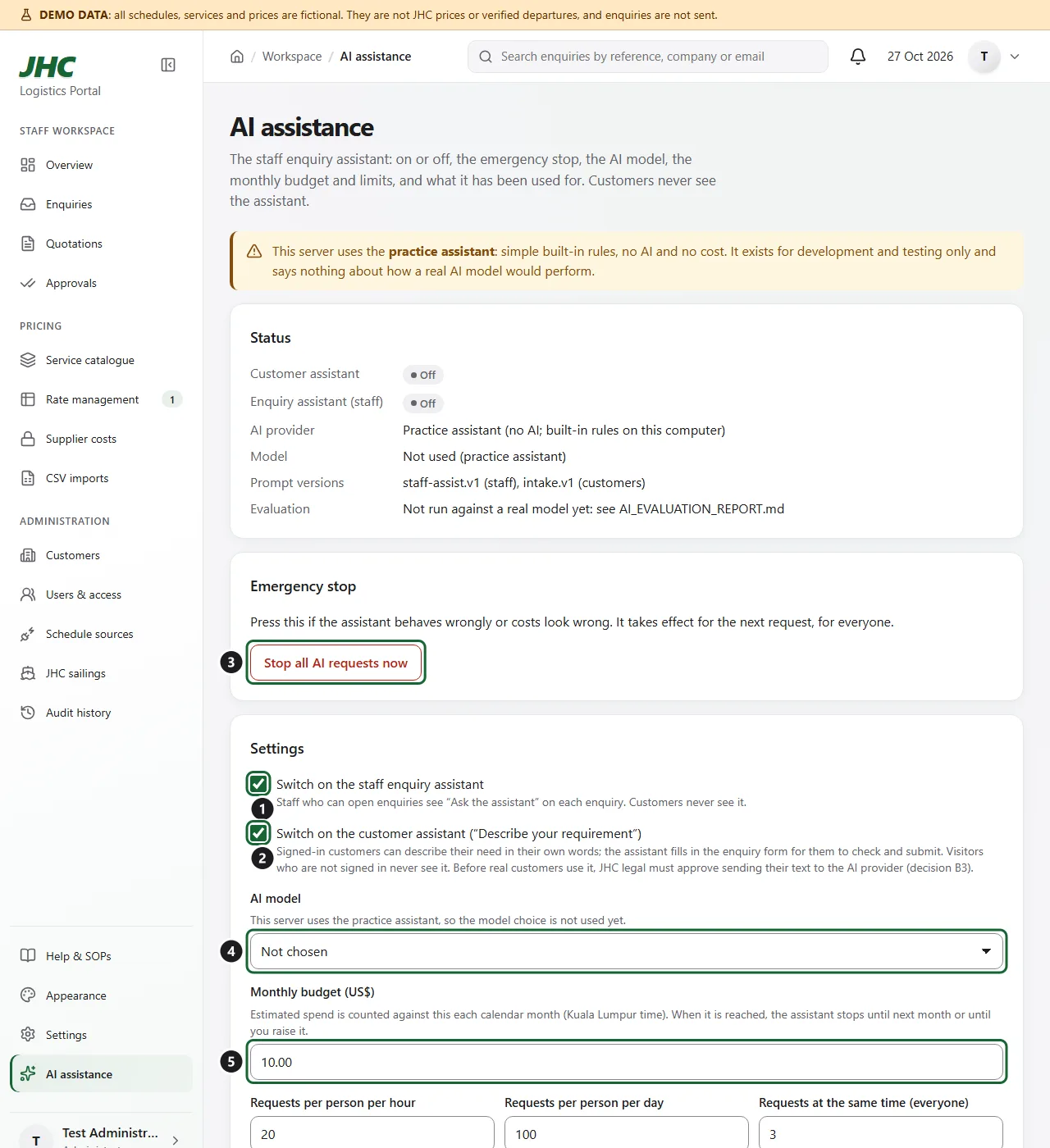
Table 10: AI settings
| Setting | Meaning | Default |
|---|---|---|
| Switch on the staff enquiry assistant (1) | Shows Ask the assistant on staff enquiry pages | Off |
| Switch on the customer assistant (2) | Shows "Describe your requirement" to signed-in customers | Off |
| Stop all AI requests now (3) | Emergency stop, immediate, for everyone; release on the same page | — |
| AI model (4) | Approved model; none means no real AI request is made | None chosen |
| Monthly budget (US$) (5) | Estimated spend limit; at the limit the assistants stop until next month | 10.00 |
| Requests per person per hour / per day; requests at once | Usage limits | 20 / 100 / 3 |
Usage: "This month" and Latest requests show who used it, the outcome, time taken and estimated cost. These records contain no enquiry text. Full guide: JHC-UG-06.
8. Audit and retention
ADM-09 Review the audit history
| Who | Administrator ("See the audit history") |
| Status | A · Verified |
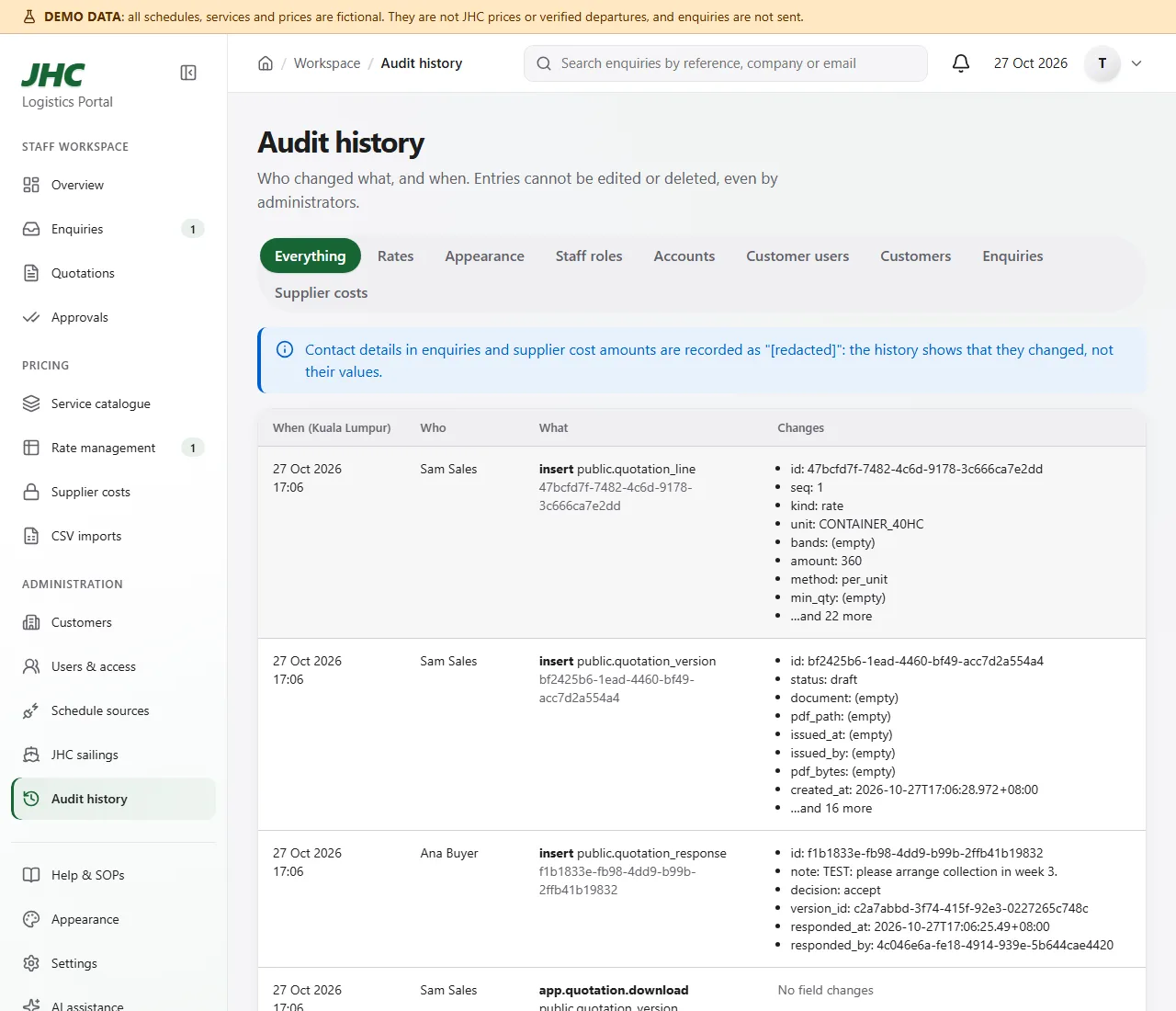
The audit history records who changed rates, quotations, users, customers, settings and appearance, and staff downloads of customer files, with times. Filter by area. Entries cannot be edited or deleted. Review weekly during the pilot, and after any incident.
ADM-10 Retention
Table 11: What is kept, and for how long (as built)
| Data | Retention |
|---|---|
| Enquiries, quotations, history, files | No period set; nothing is deleted automatically. JHC must decide (Q8, PDPA) |
| Files uploaded but never attached to a sent enquiry | Deleted after 3 hours |
| AI drafts and reviews | 90 days |
| AI usage records (no text) | 12 months |
| Issued quotation versions and PDFs | Never changed; no deletion function |
9. Incident handling (application side)
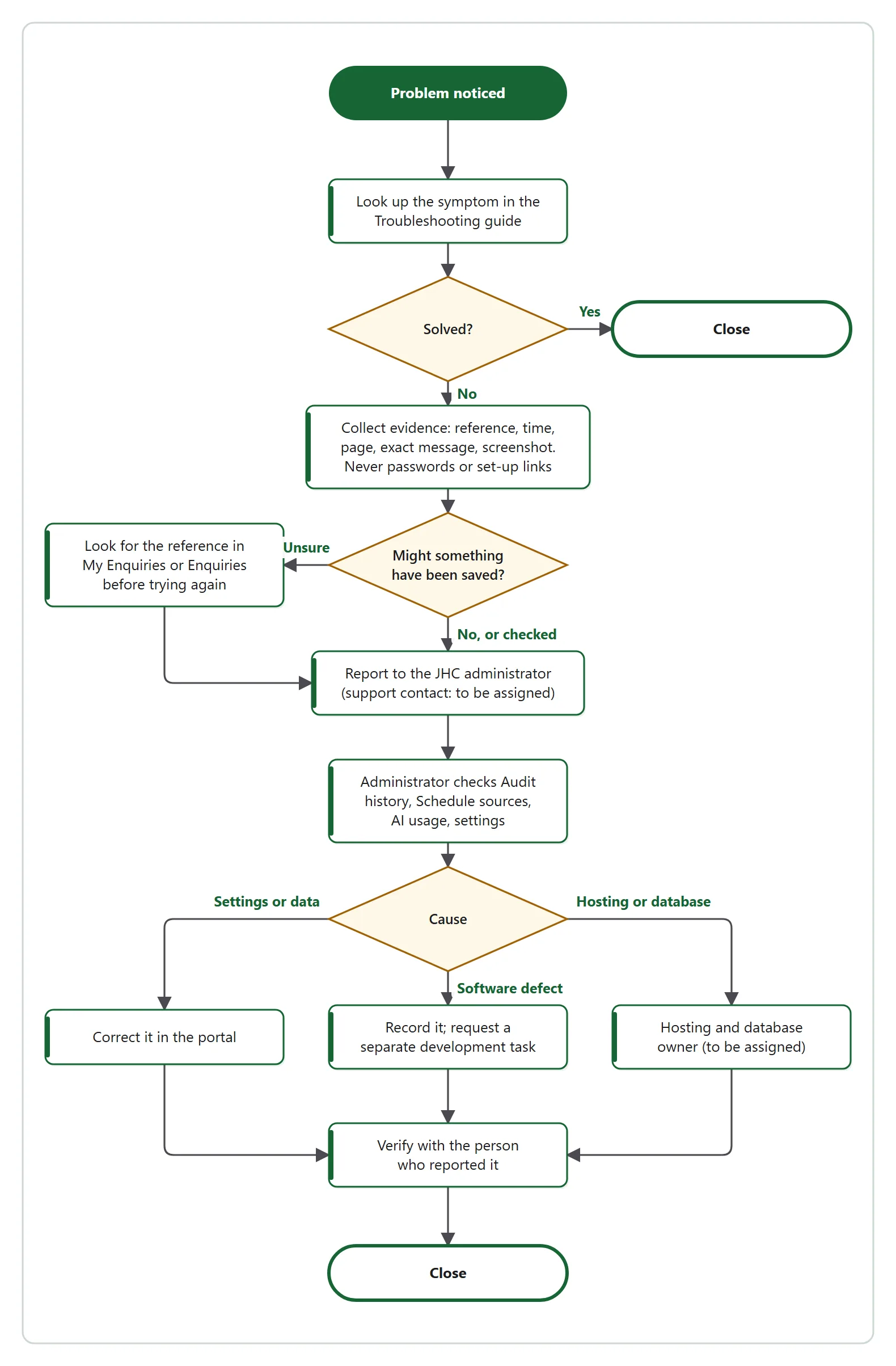
Table 12: First actions by incident type
| Incident | First action in the portal | Then |
|---|---|---|
| Suspected wrong access or data exposure | Deactivate the affected staff account, or Suspend customer / Remove the user | Part B: pause the project if needed; keep the audit history as evidence |
| AI behaving wrongly | Stop all AI requests now | Review Latest requests; report |
| Schedule provider giving bad data | Switch the provider off in Schedule sources | Report to the provider |
| Wrong published price | Withdraw the rate (JHC-SOP-02) | Publish a corrected version |
| Wrong issued quotation | Create revision; tell the customer | The issued version stays on record |
Part B — Hosting and database (technical owner)
These tasks are outside the portal. Production hosting does not exist yet (launch blockers 1 to 3, 13). Commands are run on the administrator's computer from the project folder. They read settings from .env.local (development) or .env.pilot.local (production), which must never be shared or committed.
Table 13: Hosting and database tasks
| Task | How | Status |
|---|---|---|
| Check settings | npm run setup:check (development) / npm run pilot:check (production). Never prints secret values | A (development) |
| Apply database updates | npm run db:migrate (development) / npm run pilot:migrate (production) | A (development, 27 Oct 2026: Stage 11 applied) |
| Verify access rules on the real database | npm run db:verify / npm run pilot:verify (all changes rolled back) | A (development: 74/74 on 27 Oct 2026) |
| First administrator | npm run admin:setup -- <email> "<name>"; later links npm run admin:link -- <email> | A (development) |
| Database backup | Supabase Pro daily backups, kept 7 days. The development project is on Free: no backups | Configured capability: not available yet |
| File backup | npm run storage:backup (development) / npm run pilot:backup-files (production), weekly and before updates, to an encrypted drive | A: file copy tested on development, 27 Oct 2026 |
| Restore test | PILOT_DEPLOYMENT.md §5: add a "RESTORE TEST" item, restore, confirm it is gone, pilot:verify | Never performed. Restore is not verified |
| Uptime monitoring | Monitor https://<portal-address>/health for "database":"ok" | Not set up (needs the live address) |
| Update the portal | PILOT_DEPLOYMENT.md §7 | Procedure written, not exercised in production |
| Rollback | Hosting "Instant Rollback"; database: corrective update, or restore as a last resort | Procedure written, not exercised |
| Keys (schedule providers, AI) | Hosting secret store only, e.g. ANTHROPIC_API_KEY=<your-key> | Not registered |
ADM-11 Release checks before any release
Follow RELEASE_CHECKLIST.md. Minimum before inviting pilot users:
- All automated tests pass, including the signed-in browser tests consistently (blocker 15 still open).
npm run pilot:checkreports no blockers;npm run pilot:verifypasses on production.- Restore test done and recorded.
- JHC data entered: legal entity, services, rates, privacy notice, support contact.
- User acceptance test signed (UAT_CHECKLIST.md and JHC-UG-09).