
| Item | Detail |
|---|---|
| Document reference | JHC-UG-01 |
| Version | 0.1 |
| Status | Draft for review (not approved for issue to customers) |
| Prepared | 27 October 2026 |
| Application version documented | Portal 0.3.0, commit 4d7b861 plus uncommitted working-tree changes of 27 Oct 2026 (customer assistant, visual updates). See the Change-impact register (JHC-REG-03) |
| Audience | Customers of JHC (external). Contains no internal costs, margins, approval rules or other customers' information |
| Document owner | To be assigned (JHC) |
| Approver | To be assigned |
| Effective date | Not set: draft |
| Related documents | Customer Quick Start (JHC-QS-01), Troubleshooting and Support Guide (JHC-UG-08) |
Table 1: Revision history
| Version | Date | Change | By |
|---|---|---|---|
| 0.1 | 27 Oct 2026 | First illustrated draft, written from the implemented portal and screenshots captured in the TEST set-up | Prepared with Claude (AI assistant) for JHC review |
1. About this manual
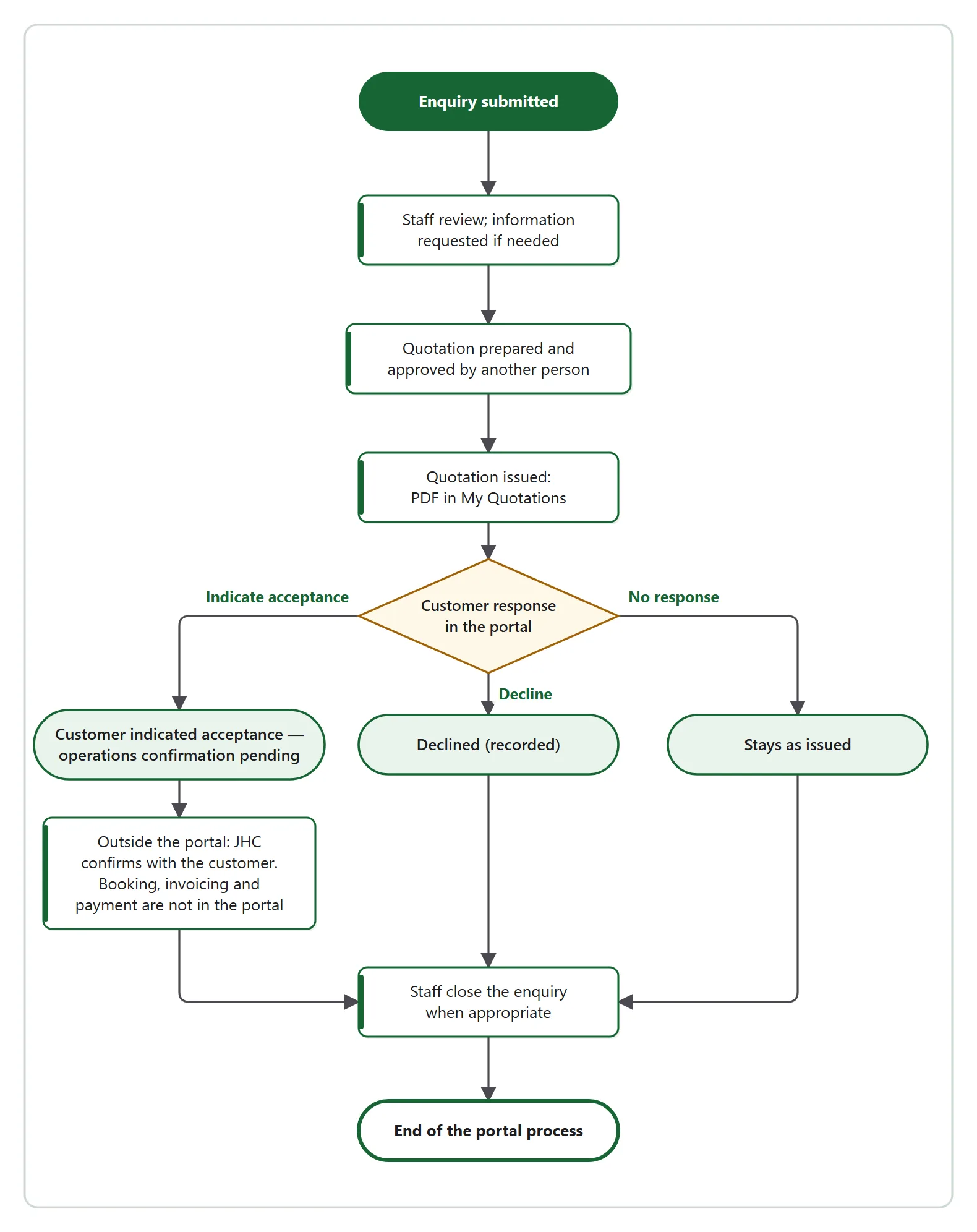
This manual explains how a JHC customer uses the JHC Logistics Portal, from the first sign-in to the final result the portal supports: a quotation issued by JHC, to which you indicate acceptance or decline.
About the pictures. Every screenshot is the real portal, captured on 27 October 2026 on a test copy with fictional companies, schedules and prices. You will see an orange DEMO DATA banner and names such as "Demo Customer A" and "TEST-ENQ-…". Your real portal shows JHC's real services and your company's name. All prices in this manual are fictional examples, not JHC prices.
Numbered callouts. Pictures have numbered black circles with a green outline around the item. The numbers match the steps in the table under each picture.
Status labels in this manual
Table 2: Verification status used for each procedure
| Label | Meaning |
|---|---|
| A · Verified | Done on the real screens in the test set-up while preparing this manual, and covered by the portal's automated tests |
| B · Built, not fully verified | Built, but not performed end to end for this manual, or verified only with practice components |
| C · Needs external access | Built and configured, but depends on a supplier, licence or key that JHC has not yet arranged |
| D · Not available | Not part of the portal. Shown only so you know what to do instead |
1.1 Important distinctions
Table 3: What the portal does and does not confirm
| You see… | It means | It does not mean |
|---|---|---|
| A schedule (vessel, port call, flight) | Timetable information from the named source | Cargo space, acceptance or a booking |
| A published price or "Your agreed rate" | A price for the stated unit, currency and validity | A quotation for your shipment |
| "Enquiry received: TEST-ENQ-…" | Your request is saved and JHC will review it | A booking or confirmed space |
| An issued quotation | JHC's formal offer, as a PDF | A booking or a payment |
| "Customer indicated acceptance — operations confirmation pending" | You told JHC you accept | A confirmed booking: JHC still confirms with you |
Note: The portal sends no emails. When JHC asks you a question or issues a quotation, you see it the next time you sign in. JHC staff may also contact you directly.
1.2 How the customer journey fits together
2. Getting started
CUS-01 Open the portal
| Purpose | Reach the portal's home page |
| Who | Anyone |
| Before you start | A computer or phone with an up-to-date browser (Chrome, Edge, Safari or Firefox) |
| You need | The portal address from JHC (to be confirmed; not yet published) |
| Result | The home page with Schedules, Services & Pricing and Request a quotation |
| Status | A · Verified (test set-up) |
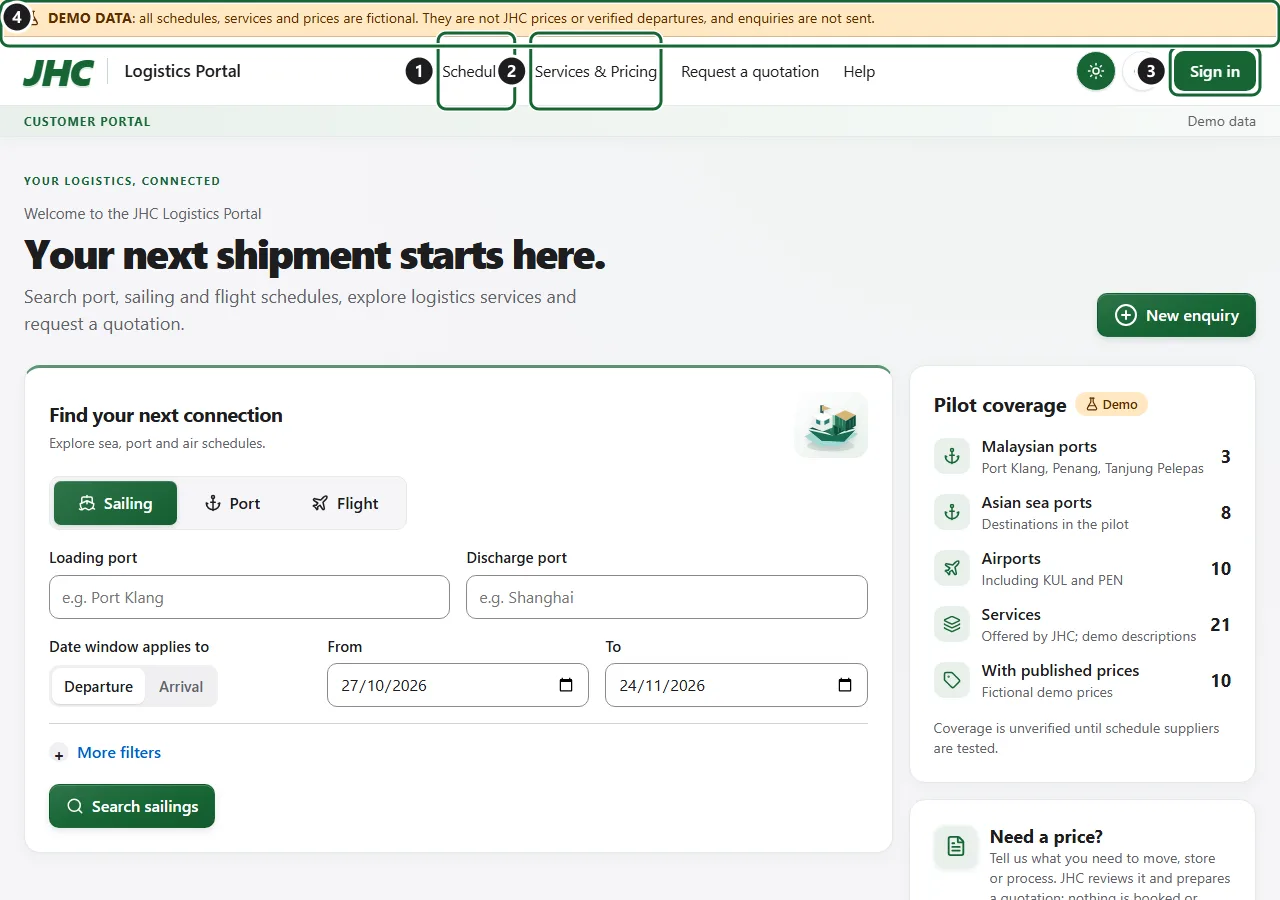
Table 4: CUS-01 steps
| Step | Screen | Action | Expected result | Picture | If not |
|---|---|---|---|---|---|
| 1 | Browser | Enter the portal address JHC gave you | The home page opens | Fig. above | Check the address; see JHC-UG-08 §2 |
| 2 | Home | Use Schedules (callout 1) to look up schedules | Schedule search opens | ||
| 3 | Home | Use Services & Pricing (callout 2) to see services and prices | Service list opens | ||
| 4 | Home | Choose Sign in (callout 3) if you have an account | Sign-in page opens | ||
| 5 | Home | Read any banner at the top (callout 4) | Explains the data shown. On the test copy it says DEMO DATA |
You can look at schedules and services and send an enquiry without signing in. Signing in adds your company's agreed rates, your enquiry history and your quotations.
CUS-02 Get an account and sign in
| Purpose | Set your password the first time, then sign in |
| Who | A customer user invited by JHC |
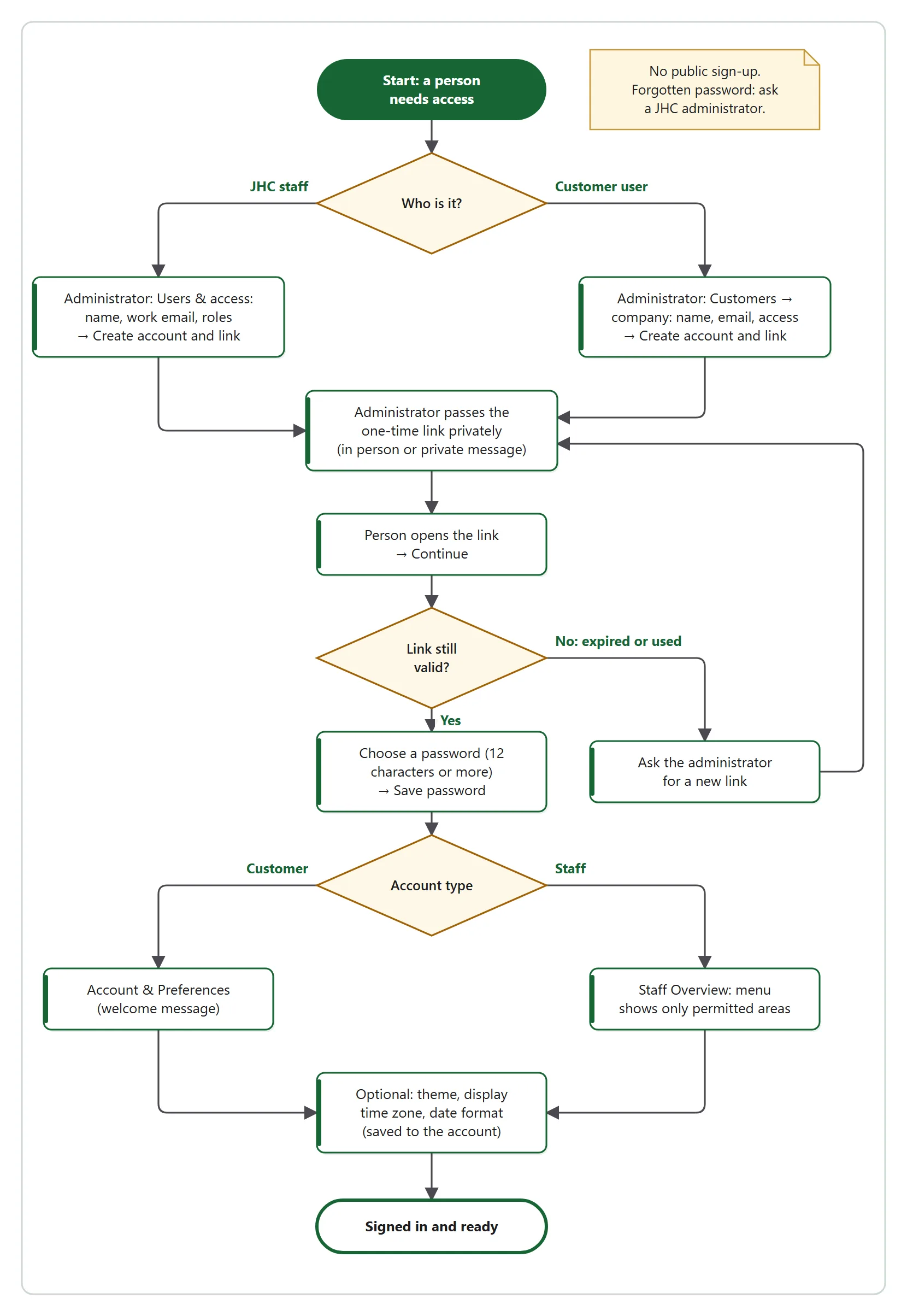
| Before you start | JHC has created your account and given you a one-time set-up link privately |
| Result | You are signed in and see Account & Preferences |
| Record | Your account is linked to your company |
| Related | FLOW-02, CUS-03 |
| Status | A · Verified. Public self-registration is D · Not available: accounts are created by JHC only |
First time: choose your password
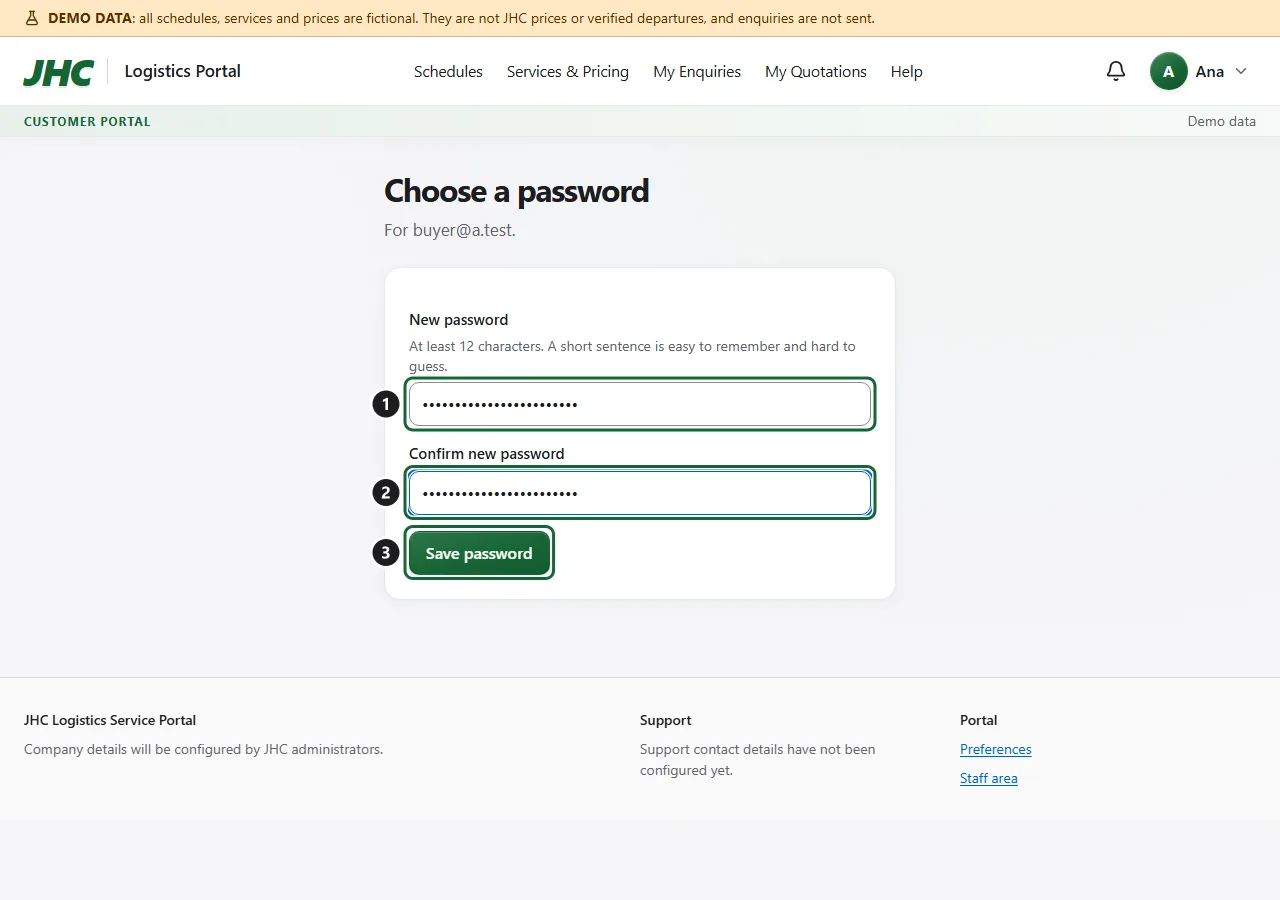
Table 5: CUS-02 first sign-in
| Step | Screen | Action | Expected result | Picture | If not |
|---|---|---|---|---|---|
| 1 | Set-up link | Open the link from JHC and select Continue | Choose a password | Fig. above | "expired or has already been used": ask JHC for a new link |
| 2 | Choose a password | Enter a password of at least 12 characters in New password (callout 1) | Use a long, unique password. Never share it | ||
| 3 | Enter it again in Confirm new password (callout 2) | The two must match | |||
| 4 | Select Save password (callout 3) | Account & Preferences opens with a welcome message and your company name | Next figure |
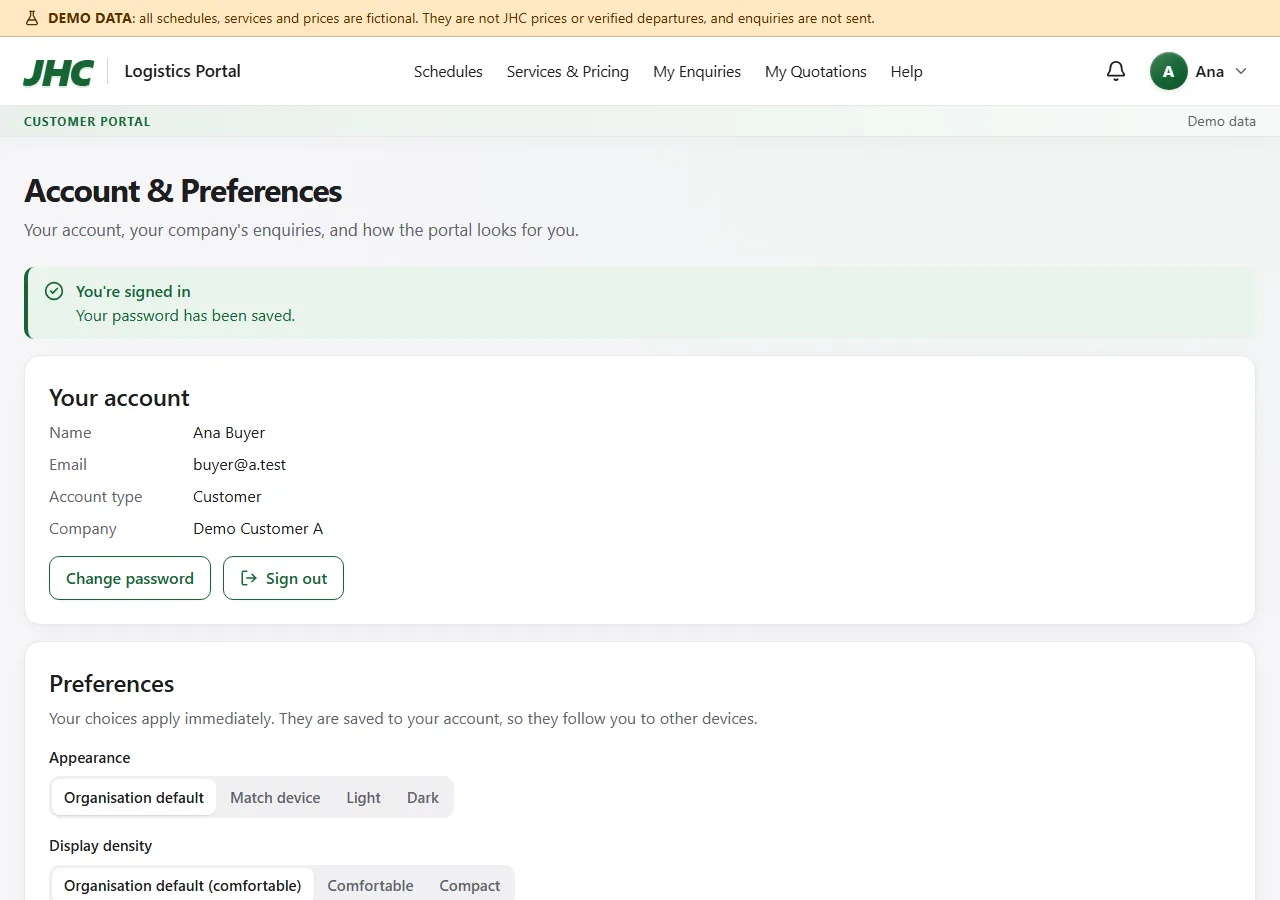
Every other time: sign in
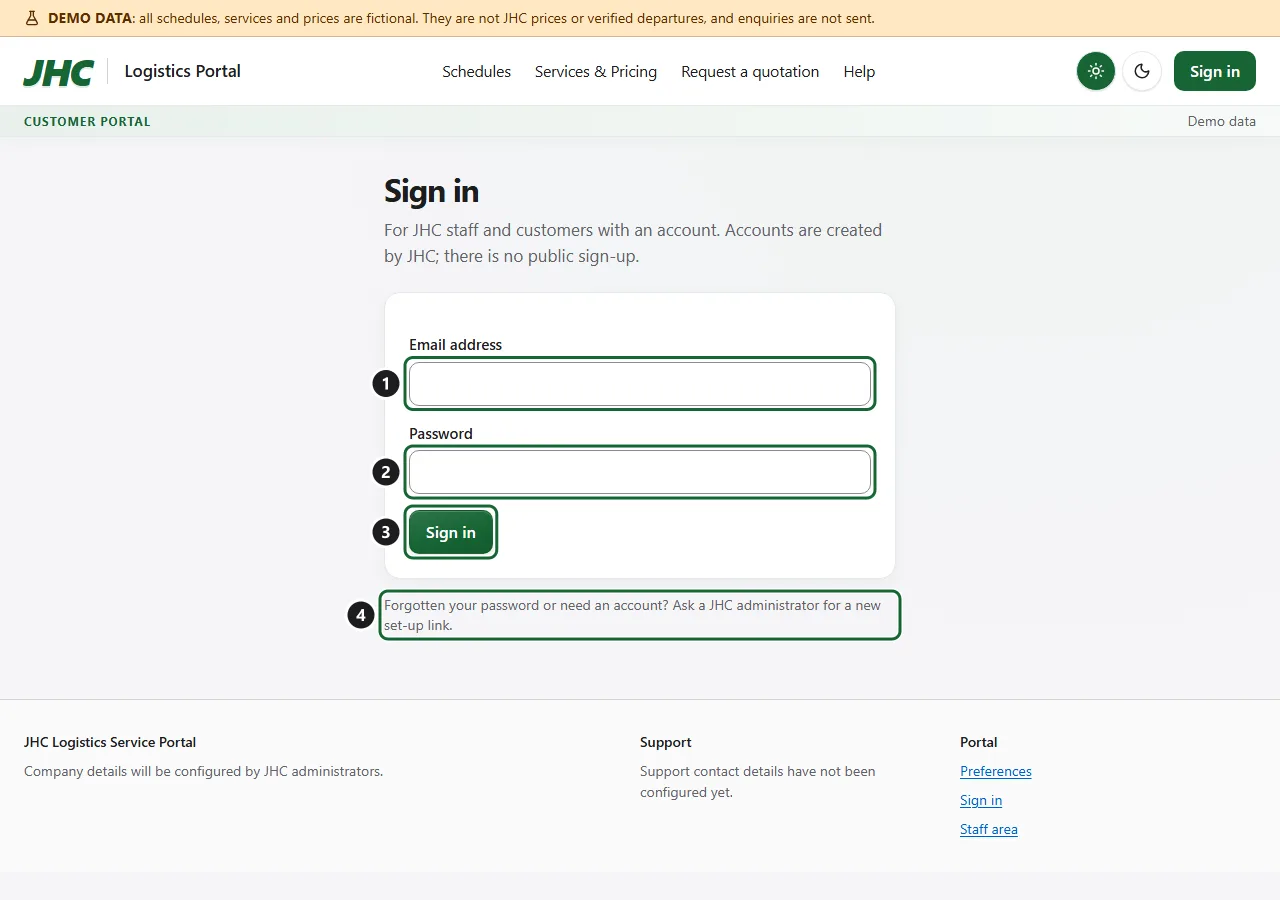
Table 6: CUS-02 sign in
| Step | Screen | Action | Expected result | If not |
|---|---|---|---|---|
| 1 | Any page | Select Sign in | Sign-in page | |
| 2 | Sign in | Enter Email address (callout 1) and Password (callout 2) | ||
| 3 | Select Sign in (callout 3) | Your account page, or the page you were trying to open | "The email or password is incorrect…": check both. After repeated attempts, wait and try later |
CUS-03 Recover access and sign out
| Purpose | Get back in if you forget your password; end your session safely |
| Who | Customer user |
| Result | A new set-up link from JHC; or you are signed out |
| Status | Sign out: A · Verified. Password recovery by a new link from JHC: B · Built, not fully verified for customer users. Self-service "forgot password": D · Not available |
Forgotten password. The sign-in page says: "Forgotten your password or need an account? Ask a JHC administrator for a new set-up link." (callout 4 on the sign-in picture). Contact your JHC representative. They give you a new one-time link; open it and follow CUS-02.
Sign out. Open your name at the top right (the account menu) and choose Sign out. Do this on shared computers.
CUS-04 Find your way around
| Purpose | Know where each function is |
| Who | Signed-in customer user |
| Status | A · Verified |
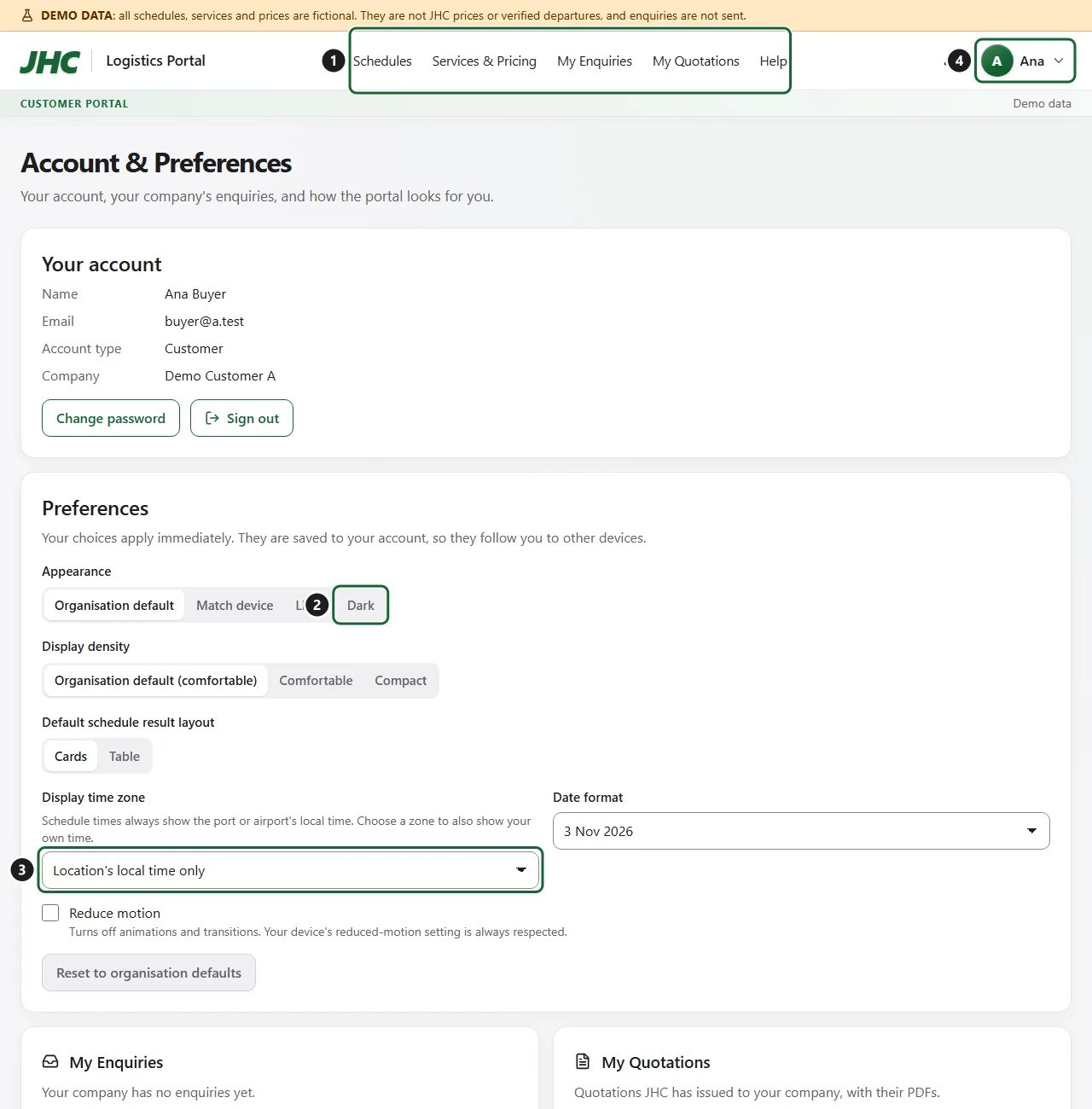
Table 7: Customer menu (signed in)
| Menu item | What it is for | Procedures |
|---|---|---|
| Schedules | Port calls, sailings and flights | CUS-06 to CUS-09 |
| Services & Pricing | JHC's services, published prices and your agreed rates | CUS-10, CUS-11 |
| My Enquiries | Every enquiry from your company, its status, files and history | CUS-17, CUS-18 |
| My Quotations | Quotations JHC issued to your company, with PDFs and your response | CUS-19 to CUS-22 |
| Help | This manual, the quick start and troubleshooting, inside the portal | — |
| Your name (account menu, callout 4) | Account & Preferences; Sign out | CUS-03, CUS-05 |
A note at the top, for example "Nothing needs your reply" or "Your reply is needed", tells you whether JHC is waiting for you.
CUS-05 Change your appearance, time zone and date format
| Purpose | Make the portal comfortable to read |
| Who | Signed-in customer user |
| Result | Saved to your account; applies on any computer you sign in from |
| Status | A · Verified |
Table 8: CUS-05 steps
| Step | Screen | Action | Expected result |
|---|---|---|---|
| 1 | Account & Preferences | Under Appearance, choose Organisation default, Match device, Light or Dark (callout 2 on the account picture) | The page changes at once; "Saved to your account." |
| 2 | Choose Display time zone (callout 3) | Dates and times are shown in that zone | |
| 3 | Choose Date format, or Reduce motion if animations bother you | Saved |
Note: Schedule times are always labelled with their own time zone (for example "GMT+8"), so a port's local time is never confused with yours.
3. Schedules
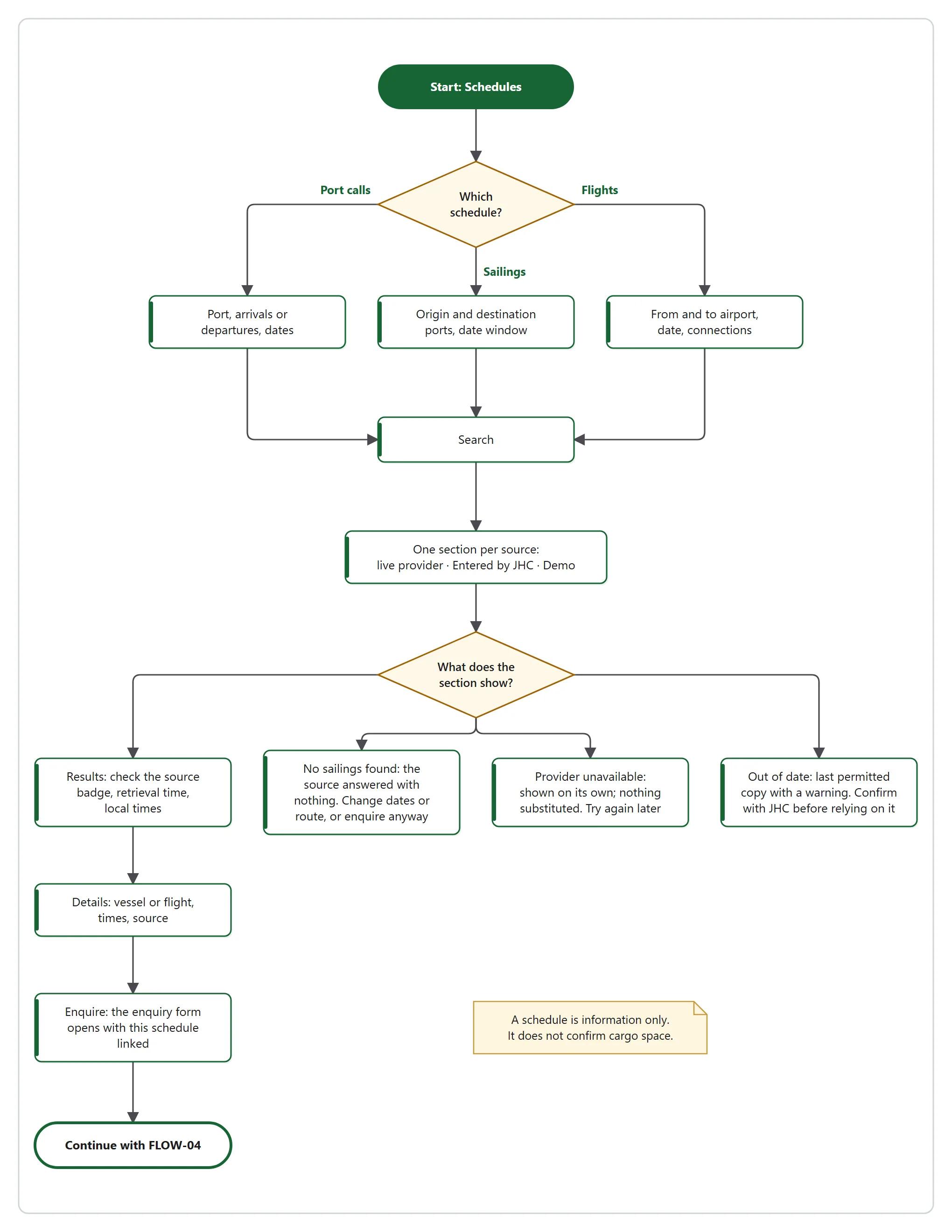
CUS-06 Search port calls
| Purpose | See vessels arriving at or departing from a port |
| Who | Anyone |
| Result | Port calls with scheduled, estimated and actual times in the port's local time |
| Status | A · Verified with demonstration data. Live port data: C · Needs external access |
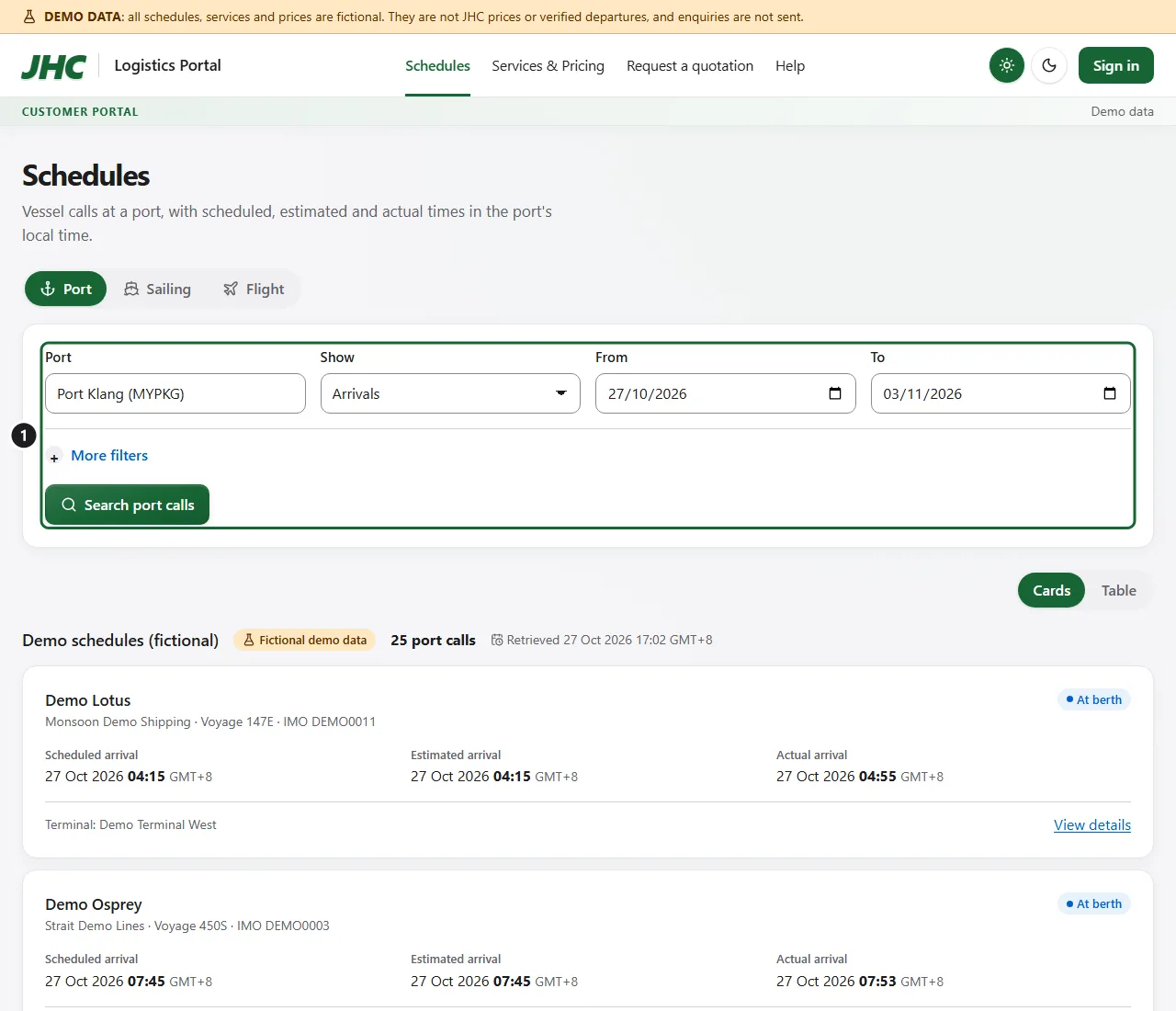
Table 9: CUS-06 steps
| Step | Screen | Action | Expected result | If not |
|---|---|---|---|---|
| 1 | Schedules | Select Port | Port search | |
| 2 | Type the port in Port and pick it from the list (e.g. Port Klang (MYPKG)) | Only ports in the list can be searched | ||
| 3 | In Show, choose Arrivals or Departures; set From and To | |||
| 4 | Select Search port calls | One section per source | See CUS-09 | |
| 5 | Results | Use Cards or Table; View details opens one call |
CUS-07 Search sailings
| Purpose | Find port-to-port sailings and start an enquiry from one |
| Who | Anyone |
| Result | Sailings by source; an enquiry form linked to the chosen sailing |
| Status | A · Verified with demonstration and JHC-entered data. Live carrier data: C · Needs external access |
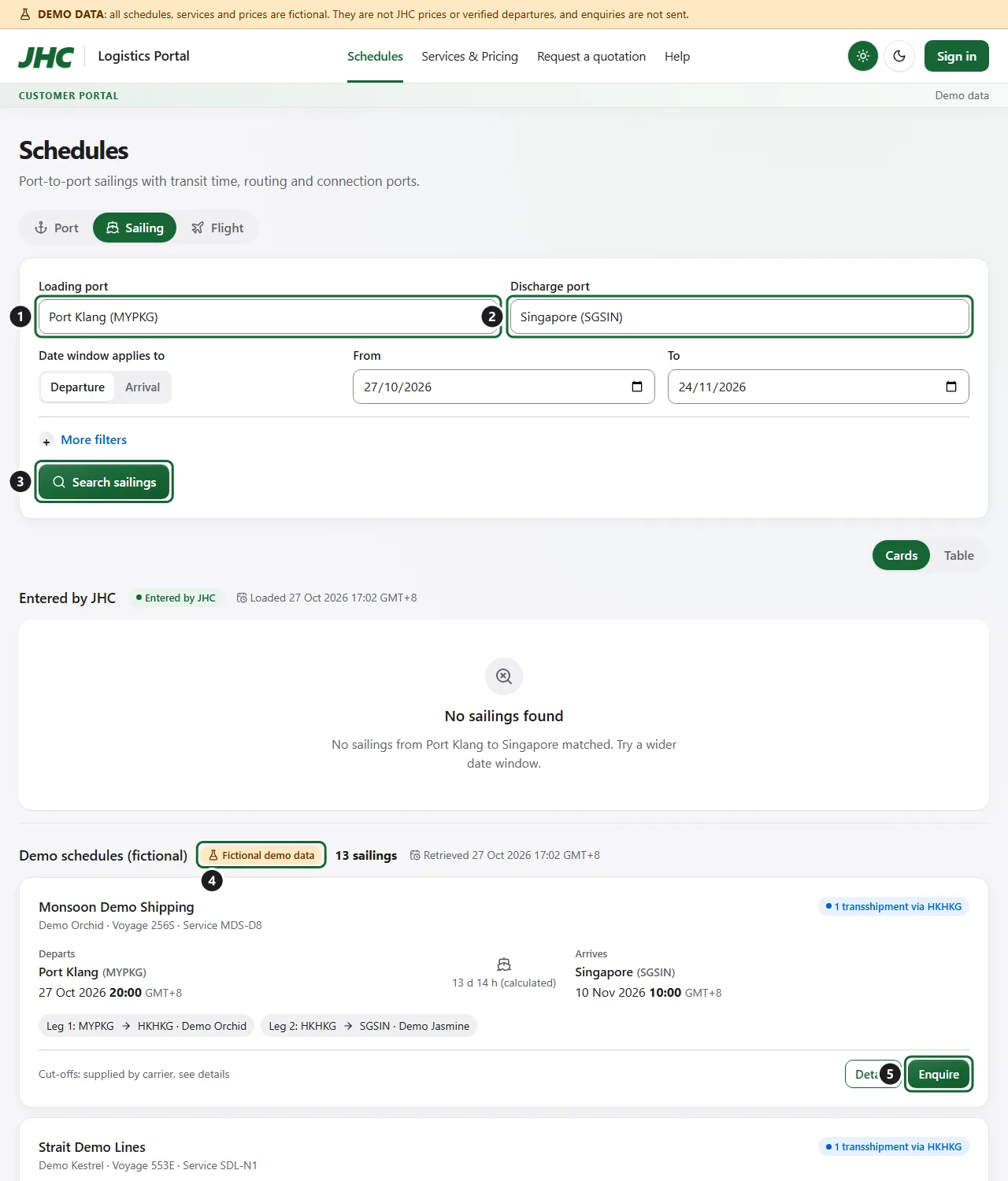
Table 10: CUS-07 steps
| Step | Screen | Action | Expected result | If not |
|---|---|---|---|---|
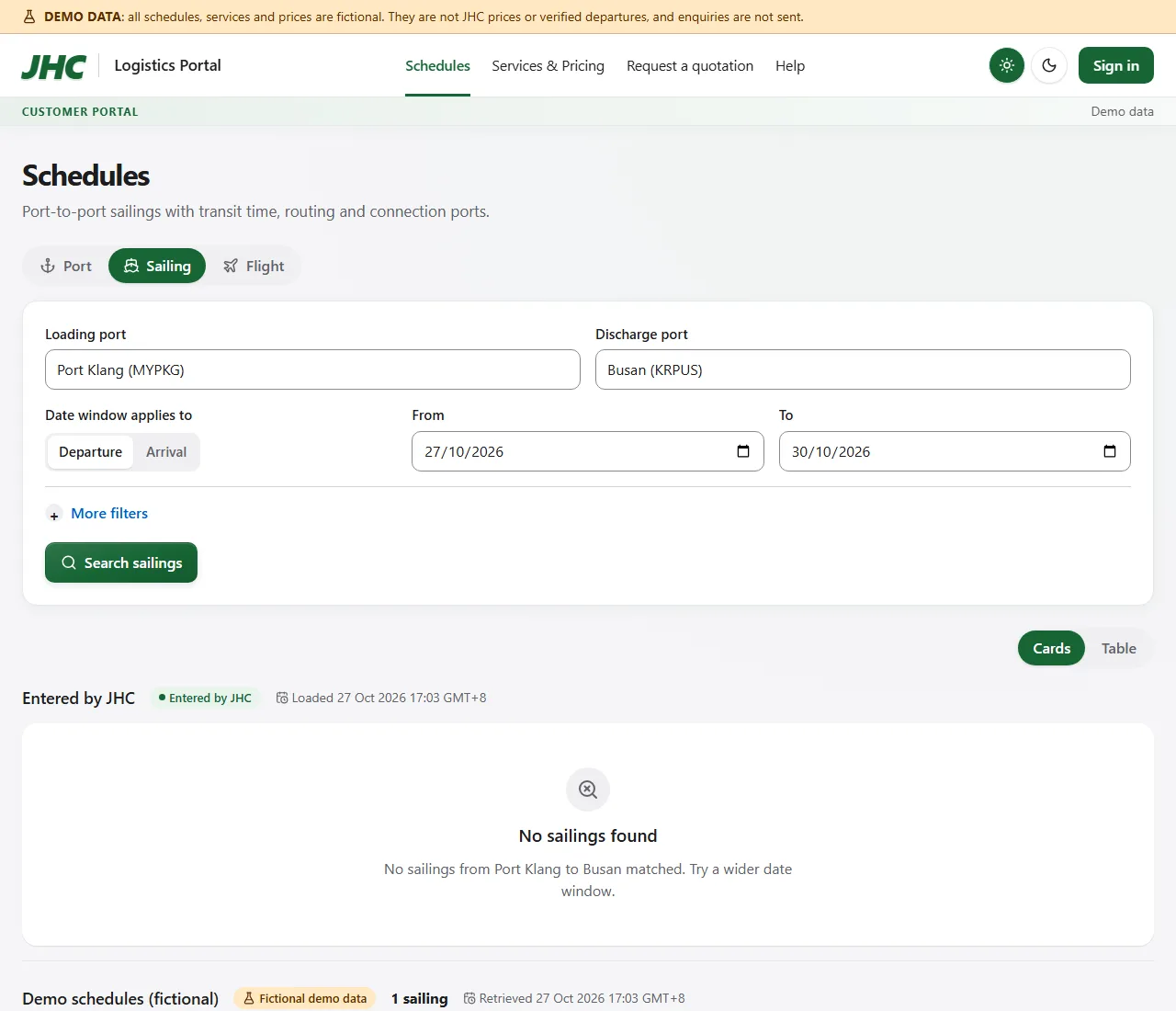
| 1 | Schedules | Select Sailing | Sailing search | |
| 2 | Choose Loading port (callout 1) and Discharge port (callout 2) | |||
| 3 | Choose whether the Date window applies to Departure or Arrival; set From and To | Use More filters for more options | ||
| 4 | Select Search sailings (callout 3) | Sections: Entered by JHC, any live source, and (test copy only) Demo schedules (fictional) (callout 4) | "No sailings found": widen the dates | |
| 5 | Results | Select Details on a sailing | Vessel, voyage, times, transit and Source | |
| 6 | Results or details | Select Enquire (callout 5) | The enquiry form opens with the sailing linked | Continue with CUS-12 |
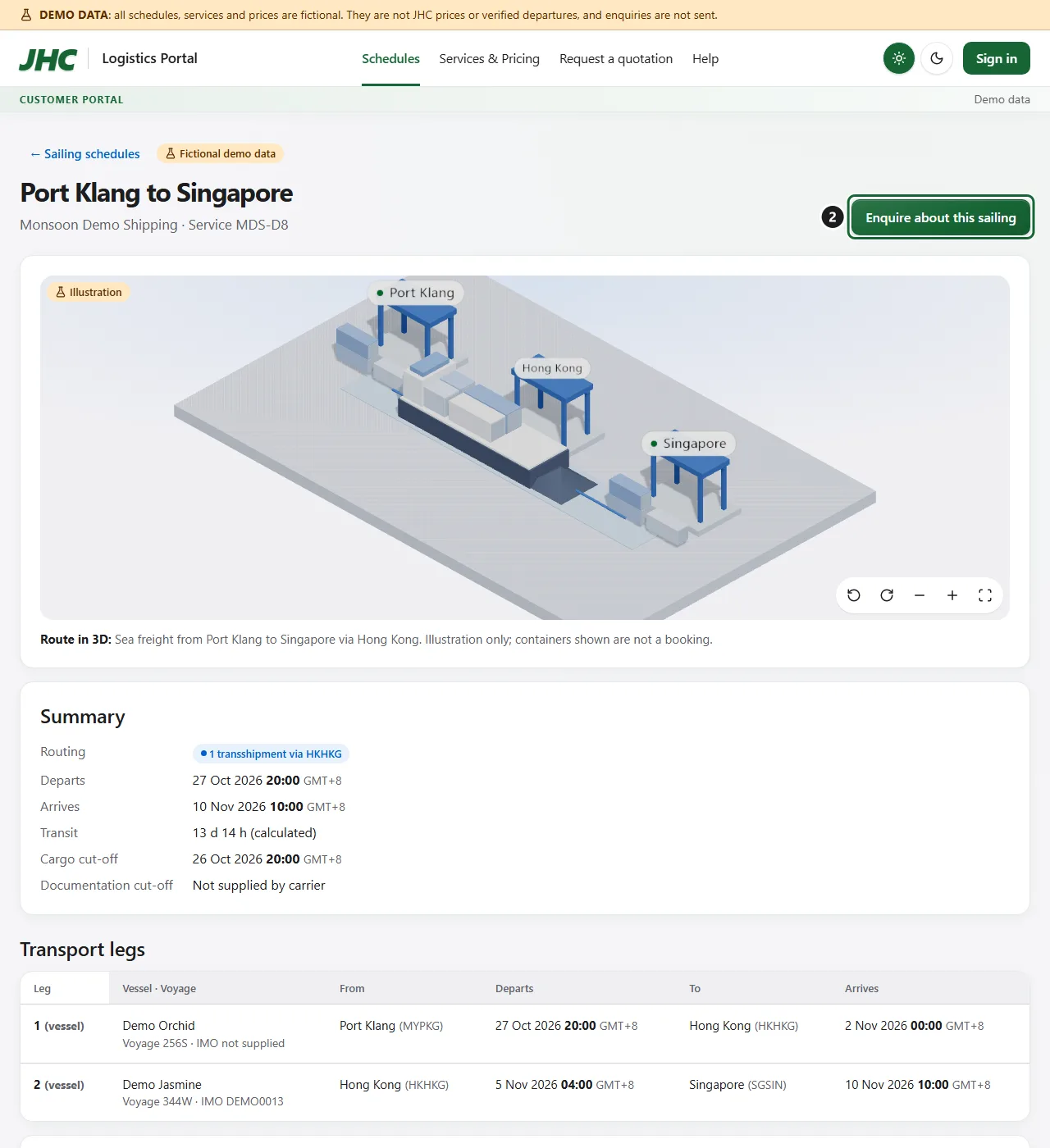
CUS-08 Search flights
| Purpose | Find timetabled flights between two airports |
| Who | Anyone |
| Status | A · Verified with demonstration data. Live flight data: C · Needs external access |
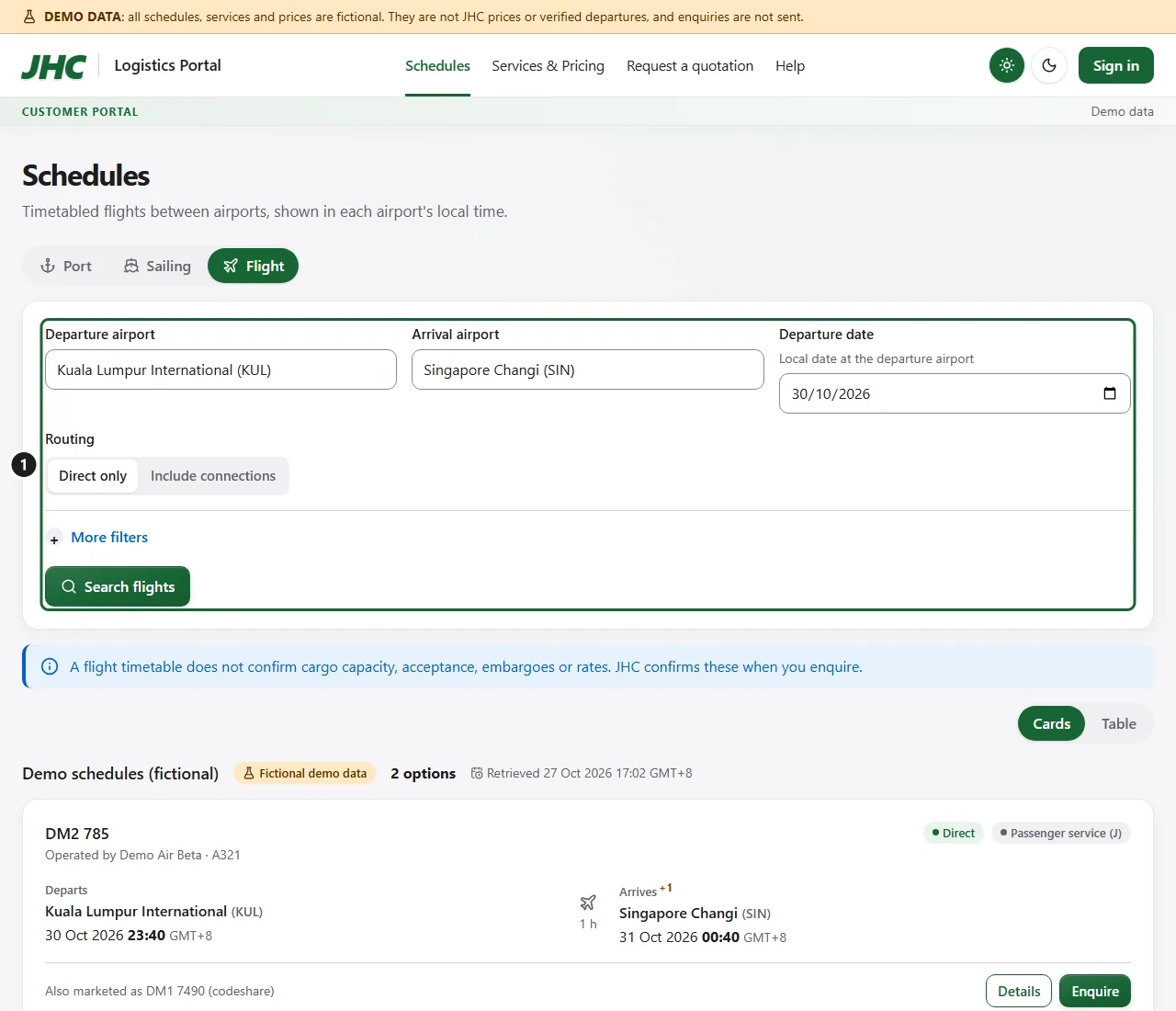
Table 11: CUS-08 steps
| Step | Screen | Action | Expected result |
|---|---|---|---|
| 1 | Schedules | Select Flight | Flight search |
| 2 | Choose Departure airport and Arrival airport; set Departure date (local date at the departure airport) | ||
| 3 | Choose Routing: Direct only or Include connections | ||
| 4 | Select Search flights | Flights by source, with codeshare numbers and a "+1" mark for next-day arrivals | |
| 5 | Details or Enquire | As for sailings |
Note: As the page says: "A flight timetable does not confirm cargo capacity, acceptance, embargoes or rates. JHC confirms these when you enquire."
CUS-09 Understand sources, freshness and dates
| Purpose | Read schedule results correctly |
| Status | A · Verified |
Table 12: Labels on schedule results
| Label | Meaning | What to do |
|---|---|---|
| Entered by JHC | Sailings JHC staff entered from a carrier's or agent's schedule, with the source named | A note appears if not re-confirmed in 7 days |
| Live provider data | Retrieved from the named provider for this search | Check the "Retrieved" time |
| Out of date | The live call failed; this is the last copy the licence allows | Confirm with JHC before relying on it |
| Provider unavailable | The provider failed or refused. Nothing is shown in its place | Try later or enquire anyway |
| Fictional demo data | Test copy only. Never real | Ignore for planning |
| No sailings found | That source answered and had nothing | Change dates or route |
| Times such as "04:15 GMT+8" | Local time at that port or airport, with its offset |
4. Services and prices
CUS-10 Browse services
| Purpose | See what JHC offers |
| Who | Anyone |
| Status | A · Verified |
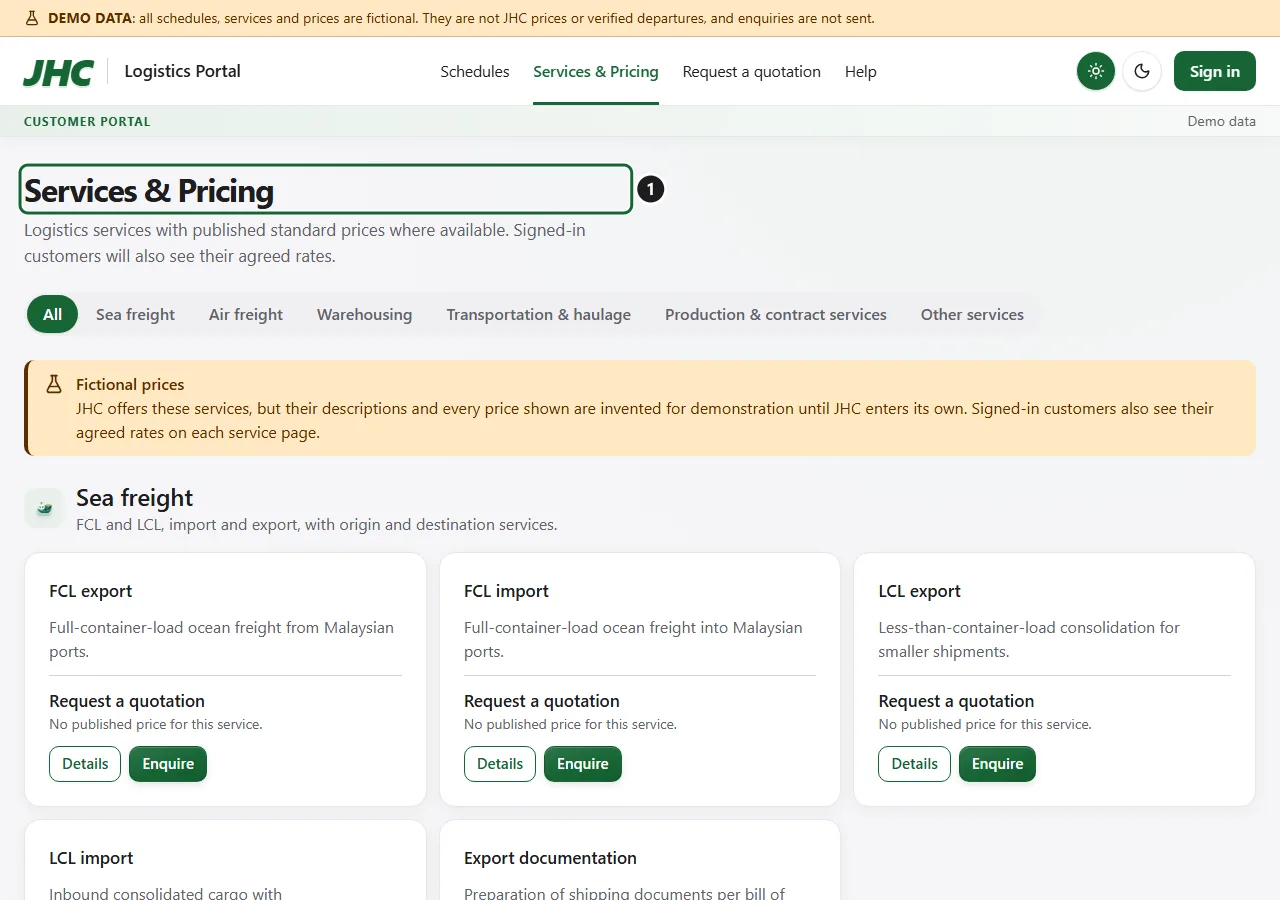
Select Services & Pricing, filter by category, then open a service to see its description, locations and prices.
CUS-11 Understand published, indicative and agreed rates
| Purpose | Know what a price on the portal means |
| Status | A · Verified |
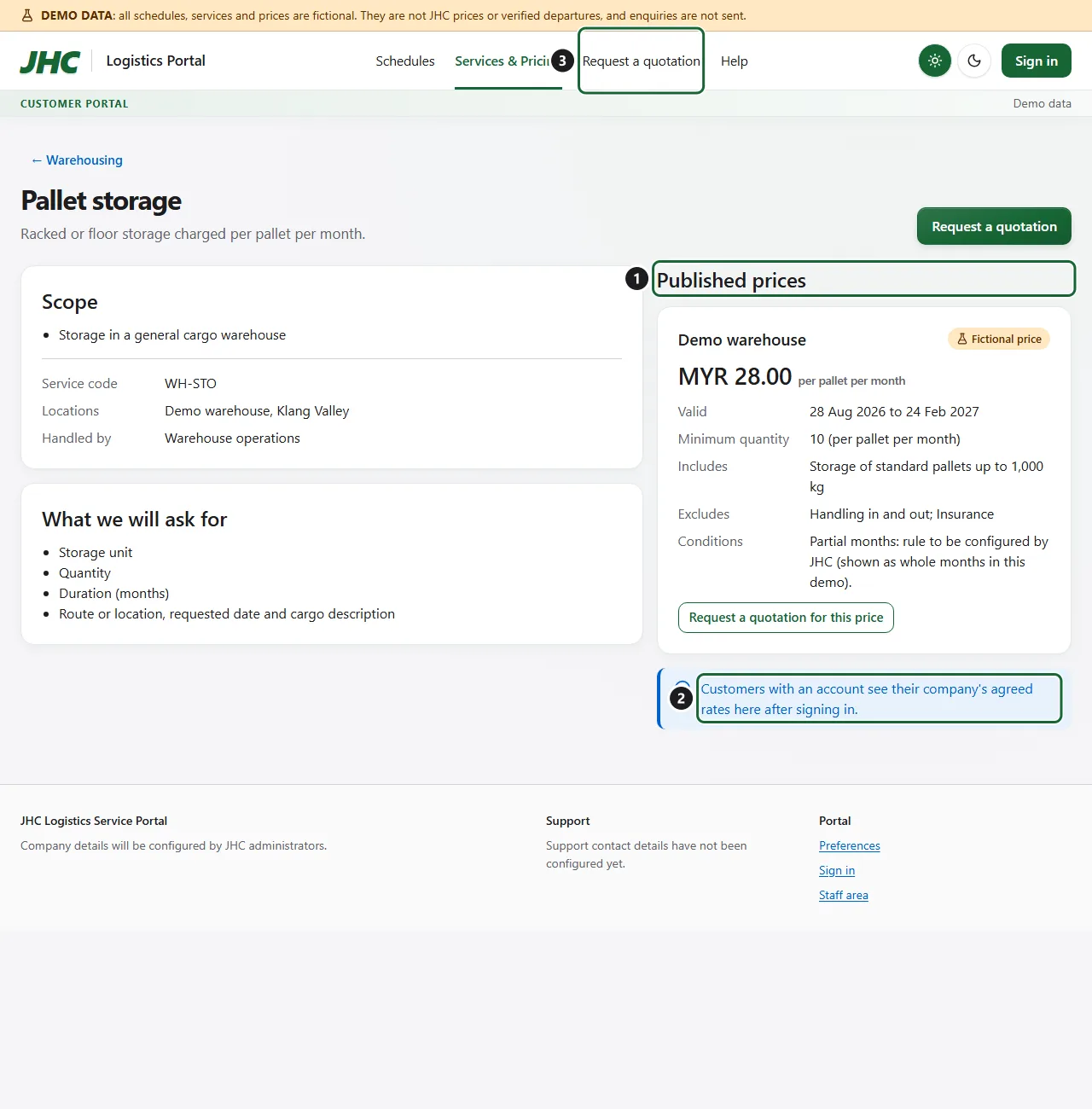
Table 13: Kinds of price you may see
| Shown as | Meaning |
|---|---|
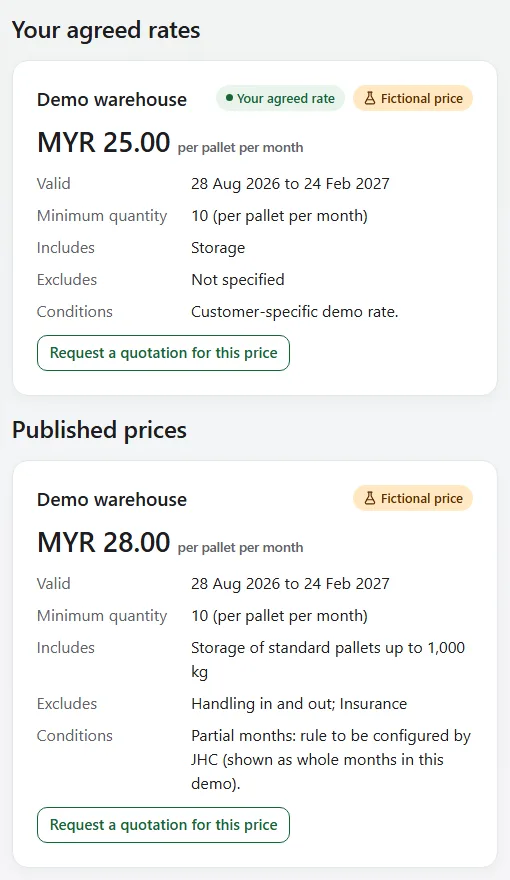
| A fixed amount, e.g. "MYR 25.00 per pallet per month" | JHC's published standard price for that unit, currency and validity |
| "From MYR …" | The lowest applicable price; the actual amount depends on the stated conditions |
| "Indicative — not a quotation" | An estimate only (JHC currently does not show these publicly) |
| Your agreed rate (signed in) | Your company's own agreed price. Other companies never see it |
| Price on request / "No published price" | No amount is shown; JHC prices it in a quotation |
Every price shows its currency, unit, validity dates, and what is included, not included and any conditions. A price is not a quotation: JHC confirms the final price in a quotation (CUS-19).
5. Enquiries
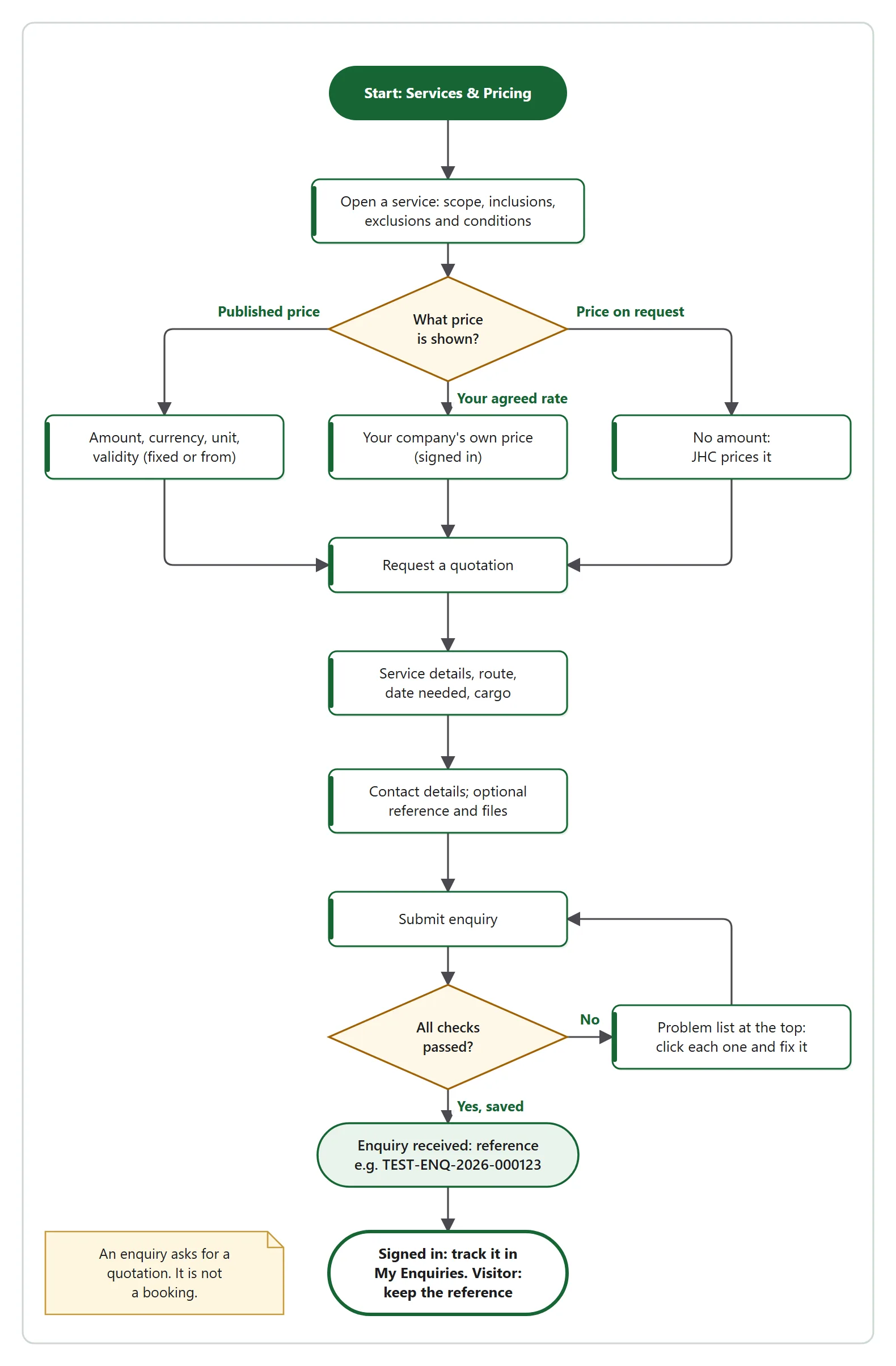
CUS-12 Create a single-service enquiry
| Purpose | Ask JHC for a quotation for one service |
| Who | Anyone; signed-in users' enquiries are saved to their company |
| Before you start | Know the route, date needed and cargo |
| Trigger | Request a quotation, New enquiry, Request a quotation for this price, or Enquire on a schedule |
| Result | "Enquiry received: reference" |
| Record | Enquiry reference, e.g. TEST-ENQ-2026-000123 (real references start with ENQ-) |
| Related | CUS-13, CUS-14, CUS-16, FLOW-04 |
| Status | A · Verified |
Table 14: CUS-12 steps
| Step | Screen | Action | Expected result | If not |
|---|---|---|---|---|
| 1 | Request a quotation | Under 1. Services, tick the service | Its fields appear under 2. Service details | If you came from a price or schedule, it is already linked ("Linked price" / "Linked schedule") |
| 2 | 2. Service details | Fill in every required field for the service (e.g. storage unit, quantity, duration) | Fields marked optional can be left empty | |
| 3 | Enter Origin, Destination or Service location, Date needed and Cargo description as asked | Use the date the service is needed | ||
| 4 | Your details | Enter Your name, Company, Email; optional Phone, Your reference (e.g. your PO number), Remarks | ||
| 5 | Add files if useful (CUS-14) | |||
| 6 | Select Submit enquiry | See CUS-16 |
Worked example (fictional). Ana Buyer of Demo Customer A needs pallet storage: 40 pallets for 6 months in the Klang Valley, from a date two weeks ahead. She opens Services & Pricing → Pallet storage, selects Request a quotation for this price, enters storage unit Pallet, quantity 40, duration 6 months, location Klang Valley, the date and Boxed furniture, then Submit enquiry. She receives a reference starting TEST-ENQ-.
Common mistakes: leaving a required field empty; entering a weight without a unit where the form asks for one; choosing a past date; submitting twice because the page was slow (check My Enquiries first: CUS-17).
CUS-13 Create a multi-service enquiry
| Purpose | Ask for several services in one request (e.g. sea freight plus haulage) |
| Who | Anyone |
| Result | One reference covering every service |
| Related | FLOW-05, EX-01 |
| Status | A · Verified |
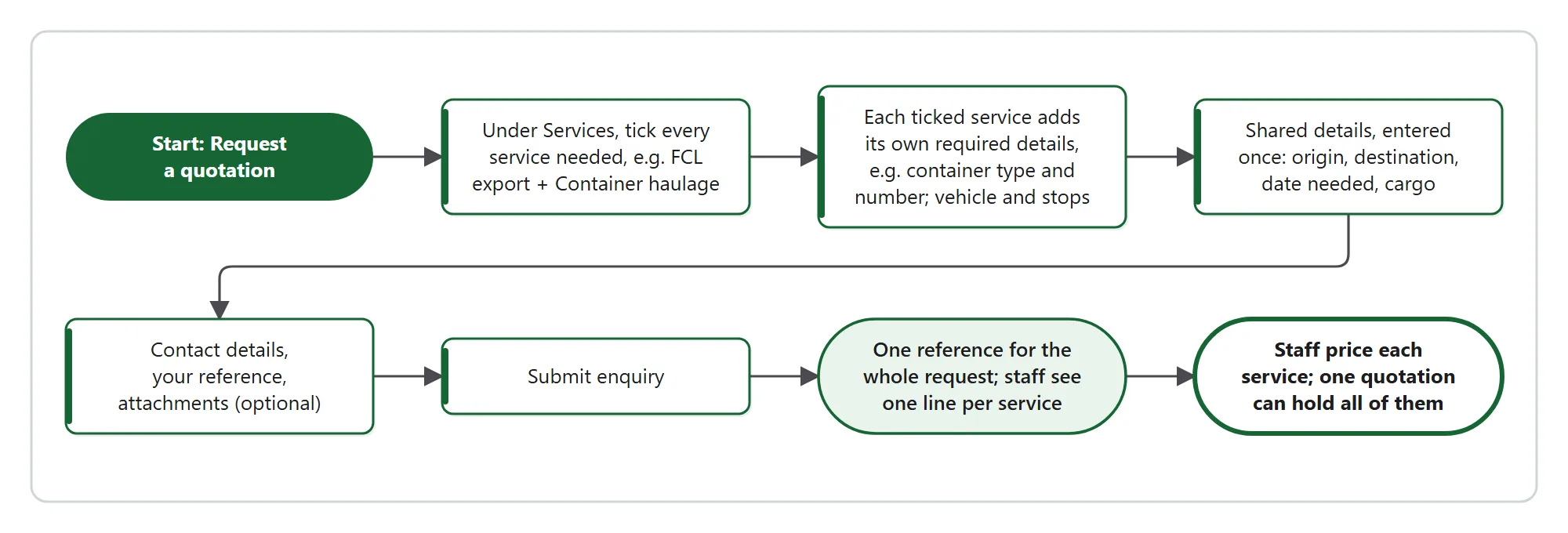
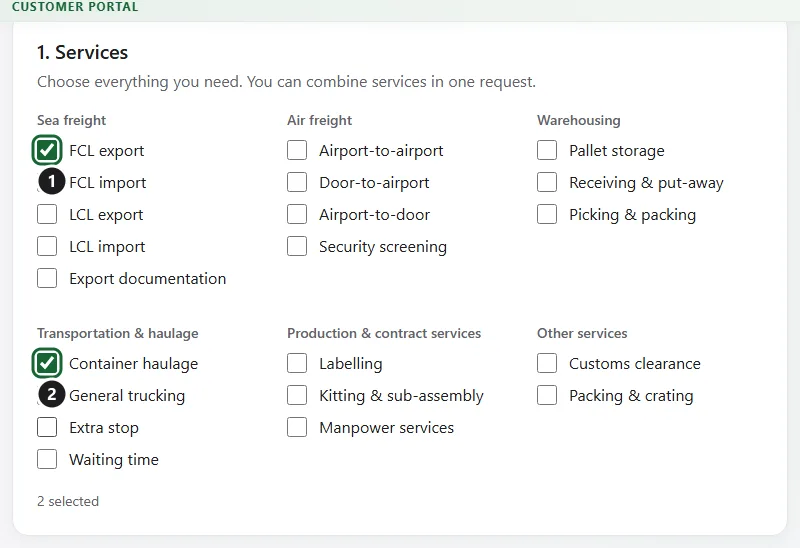
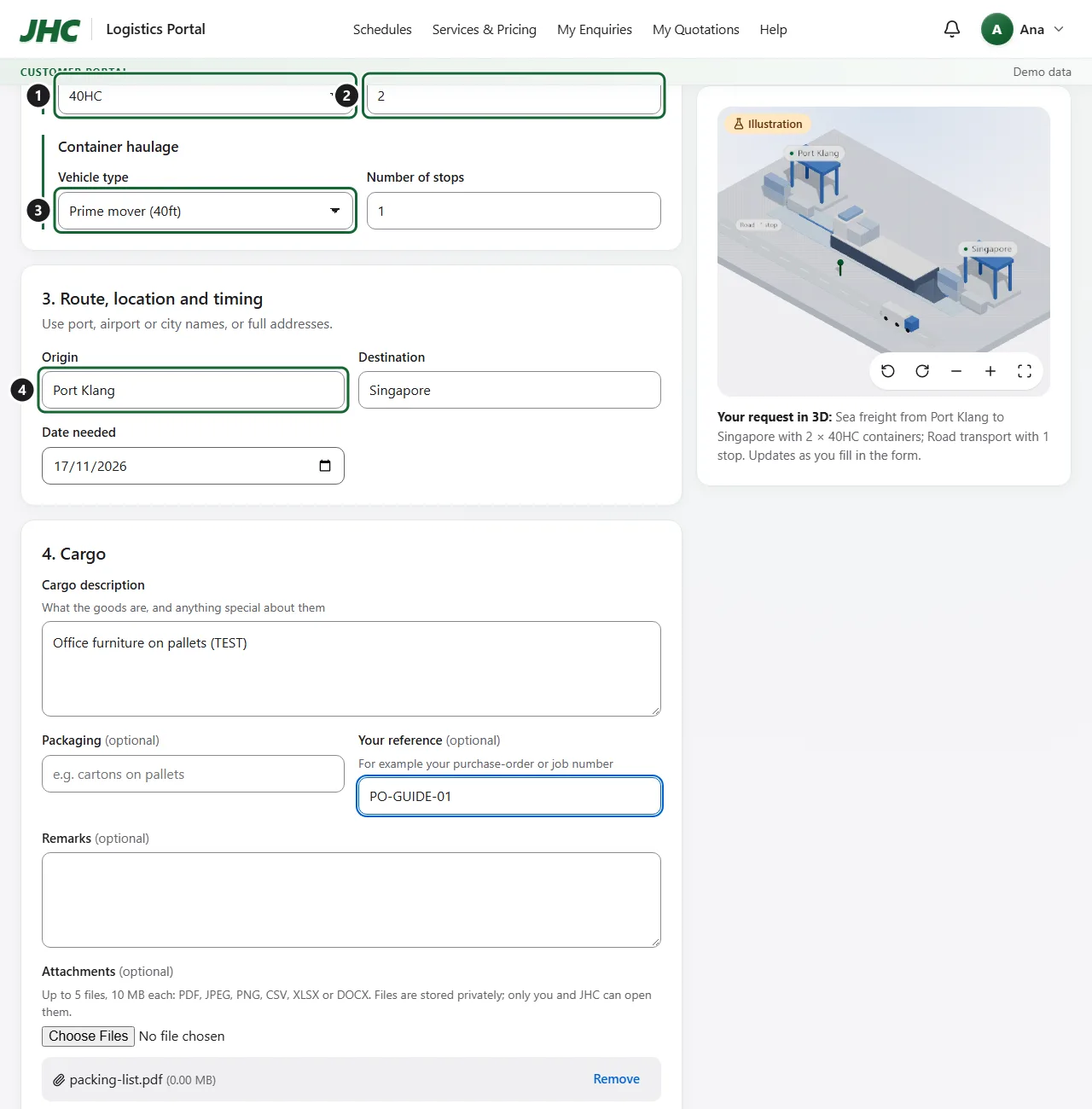
Table 15: CUS-13 steps
| Step | Screen | Action | Expected result | Picture |
|---|---|---|---|---|
| 1 | 1. Services | Tick the first service, e.g. FCL export (callout 1) | Its fields appear | Services figure |
| 2 | Tick each other service, e.g. Container haulage (callout 2) | Their fields appear too | ||
| 3 | 2. Service details | Fill in each service's fields: Container type (1), Number of containers (2), Vehicle type (3), number of stops | Details figure | |
| 4 | Enter shared details once: Origin (4), Destination, Date needed, Cargo description | |||
| 5 | Your details | Contact details, then Submit enquiry | One reference | CUS-16 |
Worked example (EX-01, fictional): FCL export of 2 × 40HC from Port Klang to Singapore, plus container haulage with a prime mover (40 ft) and 1 stop, cargo "Office furniture on pallets", your reference PO-GUIDE-01, with a packing list attached.
CUS-14 Attach files
| Purpose | Send documents such as a packing list or drawing |
| Status | A · Verified (test storage); private storage on JHC's real database checked separately |
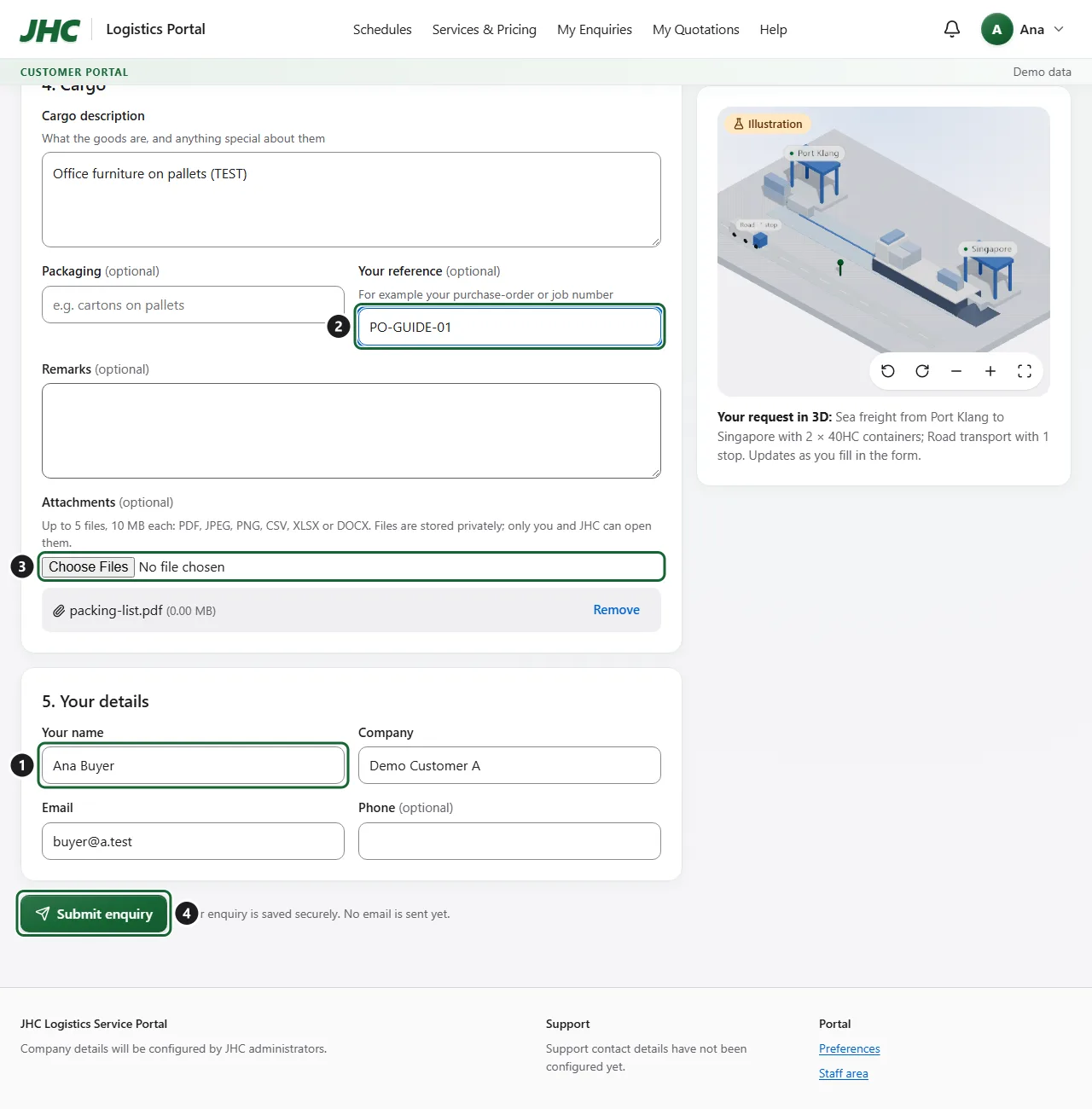
Table 16: CUS-14 rules
| Rule | Detail |
|---|---|
| File types | PDF, JPEG, PNG, XLSX, CSV, DOCX |
| Size | Up to 10 MB each, up to 5 files per enquiry |
| Checks | The portal checks each file's real content. A file whose content does not match its name is refused, for example a web page renamed ".pdf". The enquiry is then not sent until you remove it |
| Privacy | Files are stored privately. Only your company's users and JHC staff can download them |
| Not done | Virus scanning is not performed (the screen says so). Send only files you trust |
Select Attachments (callout 3), choose the files, and check the list. To remove one, select Remove next to it.
CUS-15 Use the "Describe your requirement" assistant
| Purpose | Describe your need in your own words and let the assistant fill in the form for you to check |
| Who | Signed-in customer users, only if JHC has switched it on |
| Result | Suggested values put into the ordinary form. Nothing is sent until you select Submit enquiry |
| Status | B · Built, verified only with the practice assistant (not AI). Use with a real AI model: C · Needs external access and JHC approval |
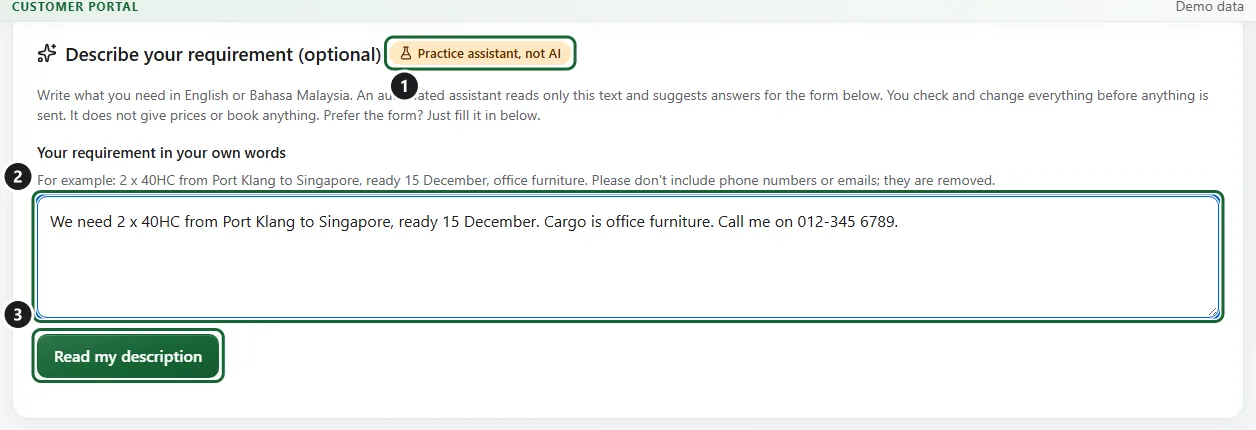
Table 17: CUS-15 steps
| Step | Screen | Action | Expected result | If not |
|---|---|---|---|---|
| 1 | Request a quotation | In Describe your requirement (optional), type your need in English or Bahasa Malaysia in Your requirement in your own words (callout 2) | Do not include passwords or bank details | |
| 2 | Select Read my description (callout 3) | Check what the assistant understood | A short message if it is off, busy or fails: just use the form | |
| 3 | Check | For each suggestion read From your words: "…". Correct the value or untick Use this | ||
| 4 | Read You will still need to fill in and any Please check notes | |||
| 5 | Optionally tick Also add my description to Remarks, then Put into the form | "Added to the form below… Nothing has been sent yet." | ||
| 6 | Form | Check every field, complete the rest, then Submit enquiry | CUS-16 |
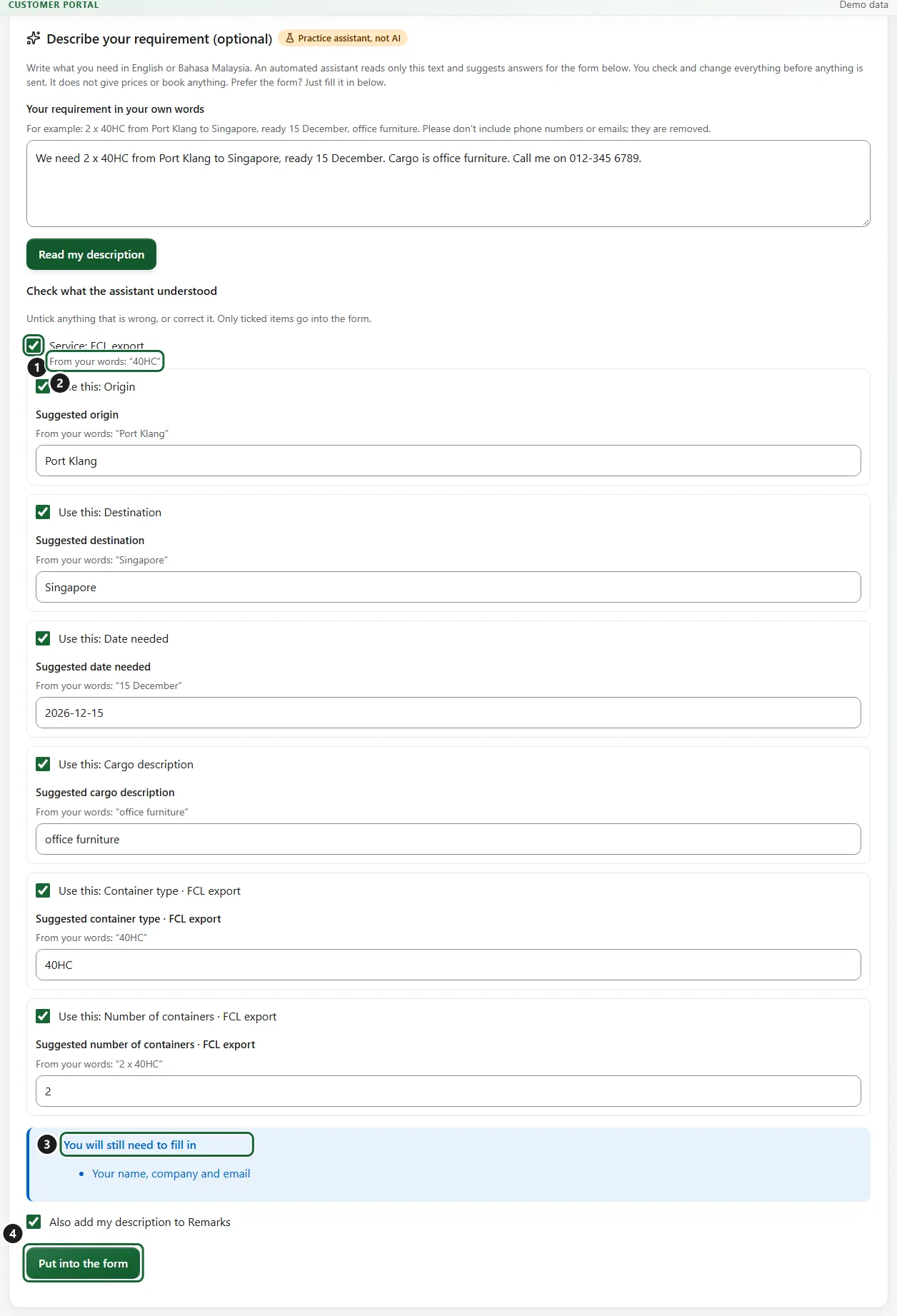
The assistant never sets prices, never adds services JHC has not published, and never uses a value it cannot find in your own words.
CUS-16 Review and submit
| Purpose | Send the enquiry and be sure it was saved |
| Result | "Enquiry received: reference" |
| Status | A · Verified |
Table 18: CUS-16 steps
| Step | Screen | Action | Expected result | If not |
|---|---|---|---|---|
| 1 | Form | Read every section once more | ||
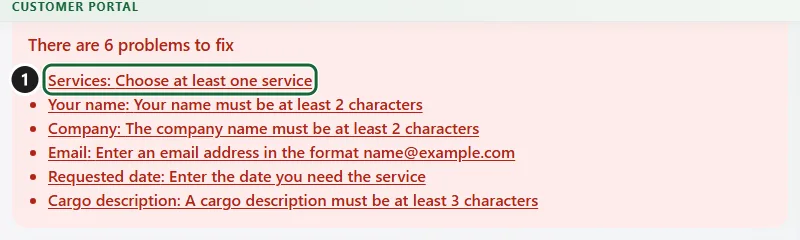
| 2 | Select Submit enquiry | Either the reference page, or a list of problems | ||
| 3 | Problems list | If "There are n problems to fix" appears, select each problem (it jumps to the field), correct it, and submit again | Nothing was saved yet | Figure below |
| 4 | Reference page | Write down the reference | "Enquiry received: TEST-ENQ-…" | Next figure |
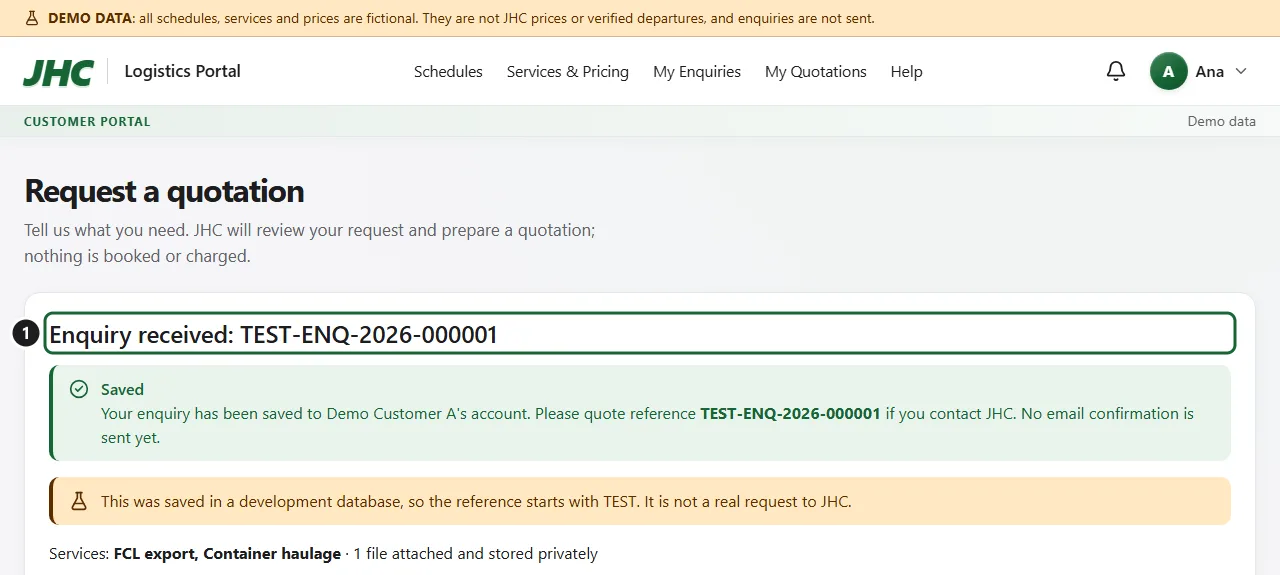
Note: Below this, and beside the enquiry form, the portal may show a 3D picture of your request marked Illustration. It is decoration only and is not needed for any step. It appears only if your browser can show 3D graphics. If it cannot, a short message appears instead and everything else works the same.
Warning: If the page was slow or you are not sure it was sent, do not submit again straight away. Signed in: open My Enquiries and look for it. Visitor: contact JHC with the time you sent it.
CUS-17 Find and track your enquiry
| Purpose | See the status and history of your company's enquiries |
| Who | Signed-in customer user |
| Status | A · Verified |
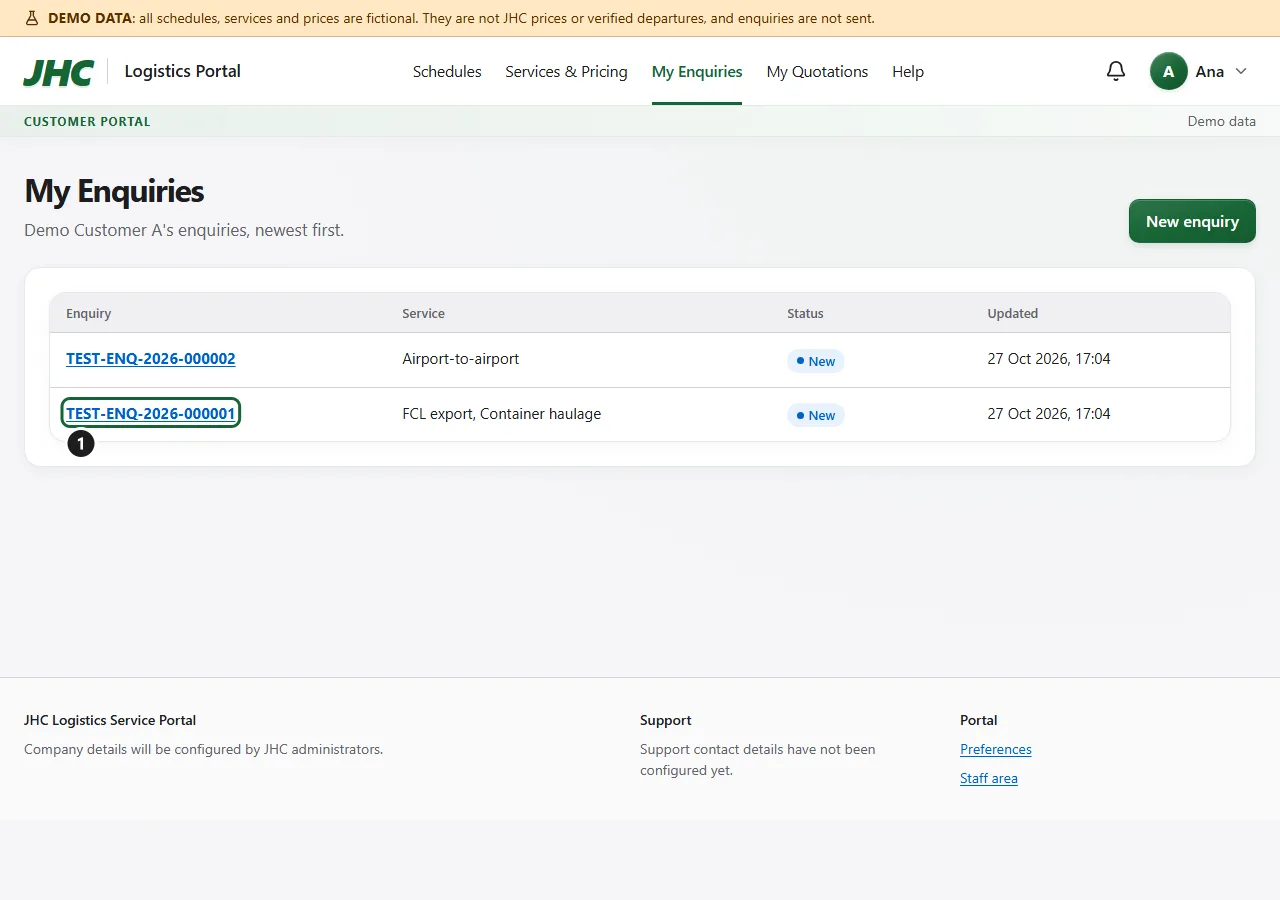
Select My Enquiries, then a reference (callout 1). The page shows the services, your files, JHC's messages and the history.
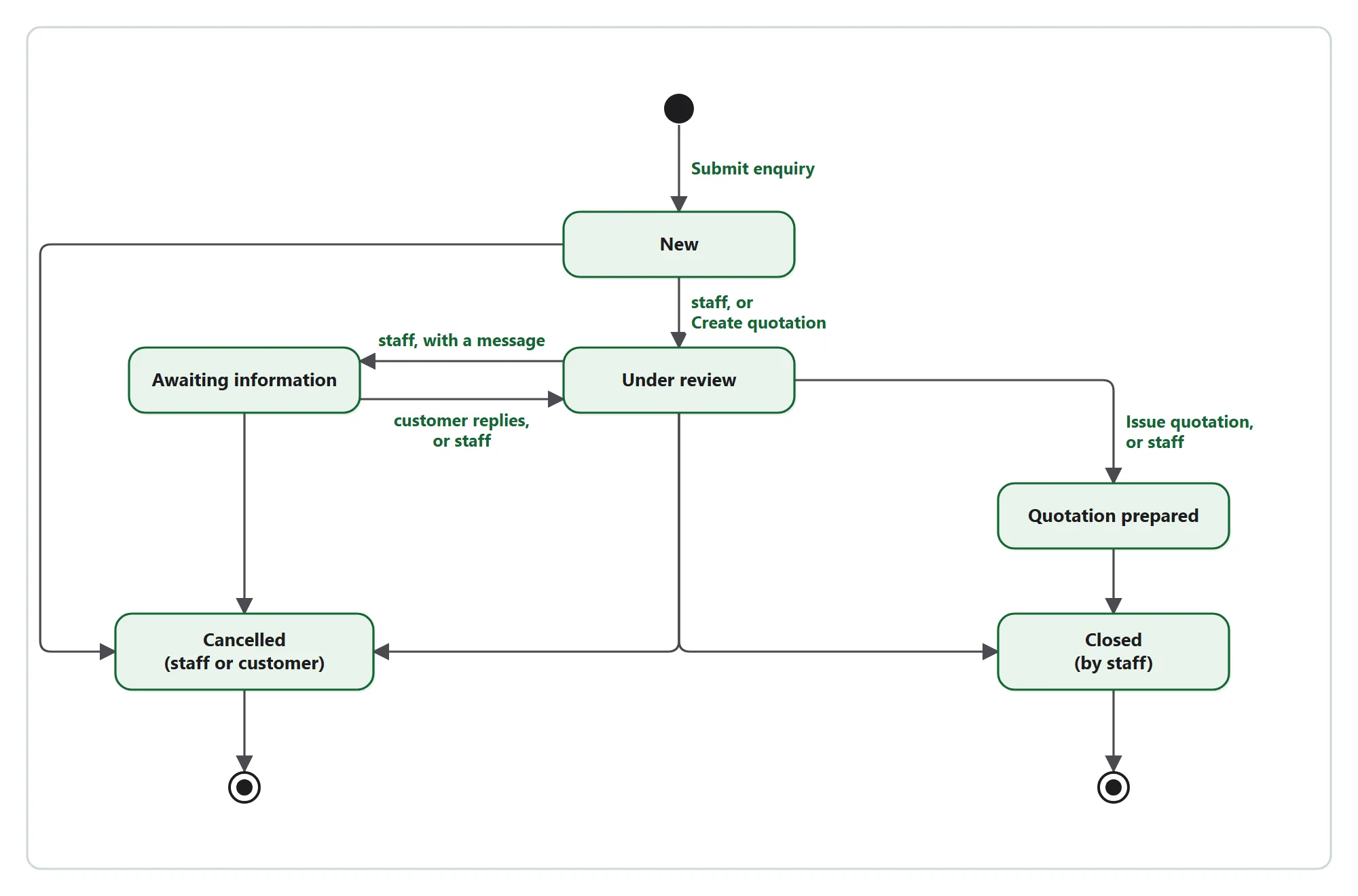
Table 19: Enquiry status as you see it
| Status | Meaning | Your action |
|---|---|---|
| New | Received; not yet reviewed | Wait |
| Under review | JHC is working on it | Wait |
| Awaiting information | JHC asked you a question | Reply (CUS-18) |
| Quotation prepared | A quotation was issued | Open it (CUS-19) |
| Closed | Finished by JHC | None |
| Cancelled | Cancelled by you or JHC | None |
Cancel an enquiry. While it is New, Under review or Awaiting information, open it, select Cancel this enquiry, enter a Reason and confirm with Cancel reference. The history records it.
CUS-18 Supply additional information
| Purpose | Answer JHC's question so the quotation can continue |
| Trigger | "Your reply is needed" on your account; status Awaiting information |
| Result | "Your reply was sent to JHC." The enquiry returns to Under review |
| Status | A · Verified |
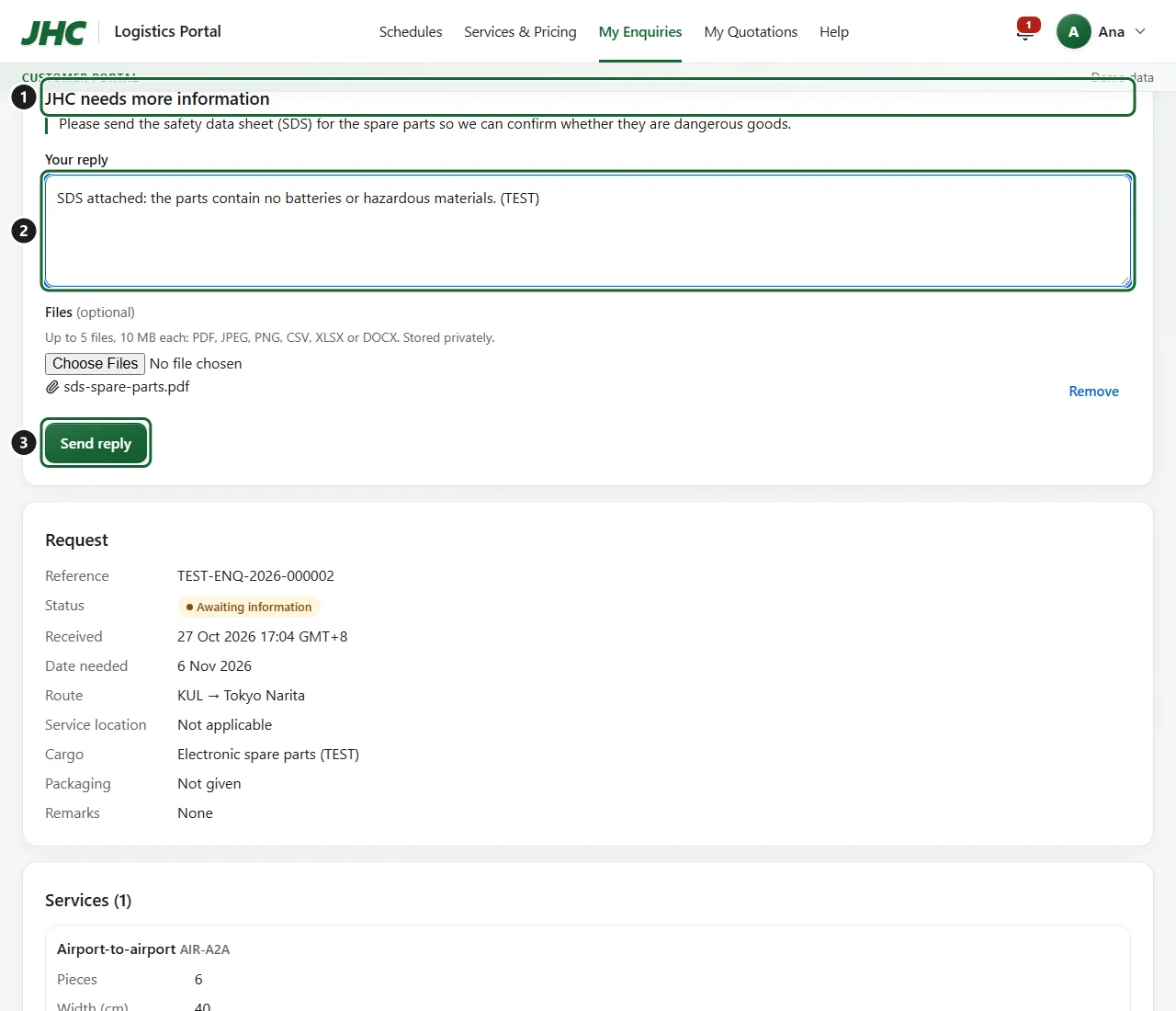
Table 20: CUS-18 steps
| Step | Screen | Action | Expected result |
|---|---|---|---|
| 1 | My Enquiries | Open the enquiry marked as needing your reply | JHC needs more information with JHC's question (callout 1) |
| 2 | Write the answer in Your reply (callout 2); add files if helpful | ||
| 3 | Select Send reply (callout 3) | "Your reply was sent to JHC." The reply and files appear in the history |
Worked example (EX-03, fictional): Ana sends an air freight enquiry, KUL → Tokyo Narita: 6 pieces, 180 kg, 60 × 40 × 40 cm. She answers Dangerous goods? with unsure. JHC asks: "Please send the safety data sheet (SDS) for the spare parts so we can confirm whether they are dangerous goods." Ana replies "SDS attached: the parts contain no batteries or hazardous materials." and attaches the SDS.
6. Quotations
CUS-19 Read and download a quotation
| Purpose | See the formal offer JHC issued |
| Who | Signed-in users of the company it was issued to |
| Result | The quotation on screen and the same PDF |
| Status | A · Verified |
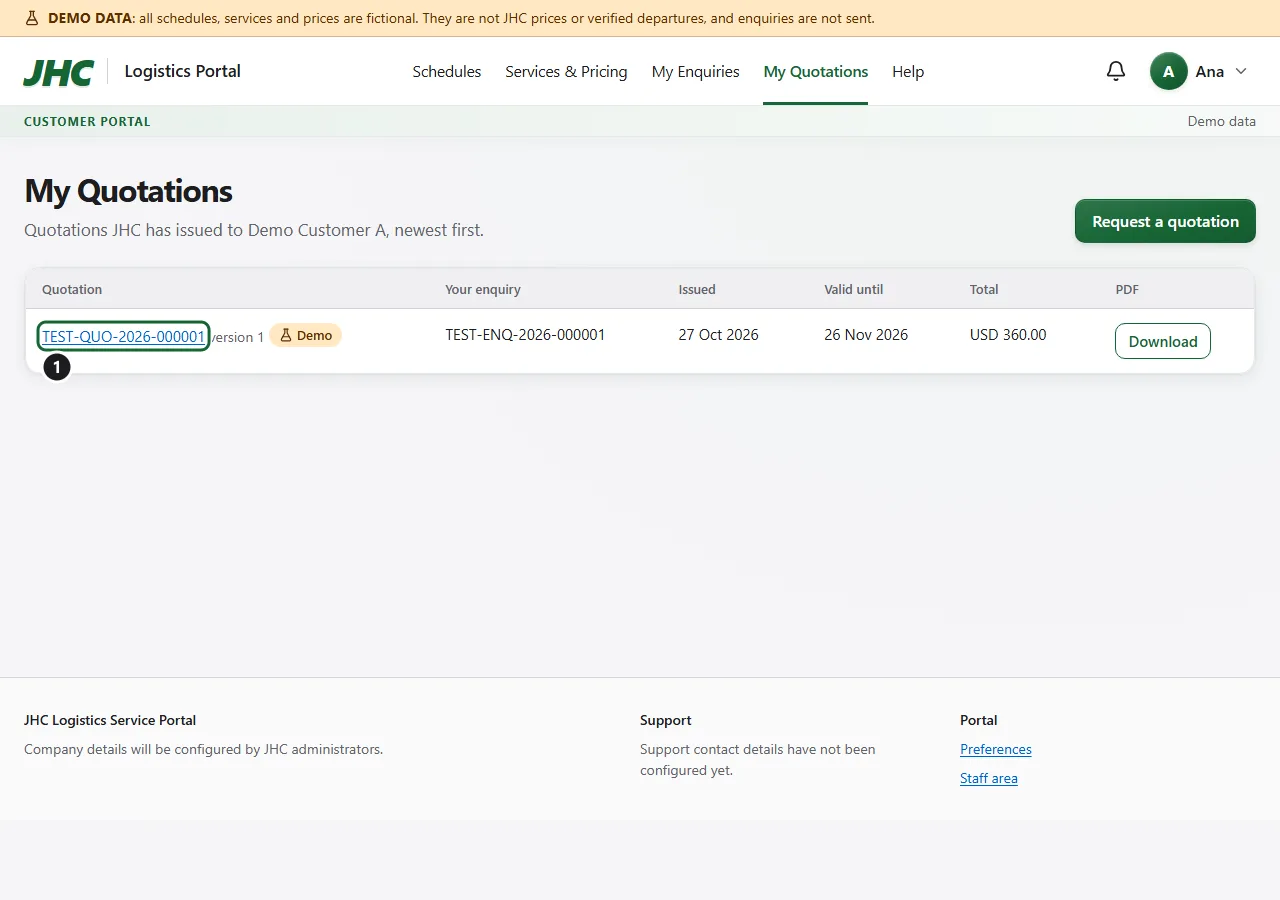
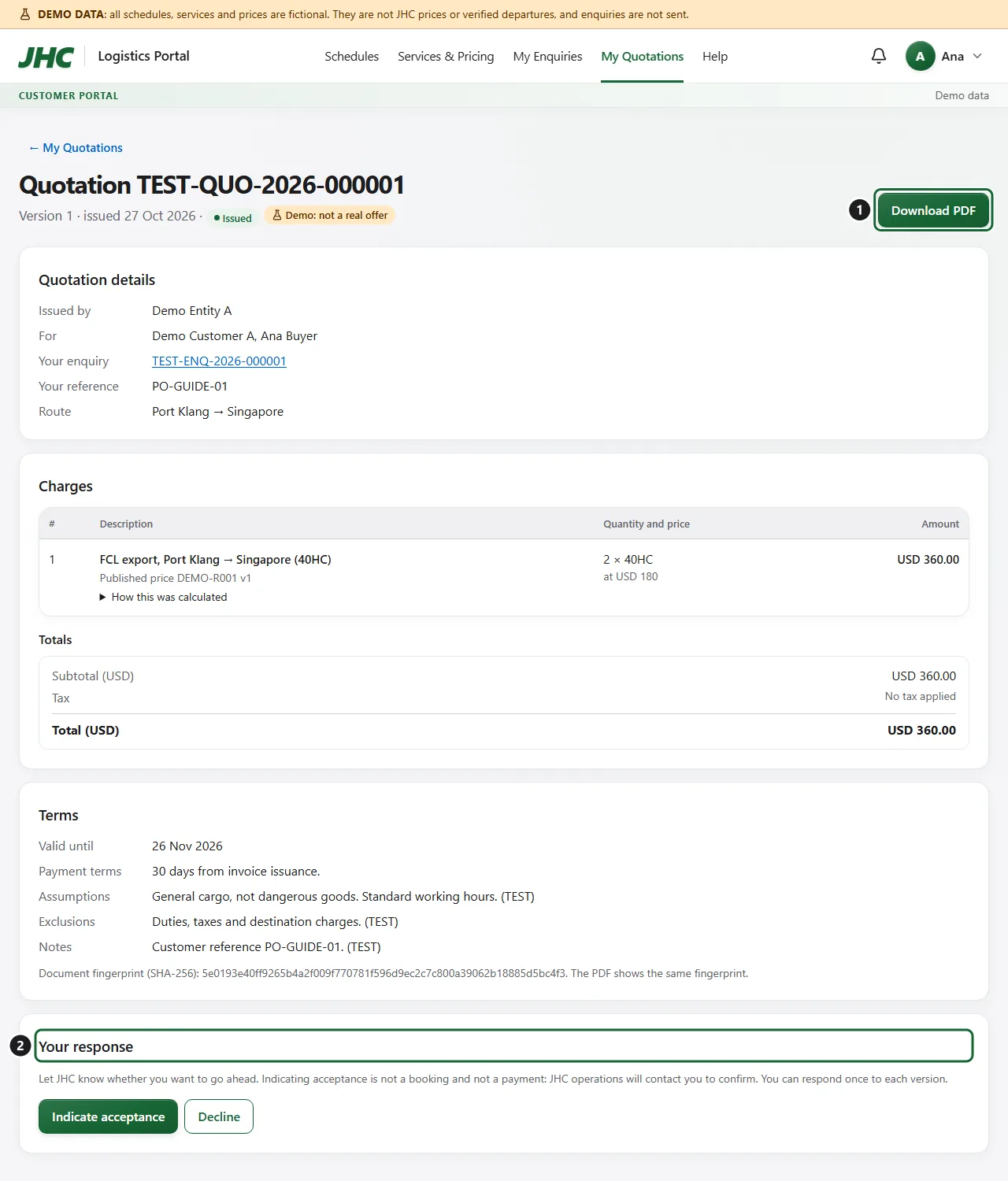
Table 21: CUS-19 steps
| Step | Screen | Action | Expected result |
|---|---|---|---|
| 1 | My Quotations | Select the quotation number | The quotation: version, validity, lines, totals per currency, terms |
| 2 | Quotation | Select Download PDF (callout 1) | The stored PDF, identical to what JHC issued |
| 3 | Check quantities, units, currencies, the Valid until date, assumptions and exclusions |
Amounts in different currencies are not added together. If a combined reference total is shown, the exchange rate, its source and date are printed.
CUS-20 Ask for a change to a quotation
| Status | D · Not available as a button. There is no "request revision" function for customers |
What to do instead: contact your JHC representative and explain the change. If you do not accept the quotation as issued, you may select Decline (CUS-21) and say why in the note. JHC can then issue a new version; the earlier version stays on record unchanged and you will see which version is current.
CUS-21 Indicate acceptance or decline
| Purpose | Tell JHC your decision on the current, valid version |
| Who | Signed-in user of the company it was issued to |
| Conditions | Only once, only on the current issued version, only while it is valid |
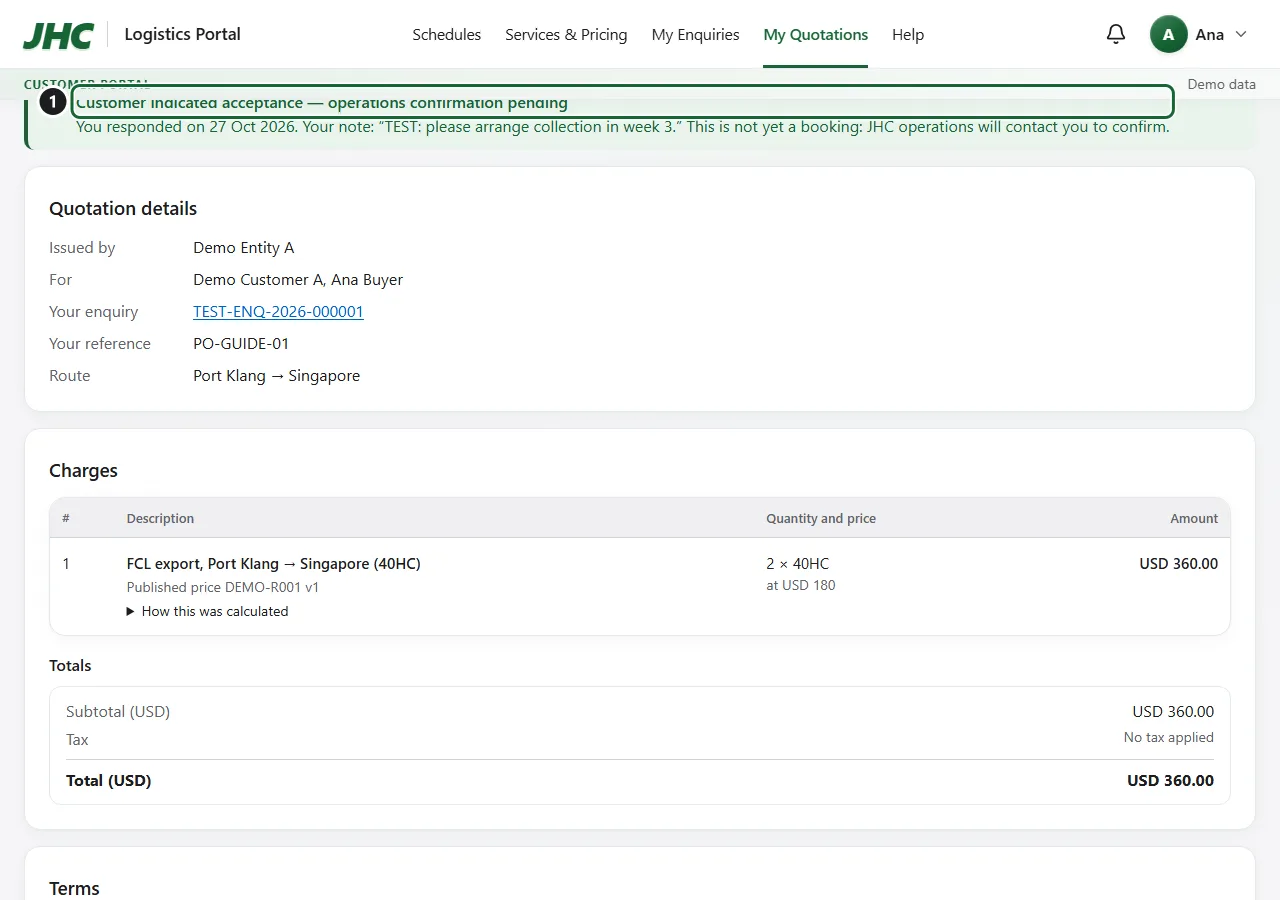
| Result | "Customer indicated acceptance — operations confirmation pending", or Declined |
| Status | A · Verified |
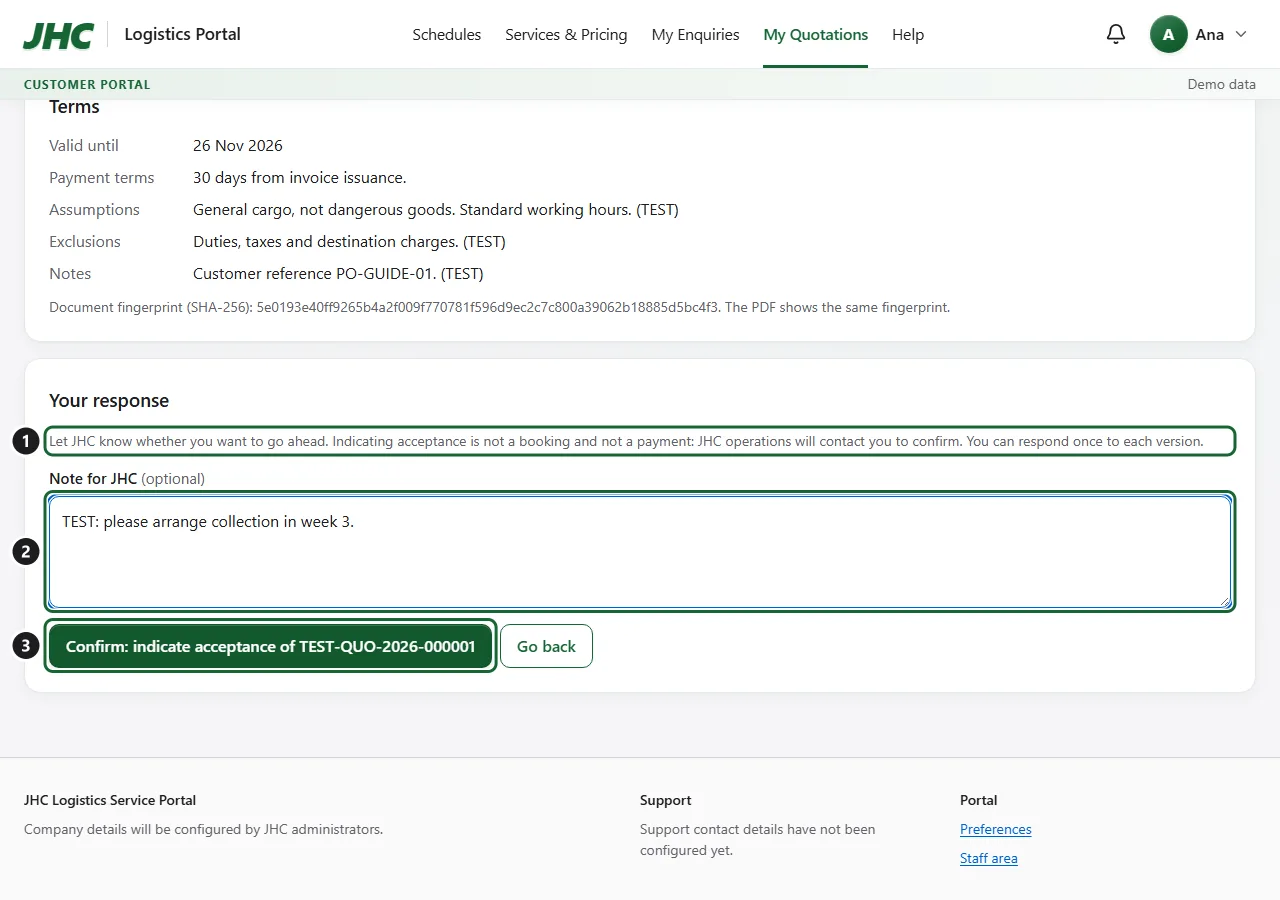
Table 22: CUS-21 steps
| Step | Screen | Action | Expected result |
|---|---|---|---|
| 1 | Quotation | Under Your response, read the notice that this is not a booking and not a payment (callout 1) | |
| 2 | Select Indicate acceptance or Decline | A confirmation step | |
| 3 | Optionally write a Note for JHC (callout 2), e.g. a collection week | ||
| 4 | Select Confirm: indicate acceptance of number (callout 3), or the decline confirmation | The response is recorded; the buttons disappear |
CUS-22 Recognise the final result and the next step
| Result on screen | What it means | Next step |
|---|---|---|
| "Customer indicated acceptance — operations confirmation pending" | JHC has your acceptance | JHC contacts you to confirm. Booking, invoicing and payment happen outside the portal |
| Declined | JHC has your decision and note | JHC may contact you or issue a new version |
| No response, validity ended | The quotation can no longer be answered in the portal | Contact JHC for a new quotation |
Status: A · Verified. The portal's process ends here.
7. Quick reference: common mistakes
Table 23: Common mistakes and how to avoid them
| Mistake | Avoid it by |
|---|---|
| Treating a schedule as confirmed space | Always enquire; JHC confirms space |
| Treating a published price as a quotation | Wait for the issued quotation |
| Submitting the same enquiry twice | Check My Enquiries first |
| Missing a JHC question | Look for "Your reply is needed" after signing in; the portal sends no email |
| Sharing a set-up link or password | Never forward them; ask JHC for your own link |
| Expecting a booking after accepting | JHC still confirms with you outside the portal |
For problems, see the Troubleshooting and Support Guide (JHC-UG-08).